113
Appendix B: Diamante Utilities
© 2012 Stenograph, L.L.C.
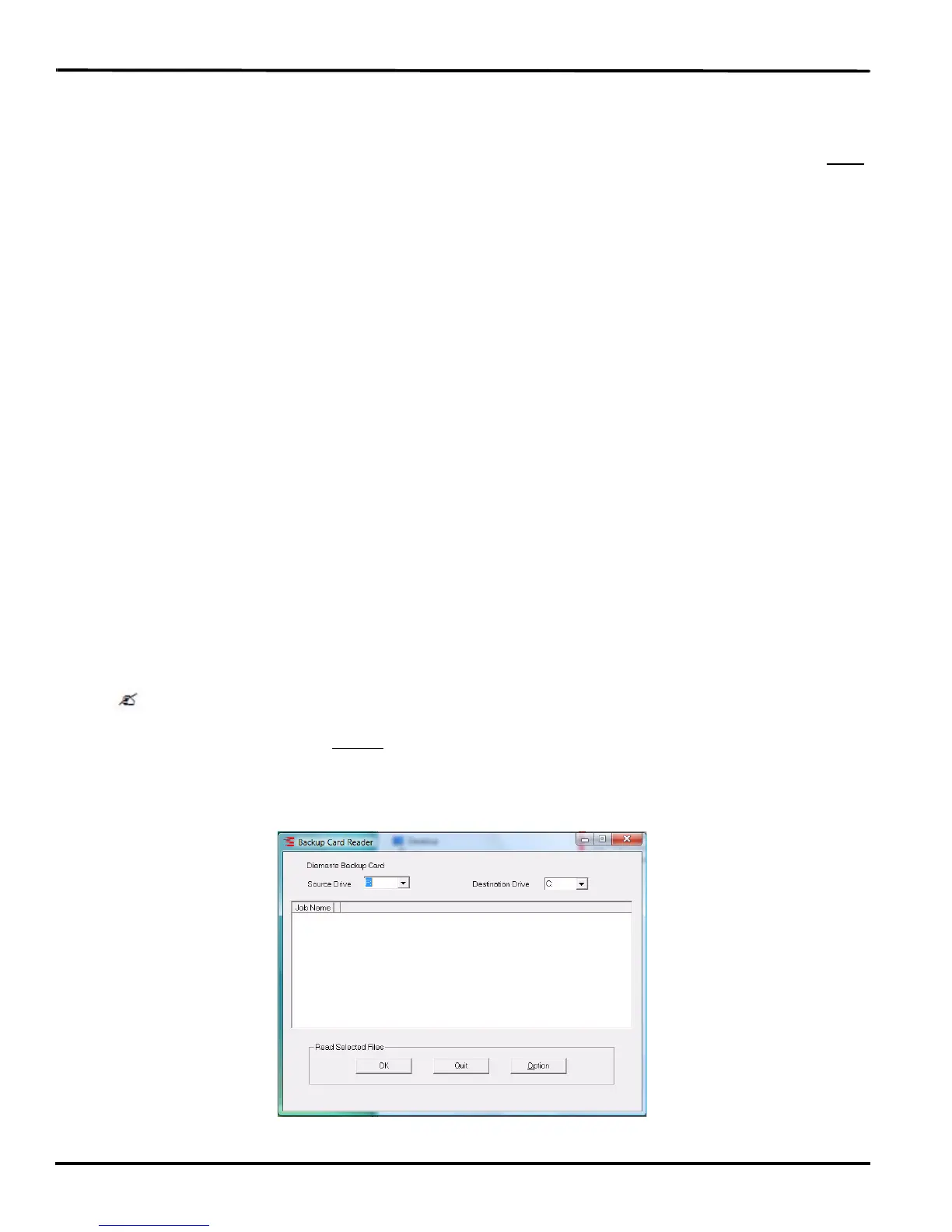
Backup SD Card Reader
The Backup SD card is not designed to be removed from the Diamante unless, in a rare occurrence, you
need to locate a job that cannot be found in memory or on the Data SD card. The Backup SD card must
be in the Diamante in order for the steno machine to operate.
On Windows 7 and Windows Vista, it is necessary to run the BackupCard Utility as Administrator. See
Troubleshooting on page 97 for additional information.
To retrieve files from the Backup SD card:
1. Turn your computer On. Ensure that it is fully booted.
2. Insert the Diamante
®
/Wave
™
Utilities and Tutorial CD into the CD-ROM/DVD drive on your
computer. If the AutoPlay dialog box displays, click Run autorun.exe.
3. The Diamante - Wave Utility dialog box displays. Click Diamante Utilities, User Guide and more.
4. The Diamante Utility dialog box displays. Click Utilities, Slash screen and more.
5. Open the Utilities folder.
6. Copy the BackupCard.exe file to the Desktop on your computer. If you created a Stenograph Utility
folder on your Desktop, copy the utility to that folder.
7. Turn the Diamante Off.
8. Remove the Backup SD card from the Diamante. Gently push the Backup SD card and then release
your finger. The card releases from the slot.
9. Insert the Backup SD card into the USB SD Flash Drive reader and insert it into an available USB
port. If the AutoPlay dialog box displays, click the X in the upper right corner.
It is necessary to read the Backup SD card using the USB SD Flash Drive reader that came with
your Diamante or another reliable USB based external SD card reader. A built-in SD card slot
reader on your computer cannot
read the Backup SD card.
10. Double click the BackupCard.exe icon on your Desktop. The Backup Card Reader dialog box
displays.



 To Next Page