Diamante User Guide
110
© 2012 Stenograph, L.L.C.
Convert RTF/CRE Dictionaries
If you are not using Case CATalyst and want to load your dictionary onto the Diamante, it is necessary to
use the RTF/CRE to Writer Dictionary Conversion program. You must copy the Rtf2Writer.exe onto your
computer; export your dictionary to RTF/CRE format; and run the conversion.
When using the Rtf2Writer Dictionary Conversion program, only one personal dictionary can be selected
and loaded onto the Diamante. You can load up to seven job dictionaries.
The RTF/CRE to Writer Dictionary Conversion program for the Diamante is only available via USB cable.
You must have the Diamante USB driver installed on your computer to use the USB cable. See Install
the Diamante USB Drivers on page 18 if you need to load the Diamante USB driver.
To convert and load a RTF/CRE dictionary onto the Diamante:
1. Turn your computer On. Ensure that it is fully booted.
2. Insert the Diamante
®
/Wave
™
Utilities and Tutorial CD into the CD-ROM/DVD drive on your
computer. If the AutoPlay dialog box displays, click Run autorun.exe.
3. The Diamante - Wave Utility dialog box displays. Click Diamante Utilities, User Guide and more.
4. The Diamante Utility dialog box displays. Click Utilities, Splash screen and more.
5. Open the Utilities folder.
6. Copy the Rtf2Writer.exe file to the Desktop on your computer. If you created a Stenograph Utility
folder on your Desktop, copy the utility to that folder.
7. Turn the Diamante On.
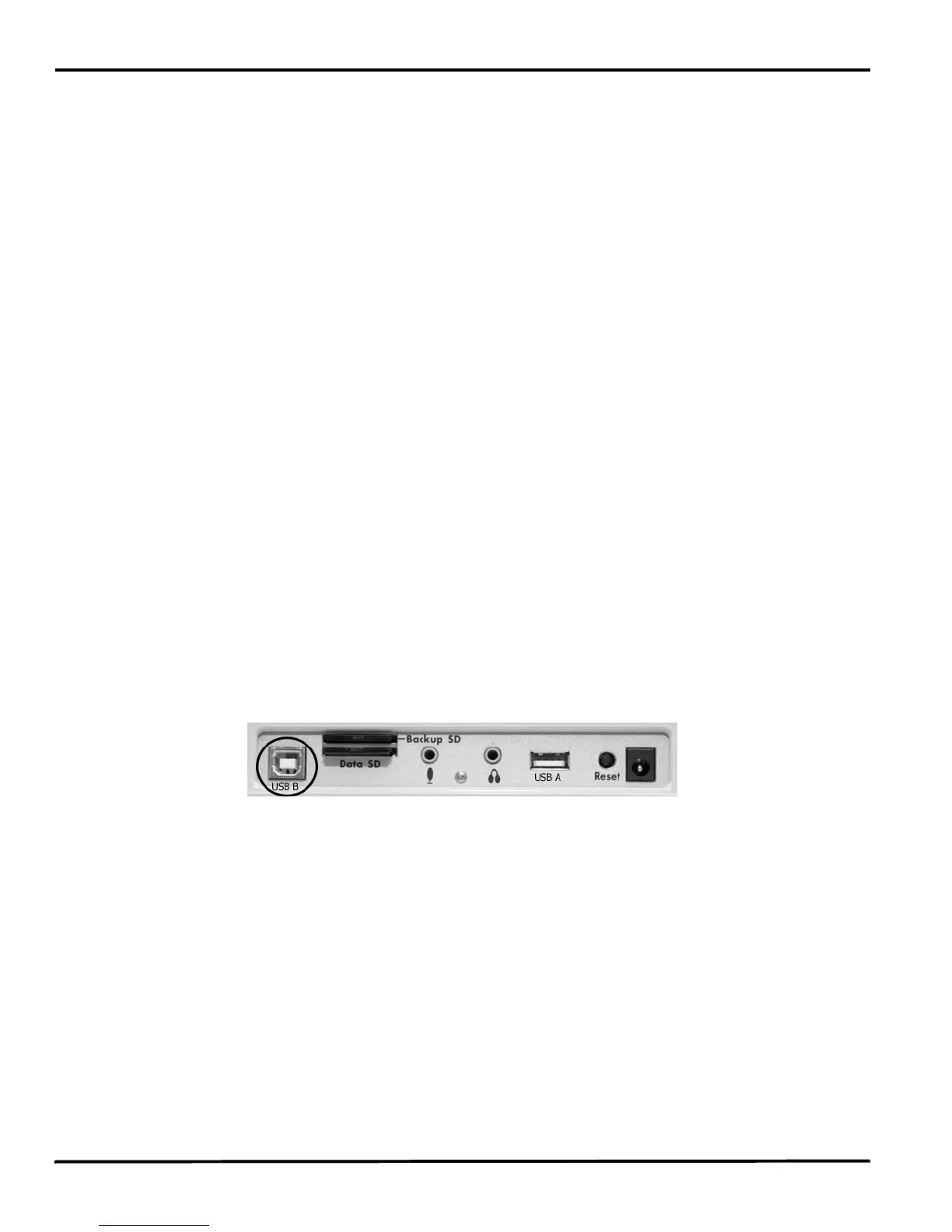
8. Locate the USB cable. Each end of the USB cable has a different connection plug. Connect the
appropriate end of the USB cable to the USB B (client) port on the back of the Diamante and a USB
port on the computer.
Diamante Back Port Panel



 To Next Page