Diamante User Guide
68
© 2012 Stenograph, L.L.C.
Job Statistics
Job statistics displays data for each job that includes the job size in bytes, the number of estimated
pages, audio use, whether or not there is a job dictionary associated with the file and strokes per minute
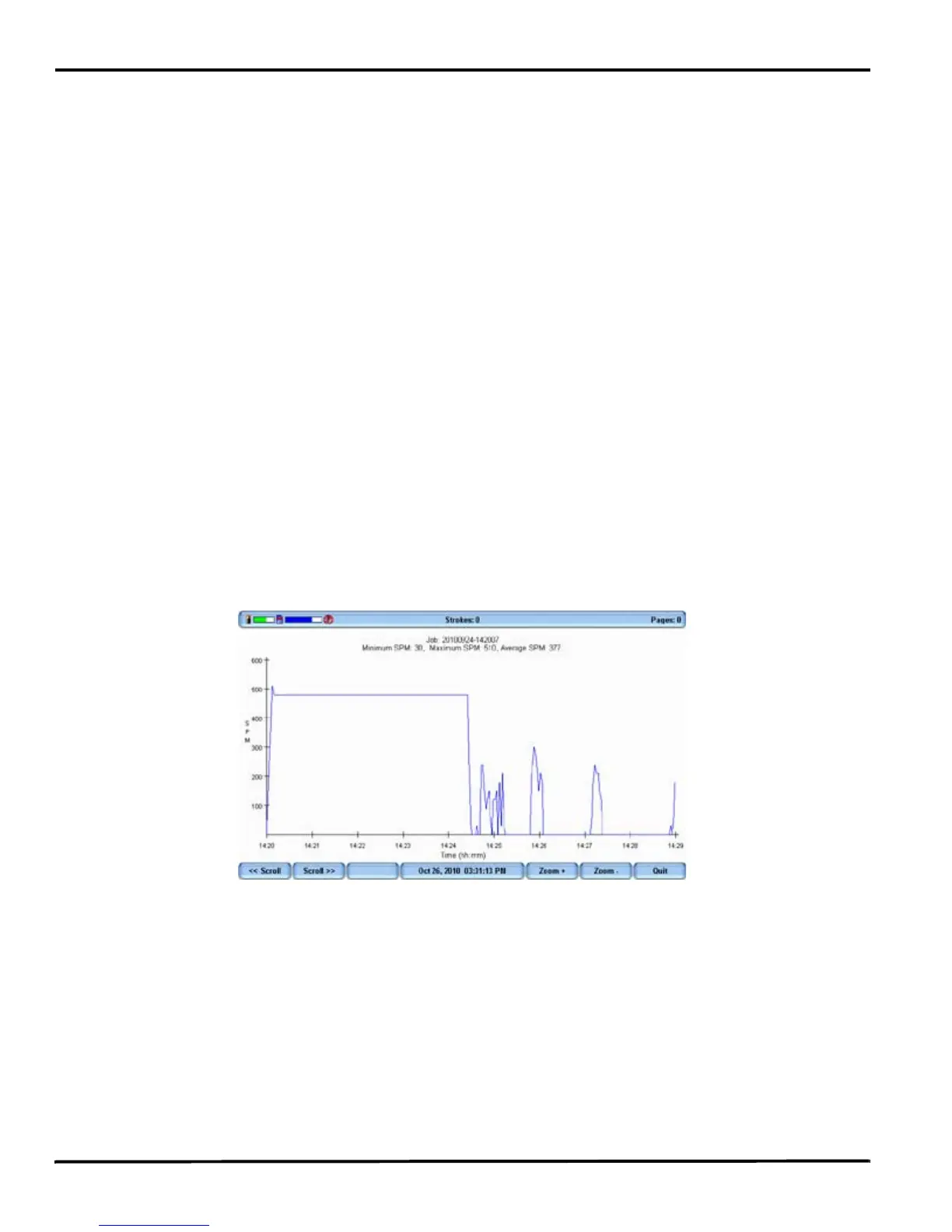
information. Strokes per minute, SPM, information displays on a separate screen in numeric and graphic
format. The numeric information includes the minimum, maximum and average strokes per minute for
the selected job. The graph shows the varying speed of strokes throughout the job. The strokes per
minute graph is only visible in Job Statistics when the job is closed.
When the Display Strokes Per Minute option is active, the Title bar and Status screen display strokes per
minute (SPM) data. While writing, the Title bar shows the approximate number of SPM and the Status
screen shows SPM data for the current job. When no job is active, the Status screen shows strokes per
minute data for the most recent job. See Display Set Strokes Per Minute (SPM) on page 58
View Job Statistics
1. From the Opening menu, press More, Job Stats.
2. Steno note folders display by year and month with the newest folder first. Use Date Sort to toggle
folders between ascending and descending order.
3. Press the Up and Down buttons to move to the desired folder and press Folder to view job file data
contained in the folder.
4. To view strokes per minute and the graph for a specific job, press the Up and Down buttons to move
to the desired file and press Select. The Job Statistics graph displays.
5. Use the options as necessary:
• Scroll—Use the Scroll buttons to move graph detail horizontally on the screen.
• Zoom—Use the Zoom buttons to examine details of the graph in closer context or in a more
distant overview.
6. Press Quit to return to the Second Setup screen.
7. Do one of the following:
• View job statistics for another file, press Job Stats.
• Return to the Opening menu, press More.



 To Next Page