®
®
stingersolutions.com
stingersolutions.com
26
27
SETTINGS
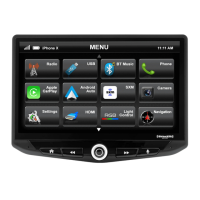
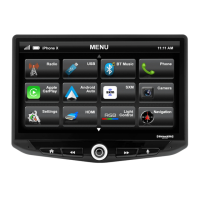
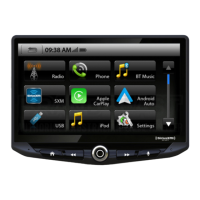
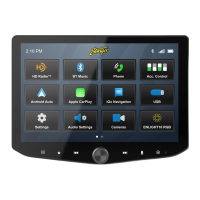
Press the HOME BUTTON > Settings to access the IX210 Head Unit Settings.
1. SYSTEM OPTIONS
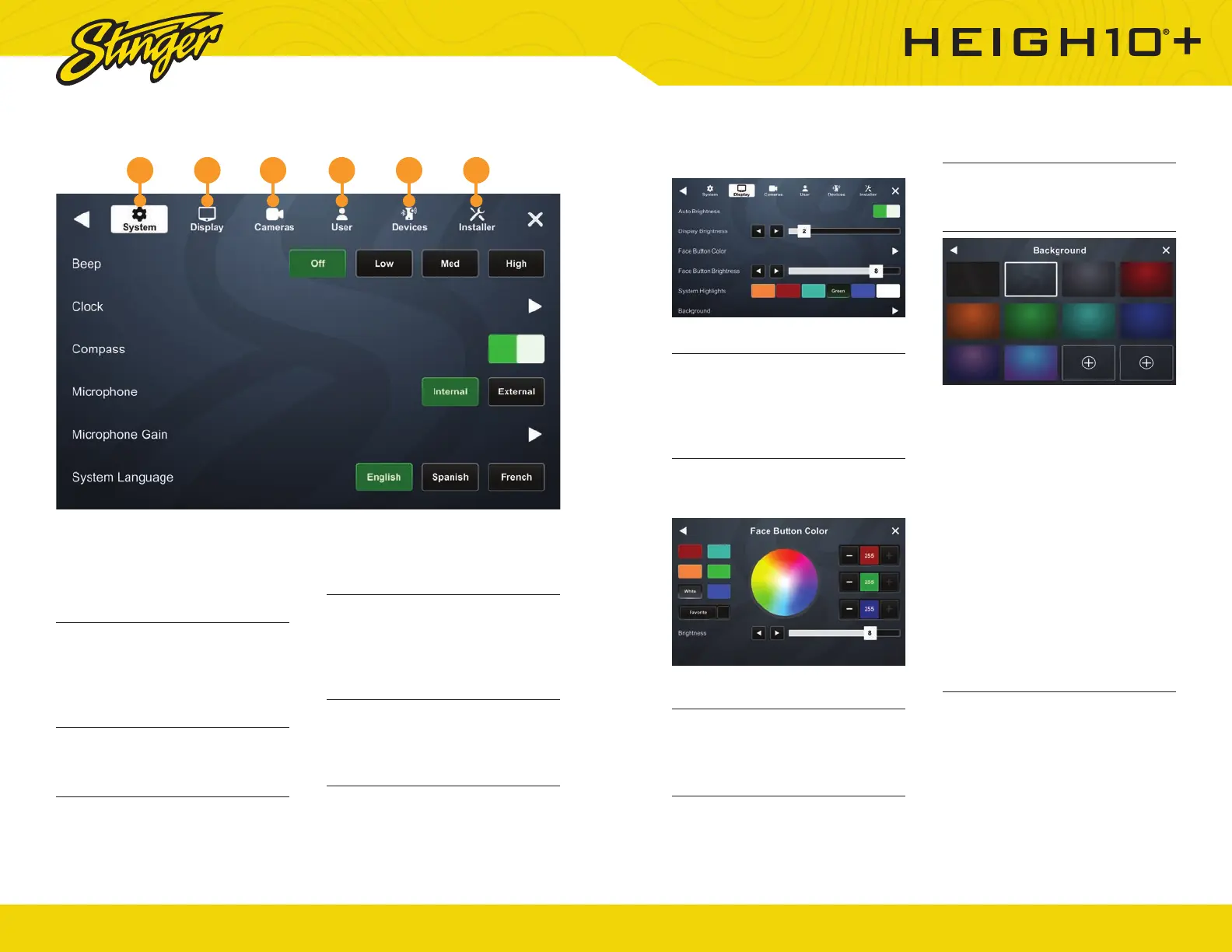
Beep
Your IX210 Head Unit plays a
feedback sound when you touch
the unit. This controls feedback
sound volume.
Clock
Change GPS Time Zone and Time
Display Format (12/24 HR).
Compass
Toggle Compass display on/off.
Microphone
Set control to external if an external
microphone is installed. Set to
Internal to use the microphone
located on the front of the display.
Microphone Gain
Adjusts the volume (sensitivity)
of the microphone when using
hands-free phone.
System Language
Change display language (English/
Spanish/French).
1 2 3 4 5 6
2. DISPLAY OPTIONS
Auto Brightness
Your IX210 unit can adjust brightness
to suit external conditions. Toggle
on/off. Only works if illumination
wire is connected.
Display Brightness
Adjust overall display brightness
with arrows or the slider control.
Face Button Color
Select the face button color you
like and hold “Favorite” to save that
color.
Face Button Brightness
Adjust face button brightness with
arrows or the slider control.
System Highlights
Change the highlight colors for
active buttons & system controls.
Background
You can select from one of ten
available backgrounds or upload
one of your own.
Make sure a thumb drive with a
compatible image (1280 x 800 Jpg/
Png) is inserted into an available
USB port.
Tap one of the available + Buttons
and a pop up menu showing
available images will appear.
Select the desired background
and tap ADD
3. CAMERAS
Camera Setup
Your IX210 Head Unit supports up
to four cameras, each with their
own trigger.
Your Head Unit comes with a
preset reverse camera slot, and
three more customizable slots
that are activated in the Cameras



 To Next Page