®
®
stingersolutions.com
stingersolutions.com
42
43
Selecting Factory EQ from the
Audio Menu Bar will access factory
equalizer presets for different
music types.
When a Factory EQ preset is
selected, it can be fi ne-tuned using
the Equalizer and then re-saved as
a User Preset.
Defeat [ON/OFF]
When set to ON, will defeat/
disable all equalizer, crossover,
and speaker settings. This is useful
when connecting to a Digital Signal
Processor (DSP) When defeat is on,
other audio settings will be
Source Gain Settings
Make gain/volume adjustments
for individual sources. For example,
if AM/FM is much louder than BT
Music, lower AM/FM and/or raise
BT Music to even out volume levels.
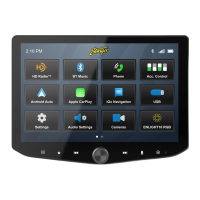
Press the HOME BUTTON > Audio Settings > Factory EQ to select Factory
EQ Audio Settings.
Press the HOME BUTTON > Audio Settings > Factory EQ to select Advanced
Audio Settings.
FACTORY EQ AUDIO SETTINGS
ADVANCED AUDIO SETTINGS
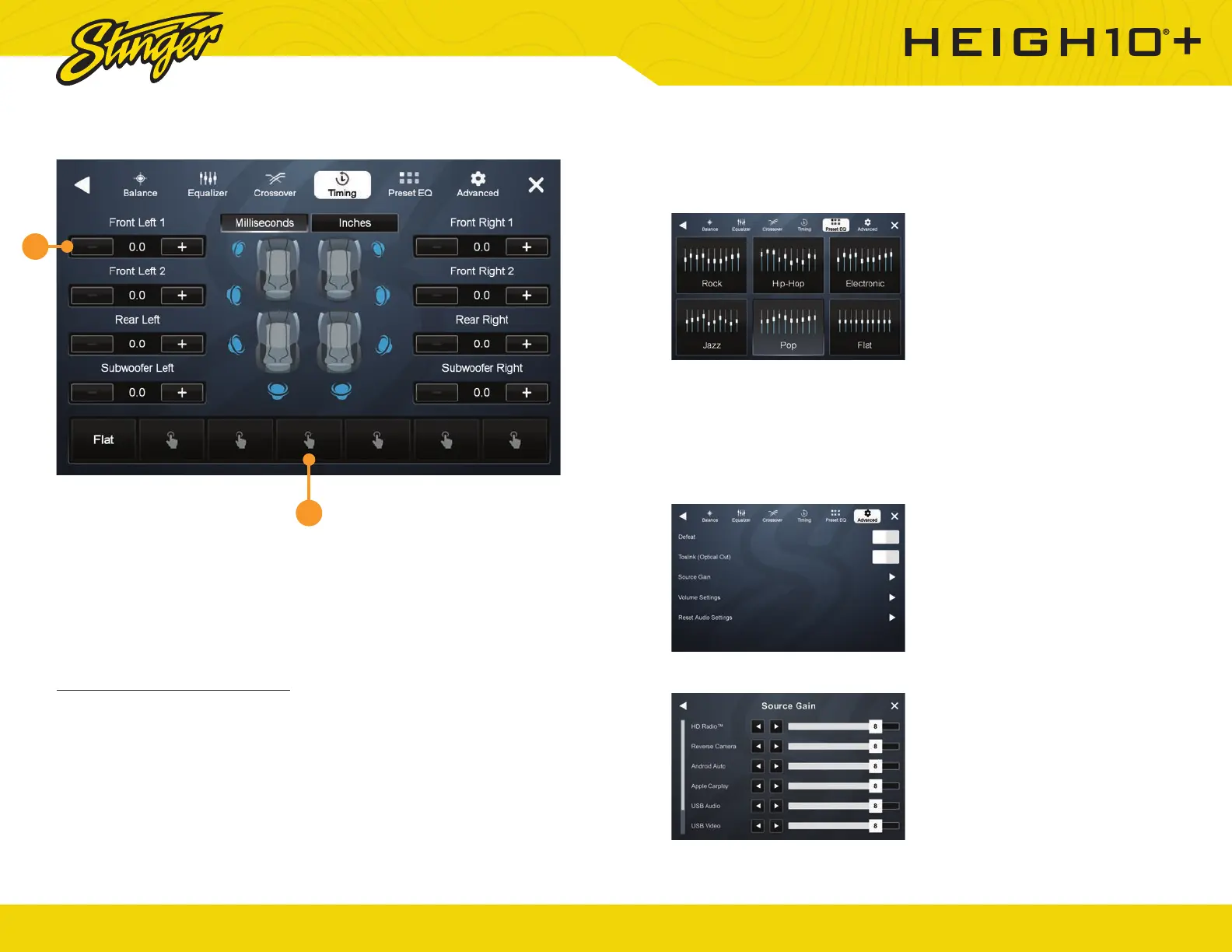
1. Programmable Presets
2. -/+ Distance Controls
Time Correction Instructions
Time Correction compensates for
the uneven distances between the
speakers and a listeners ears.
Time Correction delays signals
from the closest speaker(s), so
that all the sound arrives at the
listening position at the same time,
giving the listener a more accurate,
lifelike stereo image.
To set Time Correction, select a
listening position, for example the
drivers seat headrest.
Measure from each speaker to the
listening position (be sure to mark
those measurements down!).
Set Units to Inches and input
recorded distances for each
speaker using the +/- buttons.
Press the HOME BUTTON > Audio Settings > Timing to select the Timing
Audio Settings
1
2
TIMING AUDIO SETTINGS



 To Next Page