®
®
stingersolutions.com
stingersolutions.com
12
13
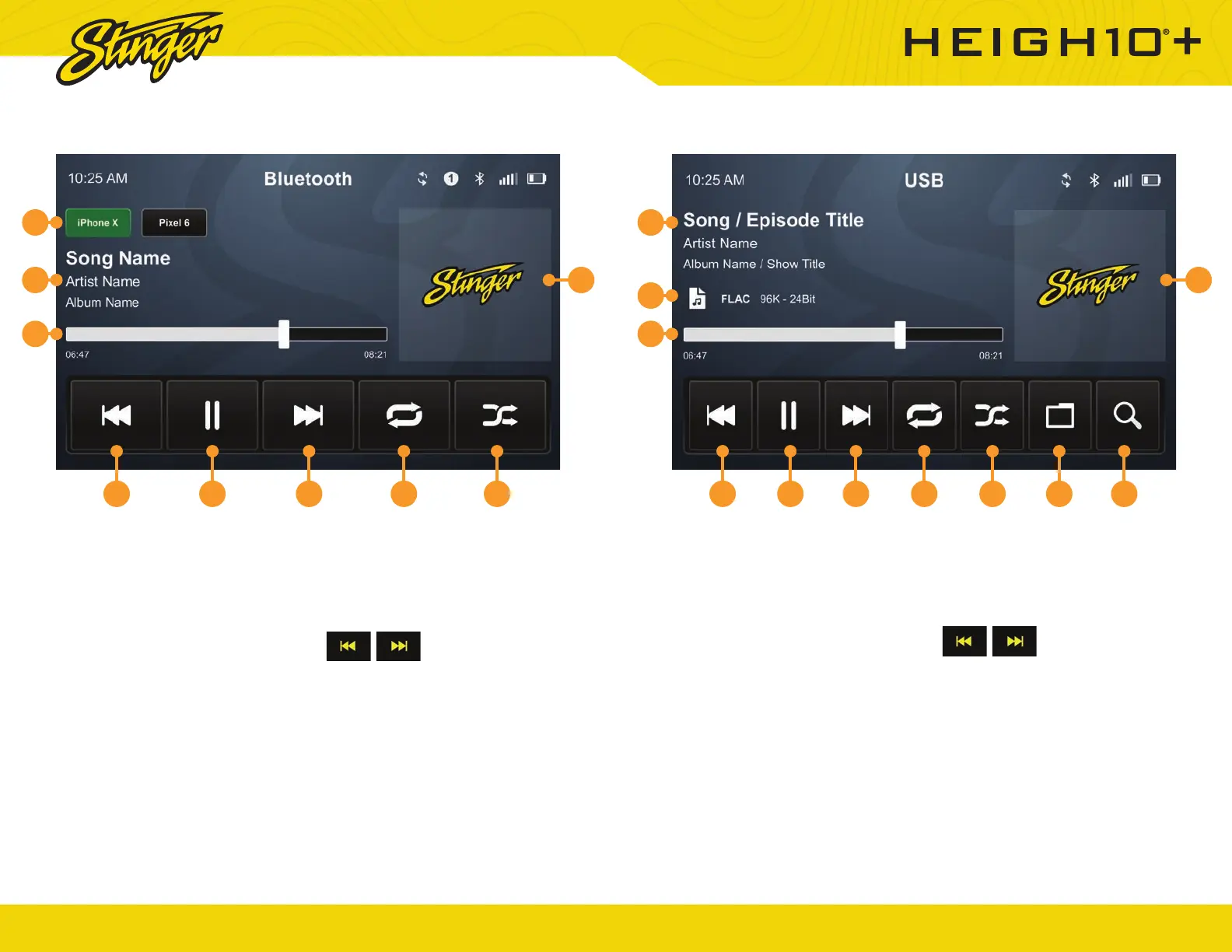
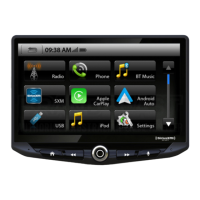
Press the HOME BUTTON > BT Music to select the Bluetooth Music source.
1. Playback Progress Indicator
Shows progress in current track.
2. Song / Program Information
Displays information for the current
track.
3. Phone Selector Area
If multiple compatible devices
are connected, you can switch
between them by tapping the
button with the desired device’s
name.
4. Album / Program Art
5. Previous Track/Program
Touch once to restart current track,
touch twice for previous track.
6. Play/Pause
Touch to play or pause audio
playback.
7. Next Track/Program
Touch to advance to the next track
or program.
8. Toggle Replay Modes
9. Toggle Randomize Modes
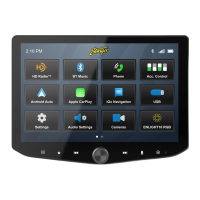
Press the HOME BUTTON > USB Media to select the USB Media source.
1. Playback Progress Indicator
Shows progress in current file,
touch anywhere on the bar to
immediately navigate to that
segment of the fi le.
2. File Quality Information
3. Song / Program Information
4. Album / Program Art
5. Previous File
Touch to play the previous fi le that
is the same media type.
6. Play/Pause
Touch to play or pause playback
7. Next File
Touch to playback to the next fi le
that is the same media type.
8. Toggle Randomize Modes
9. Toggle Replay Modes
10. File Browser
From the USB Root Menu you can
browse Audio, Video, and Image
fi l e s .
Touch to select a fi le to view/play.
11. Search for File
BLUETOOTH MUSIC USB MEDIA
5 56 67 78 8 99 10 11
1 1
2
2
4 4
3 3
While BT Media is active, face
buttons operate this way.
While USB is active, face
buttons operate this way.



 To Next Page