®
®
stingersolutions.com
stingersolutions.com
44
45
General
Black Screen w. Audio
Touch the screen anywhere as it
may have been turned off, see
page 28.
Ensure the cables on the back of
the screen are fully locked into
place and also properly connected
at the back of the radio module.
Check for damaged/kinked cables.
Bluetooth
Device will not Pair
Ensure Bluetooth is turned ON
in your device settings. Delete
all unused devices. Delete any
“Stinger” device. Restart/Reboot
device and try pairing again.
(Page: 10).
Music Volume is low
• Turn up volume on device
• Turn up volume on head unit.
• Turn up Phone Volume (Page:
43).
Phone Volume is low
• Turn up volume on device.
• Turn up volume on head unit.
•
Turn up BT Volume Gain
(Page: 43).
•
Turn up Microphone Gain
(Page: 22).
Cameras
Rear Camera not displaying in
reverse
•
Make sure rear camera trigger
is ON (Page: 31)
•
If display is showing NO SIGNAL
in reverse, ensure camera RCA
is plugged into the correct RCA
input (CAMERA IN).
•
Confi rm camera has power
and ground.
•
Confirm camera trigger is
receiving positve 12V.
Installed Camera not showing
Video
•
Make sure the correct video
format (NTSC, PAL, etc.) is
selected.
User Note: Backgrounds
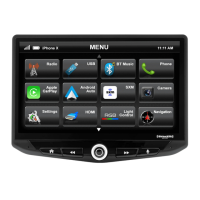
Your HEIGH10+ head unit utilizes a
Liquid Crystal Display (LCD) panel to
display clear, crisp images in a variety
of lighting conditions.
Your HEIGH10+ unit is optimized to
provide the highest quality image in
a variety of use cases, but you should
be aware that certain contrast ratios
and backgrounds can cause temporary
image retention.
When customizing your background,
avoid images that include high contrast
static patterns; these images can cause
temporary image retention in LCD
panels through repeated use.
Retained images should vanish within
10-40 minutes of normal operation. If
you see from your custom background,
TROUBLESHOOTING
RESET BUTTON
Volume Settings
Selecting Volume Settings from
the Advanced Audio Settings
will access the following Volume
settings:
Start Volume, Bluetooth, Navigation
and Siri Voice
Reset Audio Settings
Selecting this will reset all of your
audio settings after you confi rm
your selection. This action cannot
be undone.
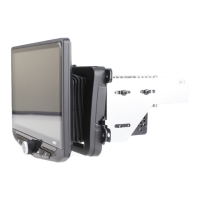
Reset Button
The Reset Button is located on
the lower right hand corner of the
display.
To reset the unit, make sure it’s on,
use a paper clip or similar to push
the reset button for 2 seconds and
release.
The reset will take a few minutes,
do not disconnect power during
this time.



 To Next Page