®
®
stingersolutions.com
stingersolutions.com
6
7
GET CONNECTED
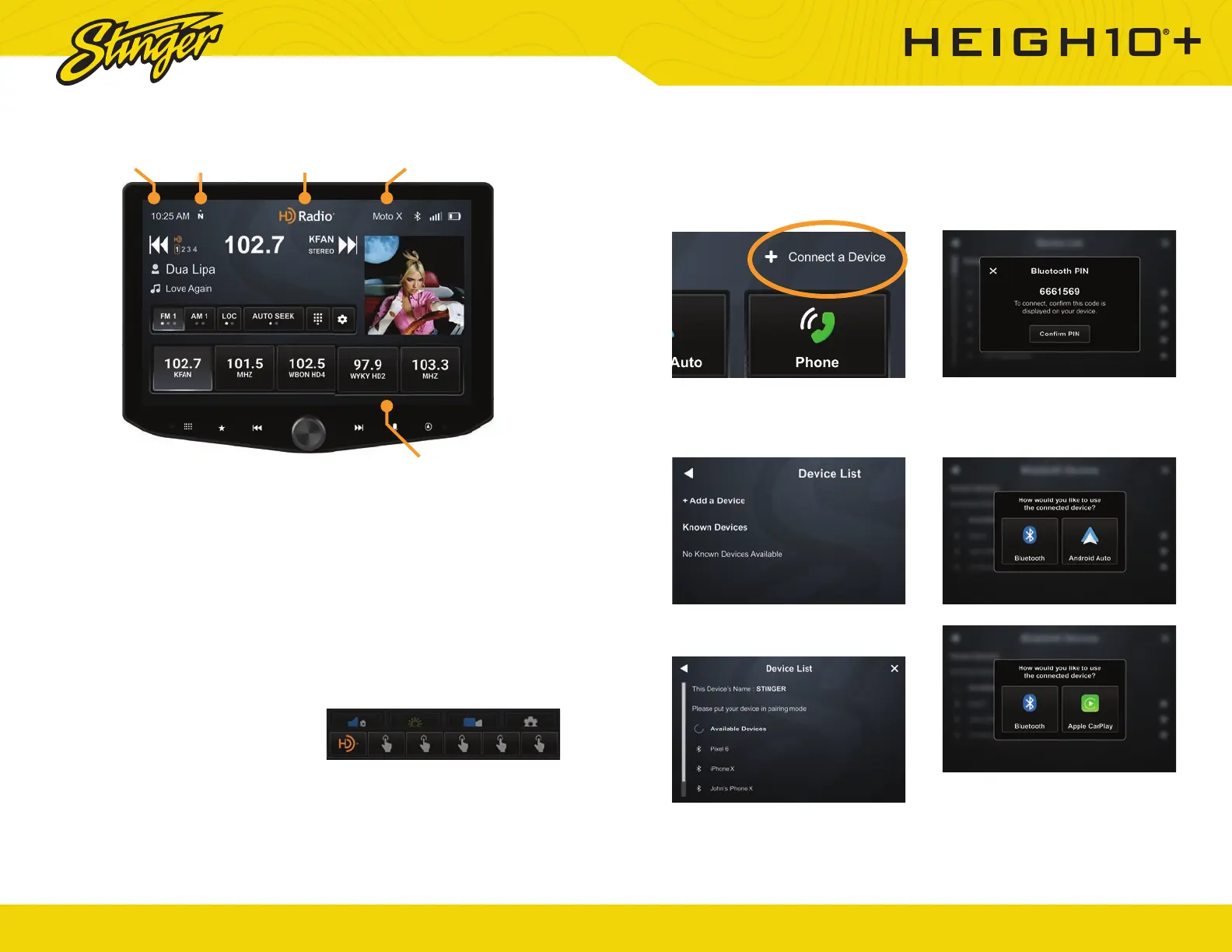
1. Tap +Connect a Device at the
top of the screen or plug your
device in.
2. Make sure your device is in
pairing mode and tap +Add a
Device.
3. Select your device from the list.
If your device does not appear in the
device list, confi rm it is discoverable
and tap Available Devices to rescan.
4. Confi rm PIN Code on the head
unit screen and the device.
5. Select the connection type
you want to use with your device
(bluetooth / phone projection).
If you choose phone projection,
your phone projection application
will launch automatically.
GETTING STARTED
POWER UP!
With vehicle ignition in the ON or ACC
position, Press and Hold the knob for
2 seconds put your HEIGH10+ to sleep;
press once to wake.
The source will automatically default
to the last source used prior to putting
your HEIGH10+ to sleep.
You can adjust the audio volume at
start-up in Audio Settings on page
44.
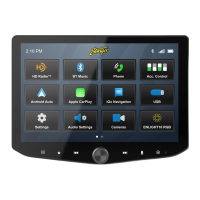
The Information Bar is located at
the top of the screen. Depending
on the SOURCE, it will provide
information or content sensitive
controls. Also, displays time, phone
info and may contain BACK ARROW
and EXIT buttons.
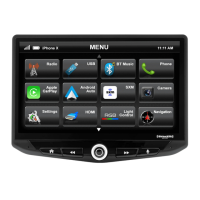
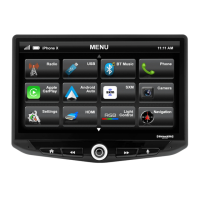
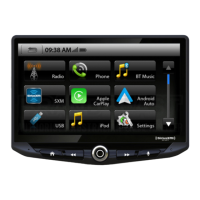
To select a SOURCE, press the
HOME button. Sources that are not
currently available are grayed out.
Customizable Quick Access Tabs
can be accessed from any audio
source by swiping up from the
bottom of the screen. Tabs give direct
access to sources, settings, and
even head unit functions and can
be customized in Settings > Users >
Quick Access Tabs on page 33.
Tap a Quick Access Tab item to
launch it immediately. Unavailable
options are dimmed. Once opened,
Tabs will auto close after 5 seconds
Clock Compass
Source / Info Connected Devices
Swipe up to access Quick Tabs



 To Next Page