®
®
stingersolutions.com
stingersolutions.com
28
29
with a variety of Sources, Settings,
and Functions.
1. Select the desired source or
function.
2. Tap BACK or EXIT to save your
selection.
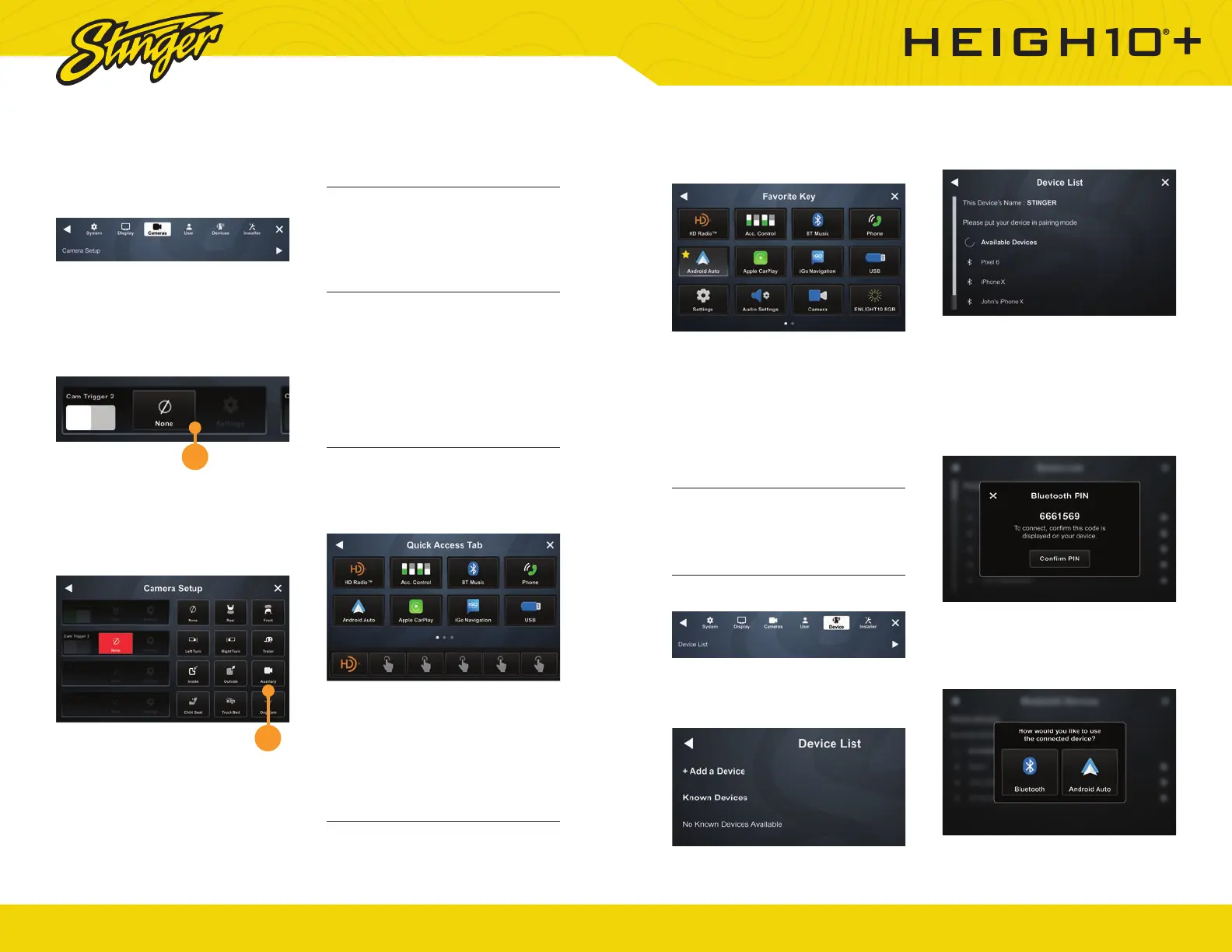
5. DEVICES
Device List
Your IX210 can store multiple
phones and even connect to
multiple bluetooth devices at once.
Add a New Device
1. Tap Device List
2. Make sure your device is in
pairing mode and tap +Add a
Device.
3. Select your device from the list.
If your device does not appear
in the device list, confirm it is
discoverable and tap Available
Devices to rescan.
4. Confi rm PIN Code on the head
unit screen and the device.
5. Select the connection type you
want to use (bluetooth / phone
projection).
application once they are labeled
and their video format set up.
1. Tap Camera Setup
2. Tap a Trigger’s Label Button
Once you tap the label button it will
turn red and you’ll have around 5
seconds to choose a label.
3. Assign Label
Once you assign a label, that
camera’s trigger and settings will
be active.
Reverse Camera Audio
When set to ON and a microphone
is connected, back up camera
audio will be heard through the
vehicle’s speakers.
Mute Audio In Reverse
When set to ON the system will
mute source audio playback while
in reverse: camera audio still plays.
Switch to Front Camera after
Reverse
When set to ON the front camera
will turn on after shifting from
Reverse gear and remain On until
the speed reaches above 5MPH or
the display is touched.
4. USER
Quick Access Tab
The Quick Access Tab is
customizable and can be
configured to include favorite
sources, settings, or functions.
1. Select a tab position from the
bottom row.
2. Select the desired source or
setting from the options on the
top rows.
Favorite Key
You can program your favorite key
2
3



 To Next Page