®
®
stingersolutions.com
stingersolutions.com
40
41
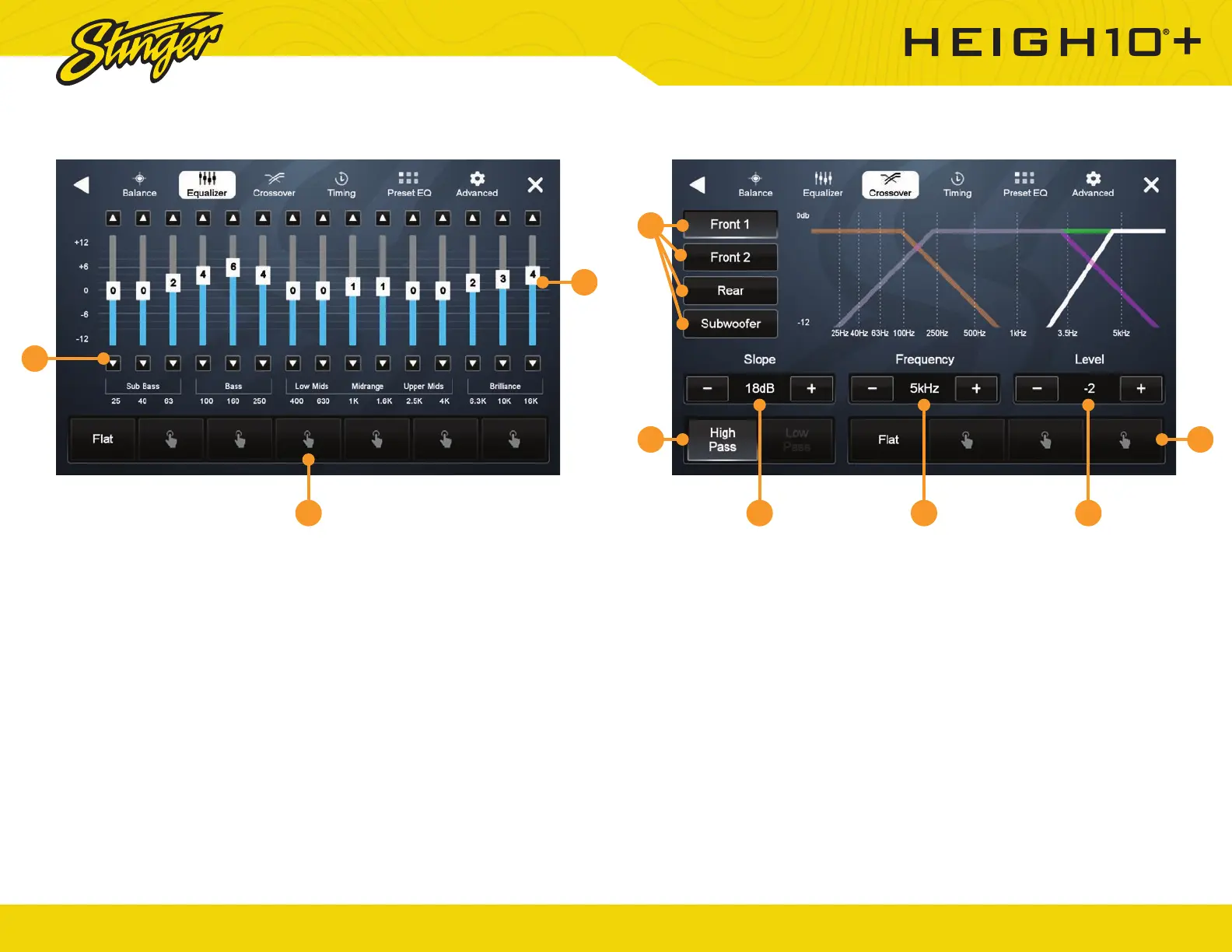
1. Audio Channel Selection
Select Front 1 (White), Front 2 (Teal),
Rear (Red), or Subwoofer (Amber)
channels to set crossover setting.
2. High/Low Pass Switch
Select which frequencies you
want to modify settings for with
this control.
2. Slope
Adjust the slope of the crossover
for selected audio channel.
3. Frequency
Adjust crossover frequency for
selected audio channel and pass.
5. Level
Adjusts signal level for selected
audio channel.
6. Programmable Presets
Touch and hold a Preset location
to save your settings. The Preset
will highlight.
Press the HOME BUTTON > Audio Settings > Crossover to select the
Crossover Audio Settings
1
2
3 4 5
6
CROSSOVER AUDIO SETTINGSEQUALIZER AUDIO SETTINGS
1. Programmable Presets
There are 6 user Presets that can
be used to save EQ settings. This
is usefull for having EQ settings for
differnet types of music, volume
levels or for different sources.
When you are done adjusting
the EQ, touch and hold a Preset
location to save the settings. The
Preset will highlight.
2. Up/Down Volume Arrows
Adjust frequency volume by
tapping the up/down arrows.
3. Frequency Volume Slider
Drag slider to adjust frequency
Volume.
Press the HOME BUTTON > Audio Settings > Balance to select the Equalizer
Audio Settings
2
1
3



 To Next Page