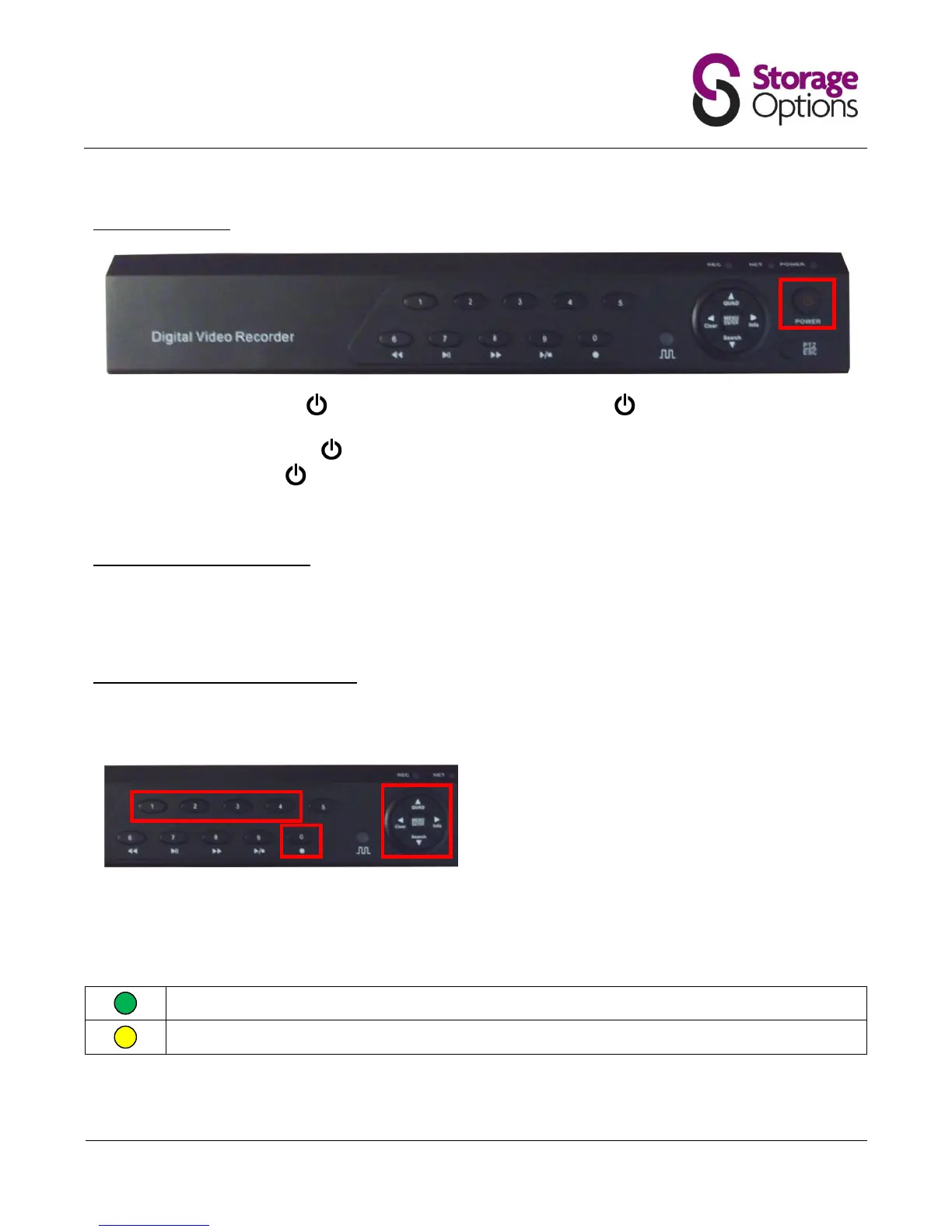
To power on the DVR, press the button once on the main unit, or press the button on the remote control.
To power off the DVR, press the button once and a message stating “Press POWER again to shut down” will
appear on-screen. Press the button again to shut the system down.
Do not shut down the system when a backup is in progress otherwise the backup recording may be lost.
4.2 – Format the Hard Disk Drive
When the DVR unit is powered on for the first time, a message will appear on-screen asking you to format the hard
disk drive (HDD). Please press the “Menu/Enter” button to proceed. Formatting the HDD should only take a few
seconds, after which the DVR is ready for use.
4.3 – Start / Stop Continuous Recording
The DVR is designed to continuously record video streams from up to four cameras. To start continuous recording
on a specific camera, press the corresponding channel number (1 – 4) on the DVR front panel, then press “0”.
To start continuous recording on all connected cameras
simultaneously, press the “Quad” (↑) button to view the
grid, then press “0” to start recording.
Continuous recording can be stopped for each camera or for all four by pressing the “0” button while recording is in
progress.
The record icon will be displayed in one of three colours, depending on the situation:
Scheduled recording in progress.


 To Next Page