4.4 – Playback
To play previously recorded video, you must first use the search function to find a date and approximate time to
view. To do this:
1. Press the “Search” (↓) button to access the Search menu.
2. Choose the camera you wish to view (1 – 4) by changing the “Channel” option.
3. To the top right you will see options for choosing date – use the on-screen controls to select the required
date.
4. A list of valid recordings for this date will be displayed below. Move down the list to the required time, then
press “Menu/Enter” to select.
5. On the bottom left of this menu is a “Play” option – highlight this and press “Menu/Enter” to play the video.
6. You may pause, stop, rewind, fast forward and frame advance the playing video using the corresponding
controls on the front panel.
4.5 – Using the Mouse
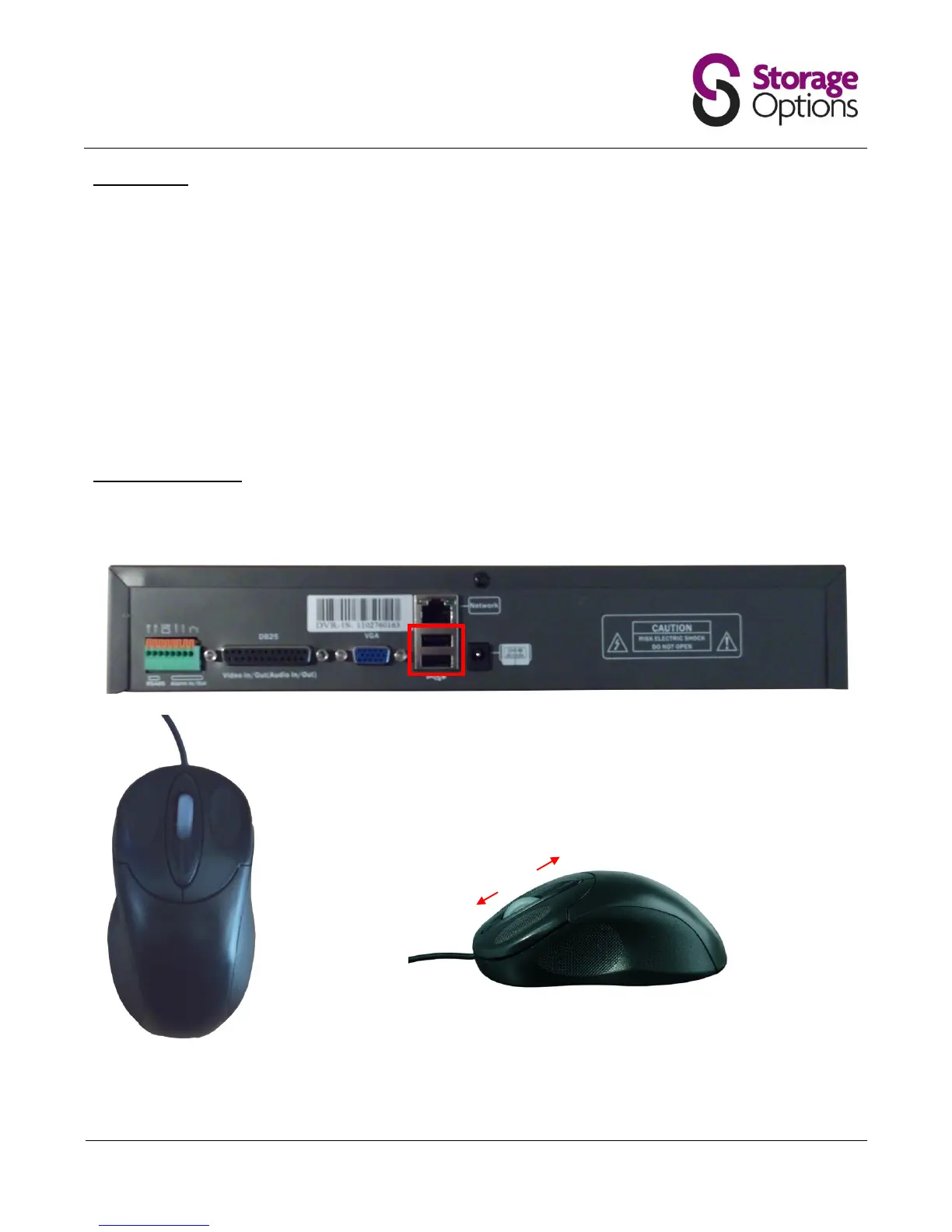
A standard USB mouse is included in the DVR package. You may plug this into either of the two USB ports on the
back of the unit. The mouse can be used to navigate on-screen menus, just as you would with a computer.


 To Next Page