12
System Settings
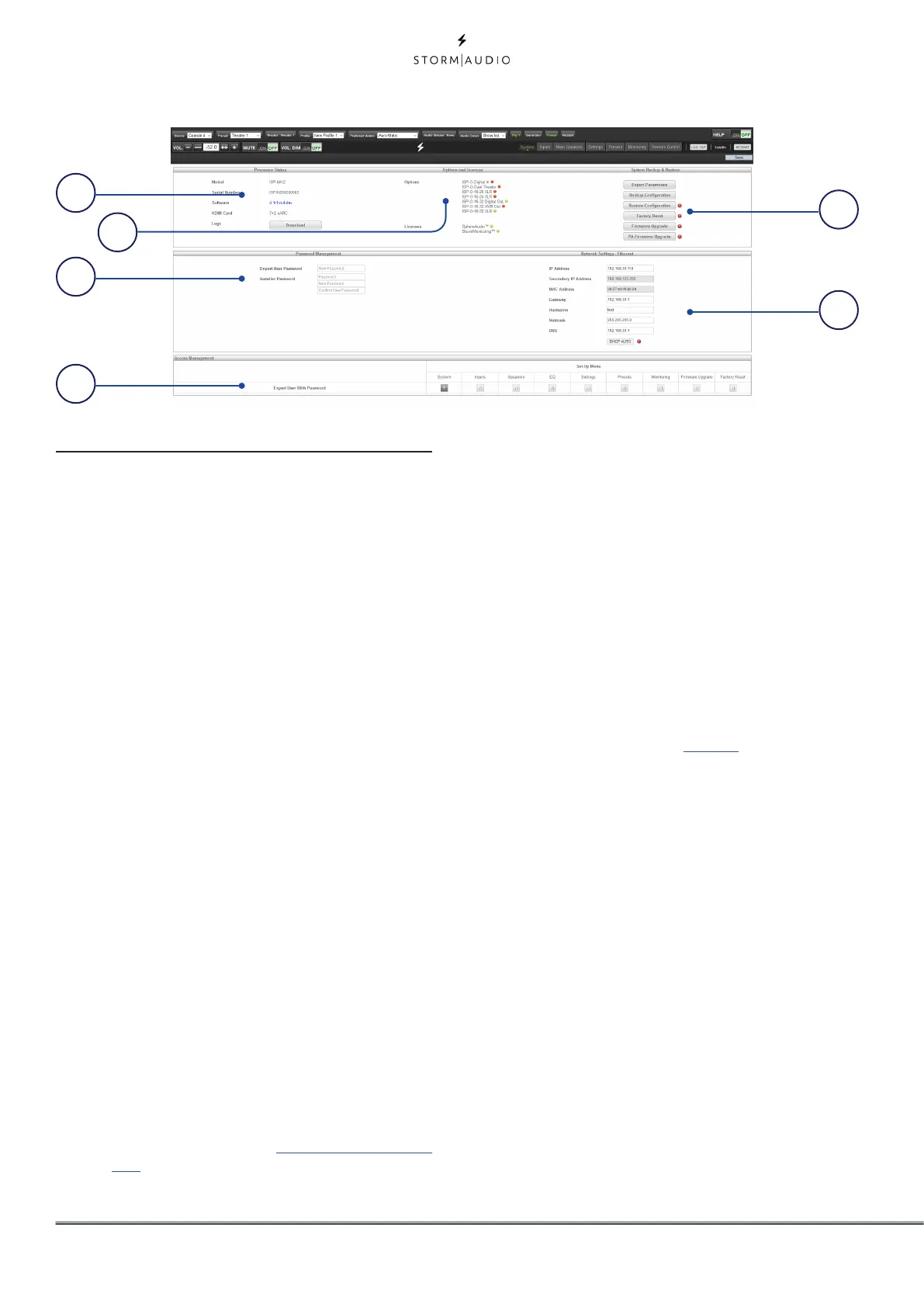
1. Processor Status
This area indicates the model number, serial
number, firmware revision and HDMI card
version. You can also download logs which
can be sent to StormAudio support team for
diagnostic purposes.
2. Options and Licenses
This area indicates which of the Optional
Modules and Software Features are currently
installed (shown in Green).
3. System Backup & Restore
• Export Parameters: Generates a spreadsheet
indicating the mapping of the output channels.
• Backup Configuration: Generates a backup file
of the entire current configuration of the ISP
making restoring settings easy after replacing a
unit or recovering from a system reset event. As a
dealer, you are advised to perform this step after
completing setup and archive the settings on
behalf of your customer.
• Restore Configuration: Permits uploading of the
file generated by the step above. This overwrites
all current settings with the data contained within
the backup file, including the Dirac filters.
• Factory Reset: Resets the ISP to default
configuration but retains current firmware
version.
• Firmware Upgrade: Use this tool to update
the firmware of the ISP. New firmware is made
available from time to time and can be found
on the Client Portal at http://www.stormaudio.
com. Firmware upgrades are never required and
should be considered optional unless advised
otherwise by StormAudio support staff.
• PA Firmware Upgrade: Use this tool to update
the firmware of the PA (Power Amplifiers) that are
accessible in the network. This will open the PA
update user interface. Follow similar process as for
ISP to access the firmware package.
4. Network Settings
Displays current settings. By default, this
is populated by the network DHCP server.
DHCP Auto button is dark grey. To use a static
IP address, click DHCP Auto to disable (turns
light grey) and populate IP Address, Gateway,
Netmask, and DNS fields manually. If an ISP
has been set to static IP mode and will no
longer connect to the network, see “Get
Network Access” on page 9 for instructions
on resetting the network settings to default
DHCP mode.
5. Password Management
The ISP has 3 levels of access. Remote
Control requires no password and give no
access to settings. Installer has access to all
settings. Expert is an intermediate level that
has access to settings assigned by Installer.
Those settings are defined in the Access
Management area at the bottom of this page.
The default passwords are:
Installer: installer
Expert User: expert
If you are a dealer or custom installer, you
are advised to change these passwords and
document them. Similarly, if you are a client
and wish to lock other users out of settings,
you may wish to change default passwords
1
5
6
3
4
2



 To Next Page