18
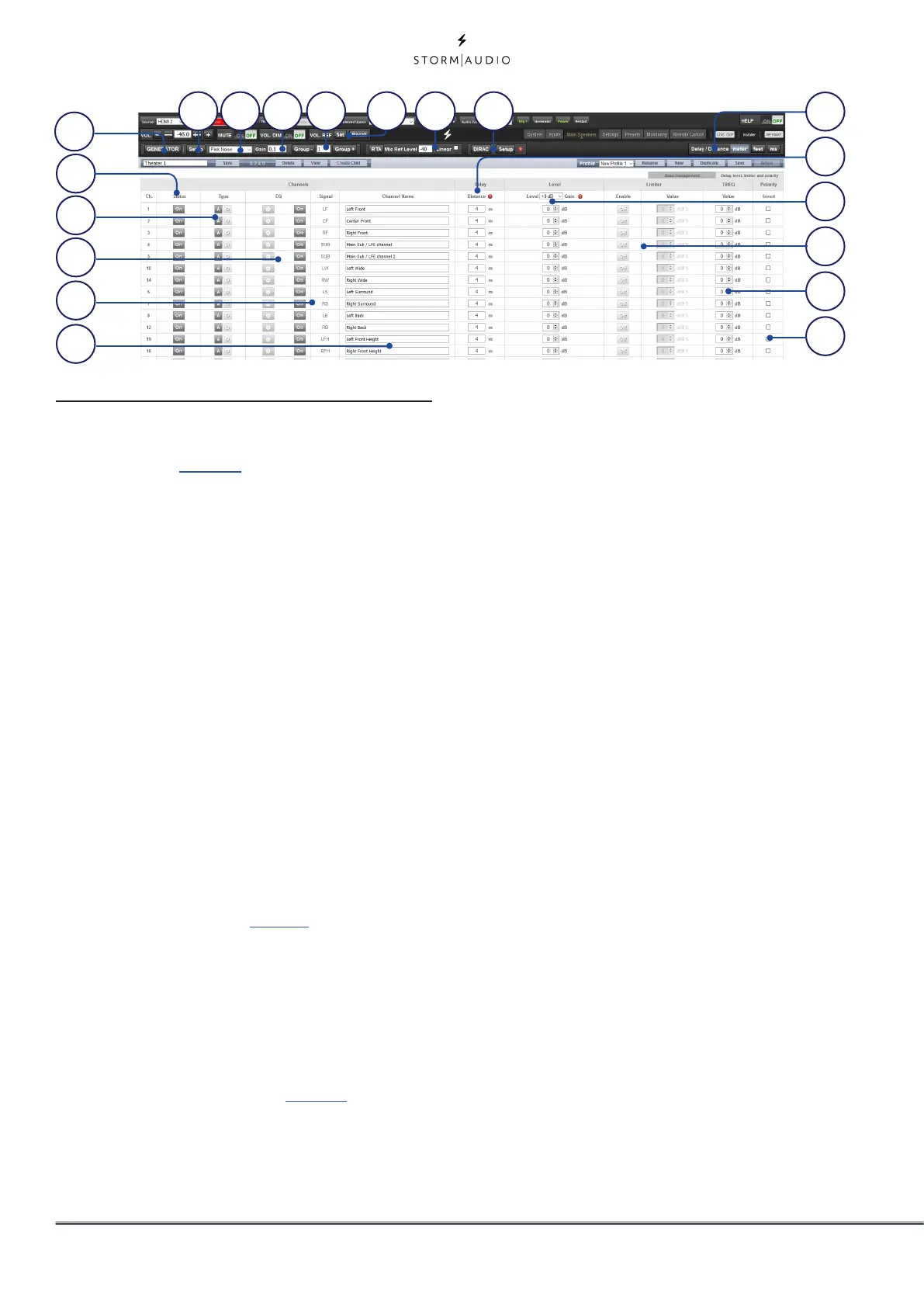
Individual Channel Adjustments
Once your theater is defined, each channel can
be individually adjusted. Child theater can also
be created, see page 26.
1. Channel Status
Each channel is enabled by default. If for
some reason this channel needs to be
disabled, click the ON button. It will turn to
OFF and audio will no longer be routed to
that channel. Note that audio will not be re-
routed to other channels. Channel status is
set per Theater / Zone and is not stored as
part of a profile.
2. Channel Type
When equiped with a Digital Output module,
each channel can be assigned to an Analog
or Digital output.
3. Channel EQ
Each channel can have up to 20 filters cells
configured selecting the wheel icon. Channel
EQ can be bypassed by selecting ON/OFF.
See “Channel EQ” on page 21 for detailed EQ
options. EQ settings are stored as part of
profiles.
4. Signal
Indicates which signal is routed to this
output. Should you desire to remap signal
routing, you can do so with Output Mapping.
See “Output Mapping” on page 25 for details.
5. Channel Name
Name can be customized with up to 24
characters from Latin-1 table. No special
character allowed.
6. Delay units
Choose whether to measure channel delays
in meters (default), feet, or milliseconds.
7. Delay per Channel
Each channel should have distance/delay set
between that loudspeaker and the sweetspot.
You can define this in meters (default), feet,
or ms depending on your setting in point 6
above.
8. Level
Set the level of each channel in between
-100dB and +12dB in 1dB increments. Best
practice is to set other channels to a negative
figure relative to the loudest channel to avoid
clipping when possible. Global gain makeup
can be applied to the theater when the
relative level of the theater is too low (usually
a result of a high degree of correction due to
Dirac Live’s mixed phase filters). Use global
gain makeup judiciously to avoid clipping.
9. Limiter
To prevent distortion due to loudspeaker
overdriving or amplifier clipping, you may
wish to engage a limiter on a channel. When
enabled, a compressor will attenuate audio
above the threshold set by the Limiter Value
for that channel back down to that value.
For instance, if the limiter is enabled and
set to -3dBfs, any audio that exceeds -3dBfs
will be reproduced at -3dBfs. By their nature,
limiters are not ideal acoustic solutions, but
this feature can prevent subjectively worse
sounding distortion, or in extreme cases,
damage to loudspeakers or amplifiers. If you
find that you are aggressively using the limiter
12
13 14 15 16
18
19
2
1
3
4
9
8
6
11
17
7
5
10



 To Next Page