26
1
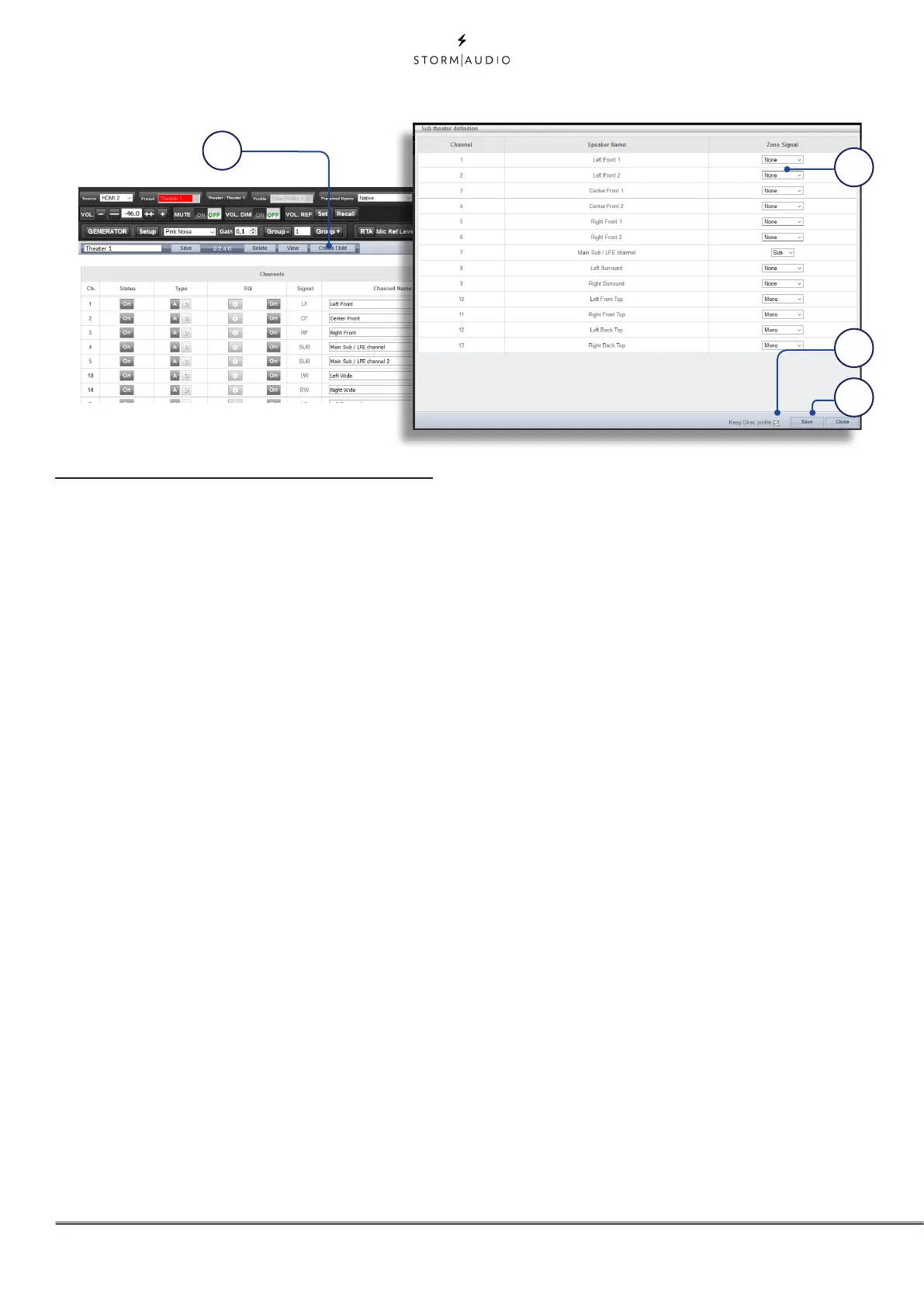
Child Theater / Sub Theater
You may optionally create alternate speaker
definitions in your theater with some restrictions.
For example, if you wish to have music playing
before the movie plays before everyone is
seated and quiet, you might only want that
music playing from the overhead speakers so as
not to interfere with conversation. In this case,
you can define a child theater so that stereo
left/right audio is played only through the top
speakers (as in the example illustrated above).
Child theaters behave just like zones or main
theaters in that they can be selected as outputs,
programmed into presets and can have multiple
profiles, including with specific Dirac filters.
Note that although multiple Child theaters can
be designed per main theater, signal assignment
is common to all.
1. Create Child
From the Main Speakers page, Edit your
theater. Click Create Child. A window will
appear with a list of loudspeaker names and
their channel ID.
2. Zone Signal
For each loudspeaker, select the signal to
be played. You may choose between Stereo
Left, Stereo Right, Mono, or None. Subwoofer
channels can play Subwoofer signal or None.
3. Keep Dirac Profile
If you have created a Dirac profile for the
parent theater, you have the option to retain
that calibration for the child theater. Note
that it might be recommended to run a new
Dirac calibration in case the listening area of
the Child Theater is different from the Theater
mode. To do so, follow the same process as
defined in the next page.
4. Save/Close
Save when done, or Close to cancel.
5. Bass Management / Delay Level
Phase
Child theaters have comparably limited
options compared to full theaters. If a child
theater includes a subwoofer channel, the
full range channels are forced to small. In this
case, you can adjust the crossover frequency,
slope and subwoofer subsonic filter. If no
subwoofer channel is enabled for the child
theater, the main channels are forced to large.
No Expert Bass Management is available for
Child Theaters.
2
3
4



 To Next Page