28
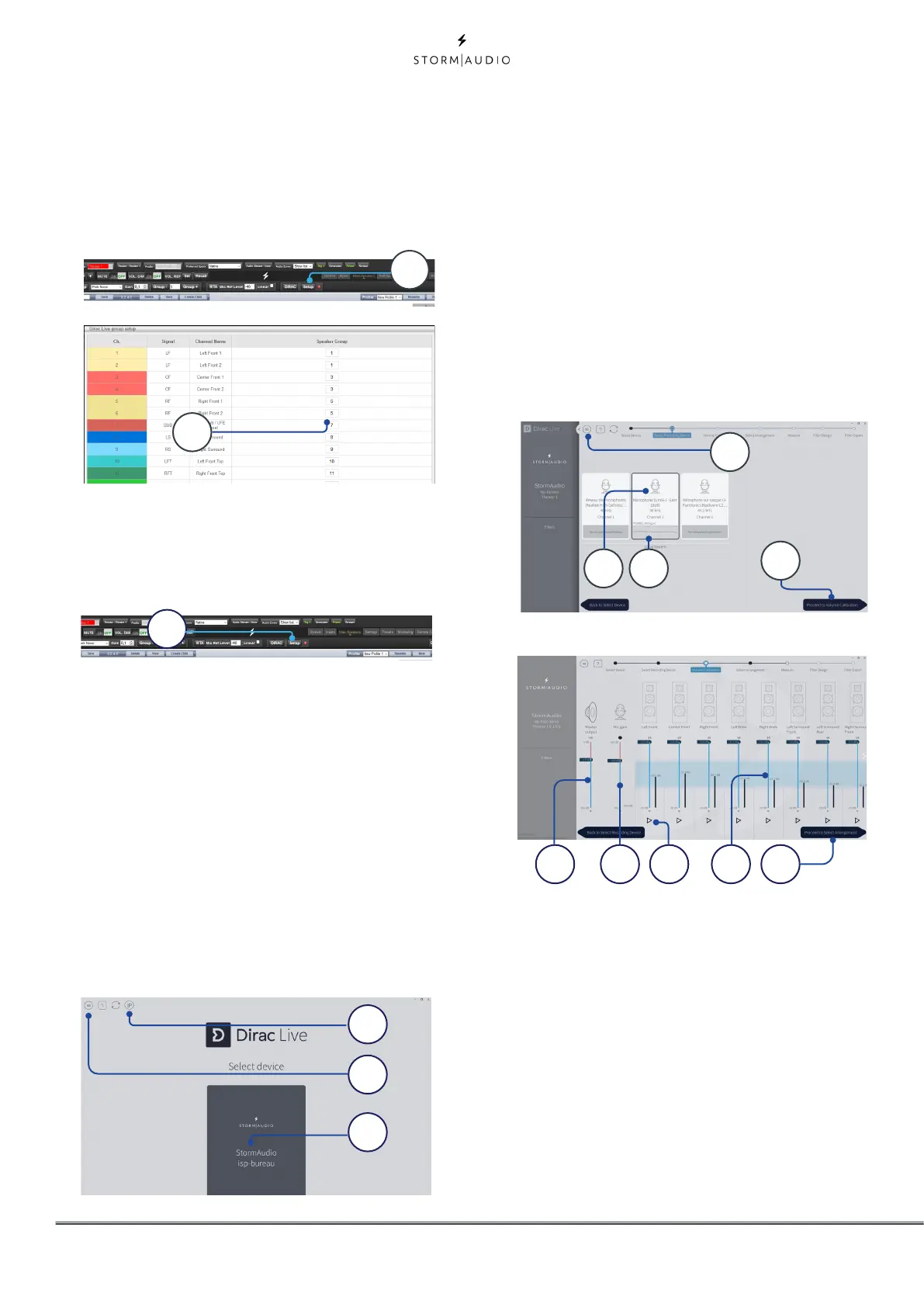
is recommended that if your theater includes
multiple subwoofers, you manually correct
levels, EQ, and delay for each and then group
all of them together for the purposes of
Dirac Live calibration. Click the SETUP button
(A) beside the Dirac button.
Channels that should play together during
calibration should share a group number (B).
7. Initiate Calibration
Press DIRAC (A) to ready the ISP for calibration.
A popup describing the process will be shown
in the web UI. Verify that you are calibrating
the correct theater or zone based on the
correct profile. If not, cancel and return to step
4. Once verified, click Start New Calibration.
8. Return to / Open Dirac Live®
Calibration Tool Software
Open the Dirac Live® software on your laptop
and enter your Dirac Account credentials (A).
It will scan the network and automatically
find the ISP ready for calibration (B). If it does
not, manually enter the IP address of the ISP
(C). Select the device to calibrate (B).
9. Configure Microphone
Choose the Recording Device UMIK-1 (A).
Load the microphone calibration file (B)
downloaded in step “3. Prepare Calibration
Hardware” on page 27. Use “...90degree.txt“
when placing the microphone in an upward
facing direction. It is wise to save the project
(C) along each step of the calibration in order
to make recovery from interruptions easier.
Also, measurements can be reused in order
to regenerate a new filter design following
adjustments to the target curve. Click Proceed
to Volume adjustments (D).
10. Set Levels
Now that the microphone is connected,
ensure that the room is quiet. Adjust the Mic
gain to 100% (B). Set the output volume (A) to
a low level (-40dB for example). Start the test
noise by pressing the PLAY button (C) on the
first channel and adjust the Master volume
to reach the blueish area in the channel’s
meter. For each channel, activate the test
noise and correct the channel volume using
the corresponding slider (D) so that the
meter reaches the blueish area. All channels
are automatically listed and subwoofers are
automatically identified. Note that you should
visualize here the Speakers Groups defined in
A
A B C D E
A
C
B
A B
C
D
A
B



 To Next Page