Black plate (234,1)
北米Model "A2480BE-A" EDITED: 2011/ 7/ 26
5-48 Audio
! Setting passkey
1. Select the “Set Passkey” menu.
2. Press the “TUNE” dial.
3. Input the new passkey (a 4 - 8 digit
number) by turning and pressing the
“TUNE” dial.
4. After inputting the new passkey, press
the “TUNE” dial again.
– If the passkey is set, the new
passkey will be displayed.
! Deleting device
1. Select the “Delete Audio Player”
menu.
2. Select the preferred device.
3. Select the “Confirm delete audio
Player?” menu.
– If the device is deleted, “ Aud io
player has been deleted.” will be
displayed.
& Bluetooth
®
audio operation
NOTE
Depending on the connected device, it
may not activate as per the following
items or not work smoothly. Refer to
the instruction manual of th e con-
nected device.
! How to play back
Type B audio
Type C audio
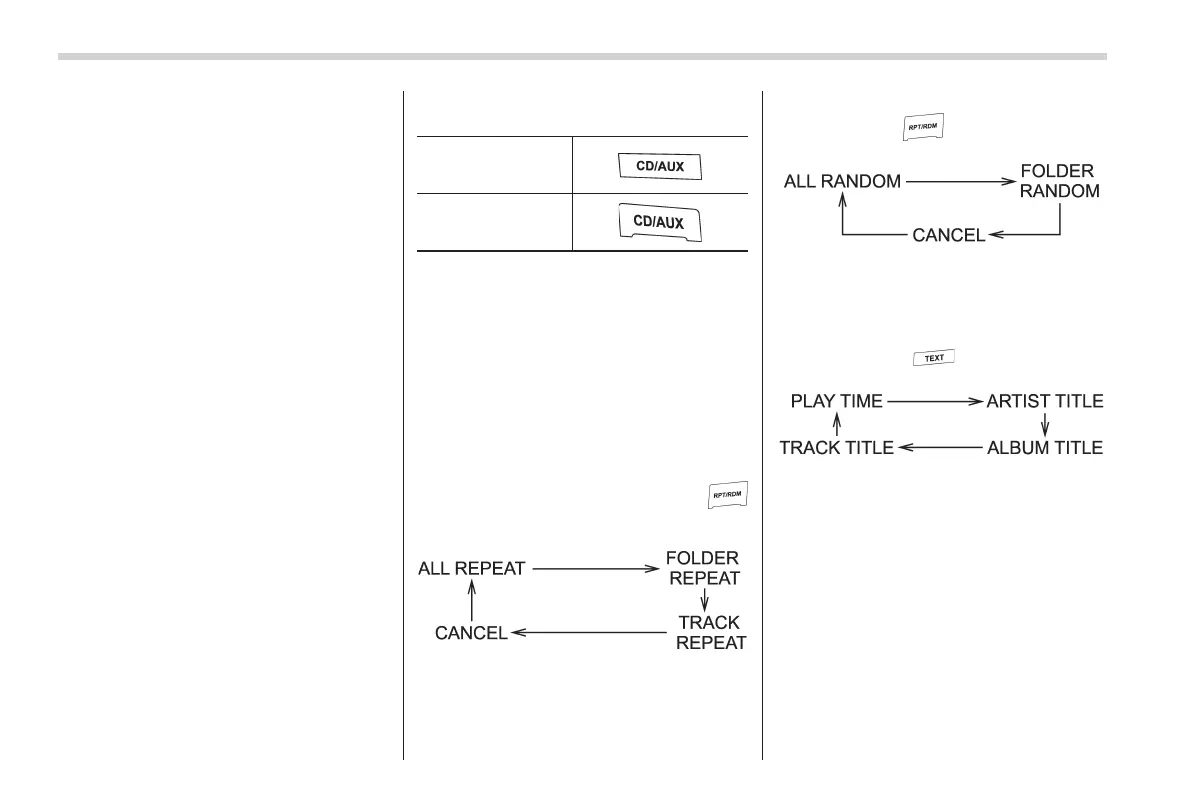
Press the “ CD/AUX” button and select the
“BT-A” (type B audio)/“BT Audio” (type C
audio) mode.
! To select a track from the beginning
Select a track in the same way as for a
CD. Refer to “To select a track from the
beginning” F5-24.
! Repeating (type B audio)
Repeating is operated in the same way as
for a CD. Refer to “Repeating” F5-26.
Each time you briefly press the
button, the mode changes in the following
sequence.
! Random playback (type B audio)
Random playback is operated in the same
way as for a CD. Re fer to “Random
playback” F5-27. Each time you press
and hold the
button, the mode
changes in the following sequence.
! Display selection (type B audio)
Select an indication in the same way as
for a CD. Refer to “Display selection (type
A and B audio)” F5-28. Each time you
briefly press the
button, the indica-
tion changes in the following sequence.
! Fast-forwarding and rewinding
(type C audio)
Fast-forwarding and rewinding are oper-
ated in the same way as for a CD. Refer to
“Fast-forwarding and rewinding” F5-25.
! Folder selection
Select a folder in the same way as for a
CD. Refer to “Folder selection” F5-28.











 To Next Page