Black plate (307,1)
一般Model "A2510GE-B" EDITED: 2015/ 6/ 25
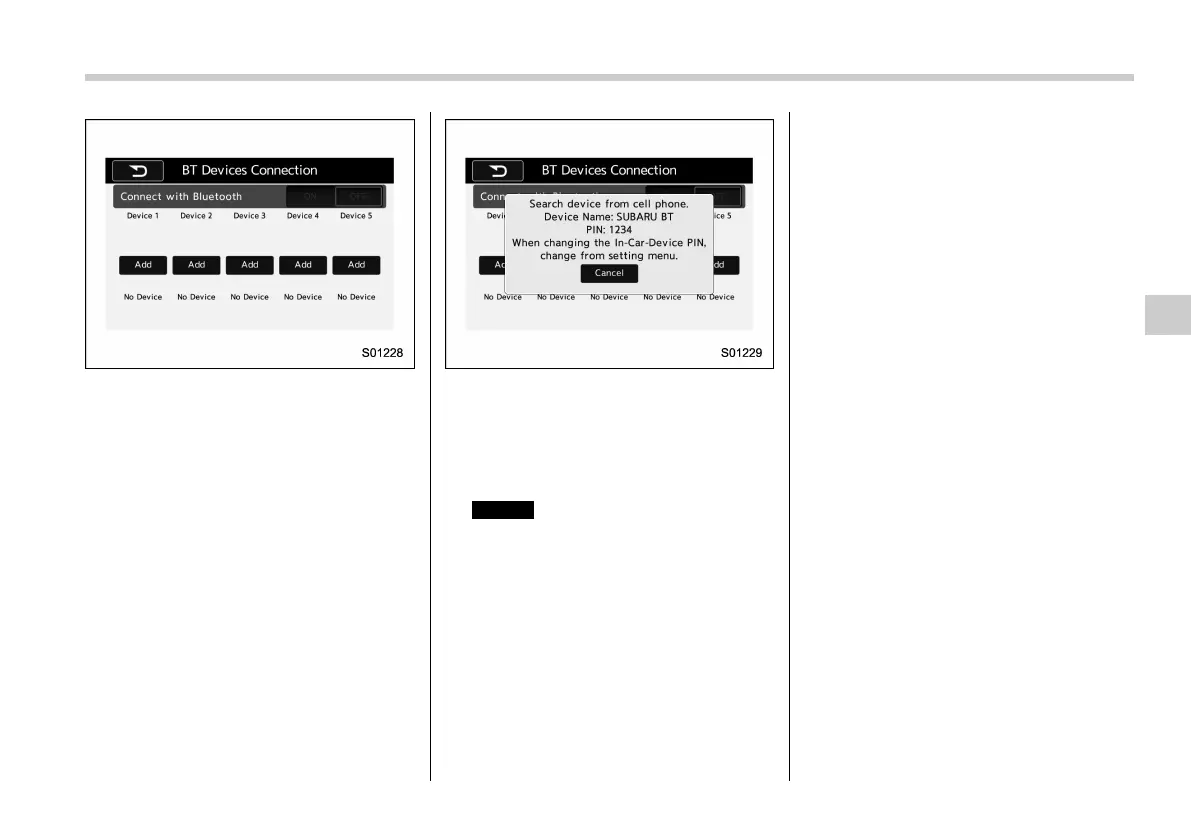
“BT Devices Connection” screen (At the
initial startup and when no device is
registered.)
4. When this screen is displayed, search
for the device name displayed on this
screen on the screen of your Bluetooth
device.
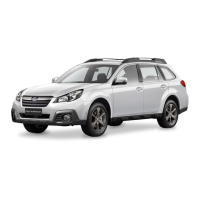
When “Add” is selected (Waiting for the
connection request from a device).
. For details about operating the Blue-
tooth device, see the manual that
comes with it.
. To cancel the registration, select
Cancel
(Cancel).
5. Register the Bluetooth device using
your Bluetooth device.
. A PIN-code is not required for SSP
(Secure Simple Pairing) compatible
Bluetooth devices. Depending on the
type of Bluetooth device being con-
nected, a message confirming regis-
tration may be displayed on the Blue-
tooth device ’s screen. Respond and
operate the Bluetooth device accord-
ing to the confirmation message.
6. Check that the screen is displayed
when registration is complete.
. The system waits for connection
requests coming from the registered
device.
. At this stage, the Bluetooth func-
tions are not yet available.
! Registering a Bluetooth Audio de-
vice for the first time
To use the Bluetooth Audio, it is necessary
to register an audio device with the
system.
Once the player has been registered, it is
possible to use the Bluetooth Audio.
This operation cannot be performed while
driving.
For details about registering a Bluetooth
device: Refer to “Registering a Bluetooth
device” F5-77.
The device registration procedure is the
same for both the hands-free system and
Bluetooth audio.
Audio/Bluetooth
®
settings
5-75
– CONTINUED –
5





 To Next Page