Suddenlink Confidential and Proprietary. © All rights reserved 6/2014
Connected Home User Manual 13
SM
STATUS
The first icon on the second row is Status.
STATUS APP
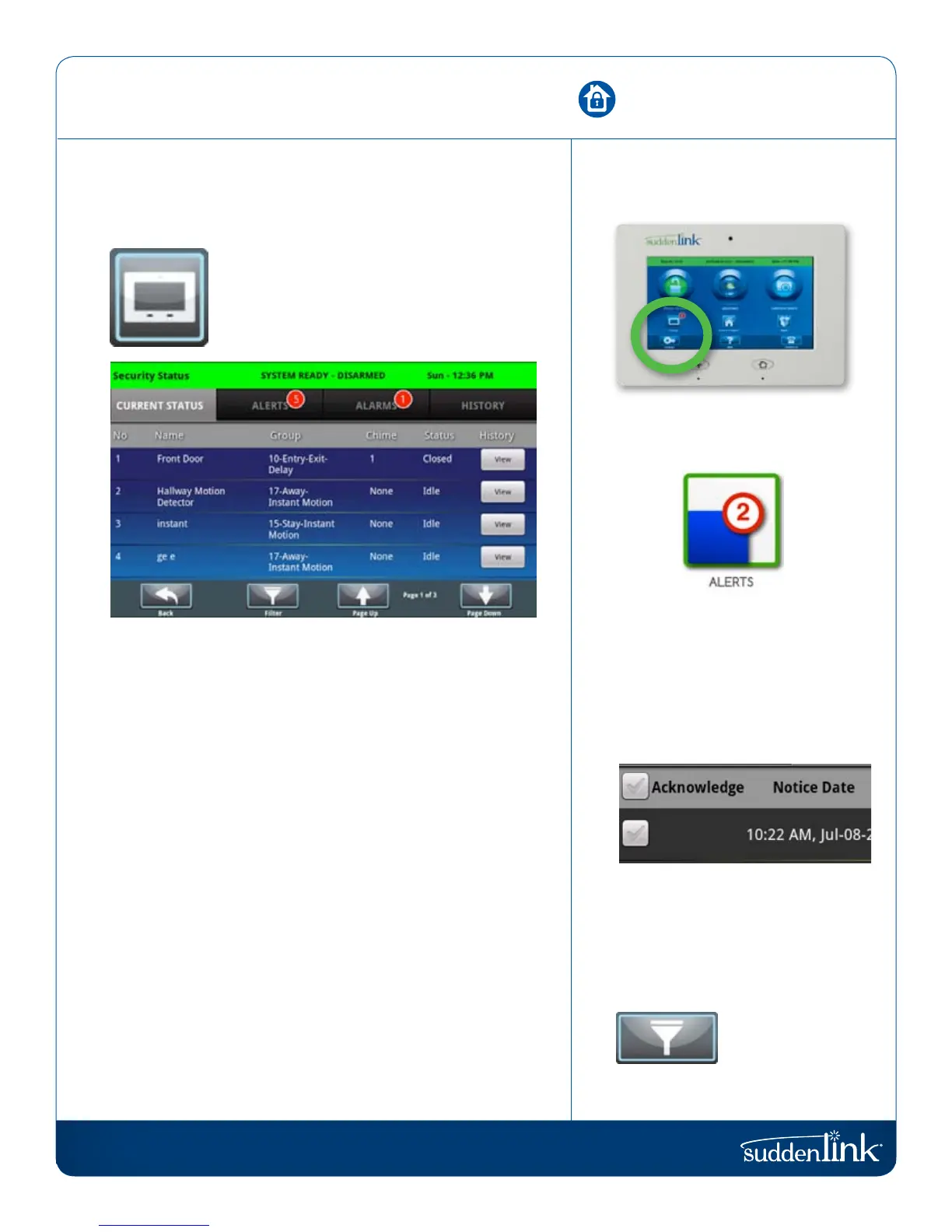
The Status app is divided into four sections:
Current Status, Alerts, Alarms and History.
CURRENT STATUS
The individual security sensors are listed by zone/area. The status
and settings for each of the sensors are shown in a list. If more
than one page is required for the whole list, use the “Page Up”
and “Page Down” buttons to see the entire list. To see the history
for a specific sensor, click “View.”
ALERTS
Alerts are messages about tampered sensors, low batteries, and
failed communications. The total number of unacknowledged
Alert messages appear in the red bubble counter on this tab.
The user may acknowledge each message separately, which
will then eliminate the message from the list.
ALARMS
Alarms lists all unacknowledged messages about alarm events.
HISTORY
The last tab displays a history for all sensor activity connected to
the Connected Home panel. The system will store up to 100 events
in the history listing.
STATUS
FIND IT
ALERTS
If the Connected Home panel is
reporting a new issue, it will display
a bubble above the app showing
the number of new items that may
require your attention.
ACKNOWLEDGE
Acknowledge a single alert by tapping
the check box to the left. Acknowledge
all the alerts by tapping the check box
at the top.
FILTER
You can view specific
results by touching
the “Filter” button.


 To Next Page