Suddenlink Confidential and Proprietary. © All rights reserved 6/2014
Connected Home User Manual 16
SM
SAFETY SENSORS
Safety Sensors are created when the system is installed,
and can be accessed from the Apps page.
SAFETY SENSORS
A way to protect specific areas of your
home without triggering false alarms.
Safety sensors function independently from the intrusion security
system on the Connected Home panel. Safety sensors provide
warning information via voice prompts and/or chimes. The warning
notifications will be announced anytime that a safety sensor is
opened or closed (or motion detected for motion sensors).
Safety sensors are defined at the time of installation.
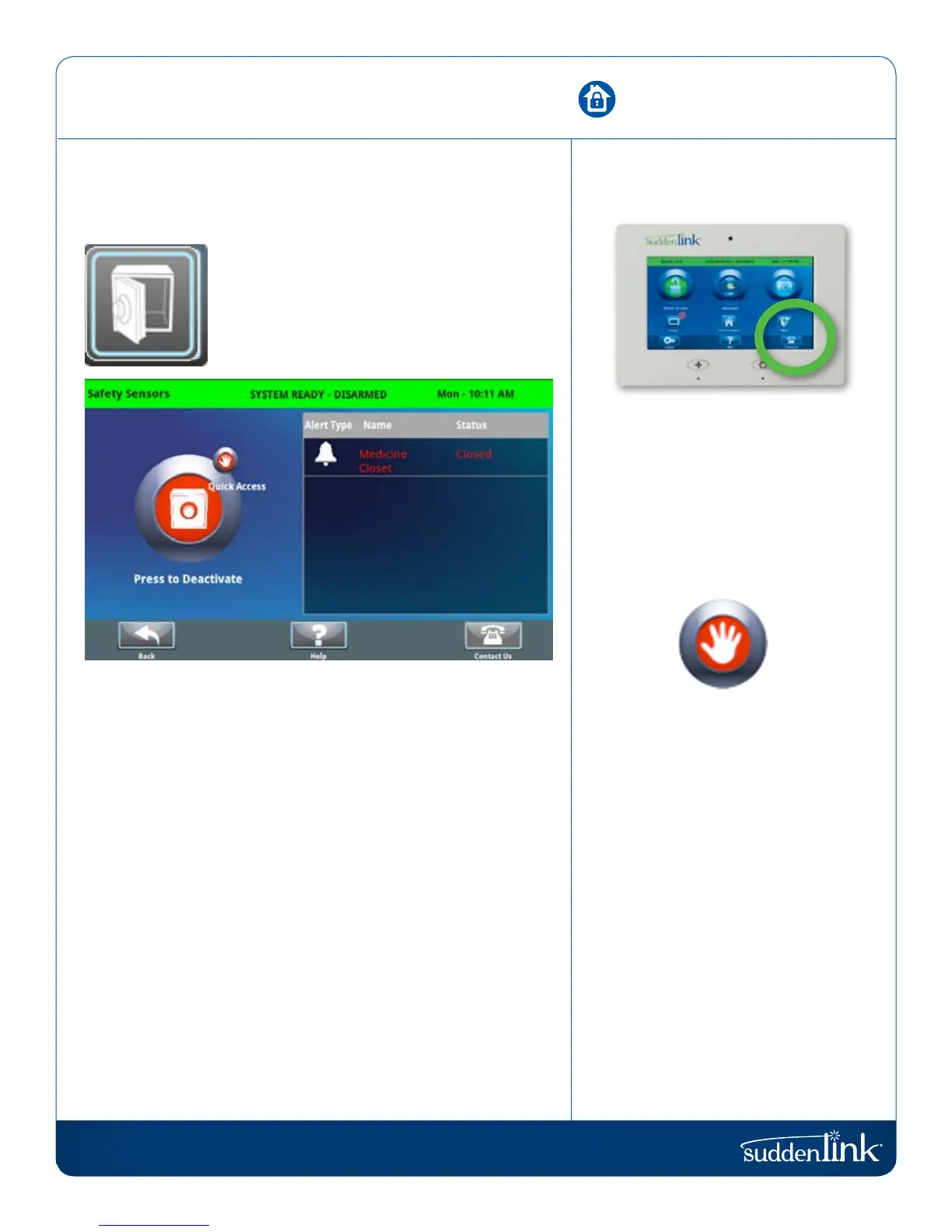
The Safety Sensor app allows the user to manage safety
sensor behaviors. Functions are provided to Disable (turn off)
the warning notifications, Quick Access (temporarily turn off
the warning voice prompts and chimes), and to Enable (turn
on) the warning notifications.
The right side of the display includes a list of all of the safety
sensors by name and their respective status information (open,
closed, or active). The left side of the display contains the
safety sensor control functions.
HOW TO DISABLE SAFETY SENSORS
To turn off all of the safety sensor voice prompts and chimes,
press the “Deactivate” button on the left side of the display,
then enter your user code to authorize. Once disabled, safety
sensors will not chime or set off the alarm.
ARMED ALARM
If a safety sensor is opened while the
system is armed, then the intrusion
alarm will not trip and the system will
remain in the armed state.
QUICK ACCESS
Need to access a safety sensor?
Open the Safety Sensor app and press
“Quick Access.” You will have 300
seconds to open and close the sensor
without triggering the chime.
SENSOR LOCATIONS
The following could be great areas of
the home to place a safety sensor:
Pool gate
Garage door
Home office
Toddler bedroom door
Gun safe
Medicine cabinet
Tool shed
Utility room
Cleaning supply closet
FIND IT


 To Next Page