SunFounder picar-x
Windows Users
Login Raspberry Pi Remotely
If you are using win10, you can use follow way to login Raspberry Pi remotely.
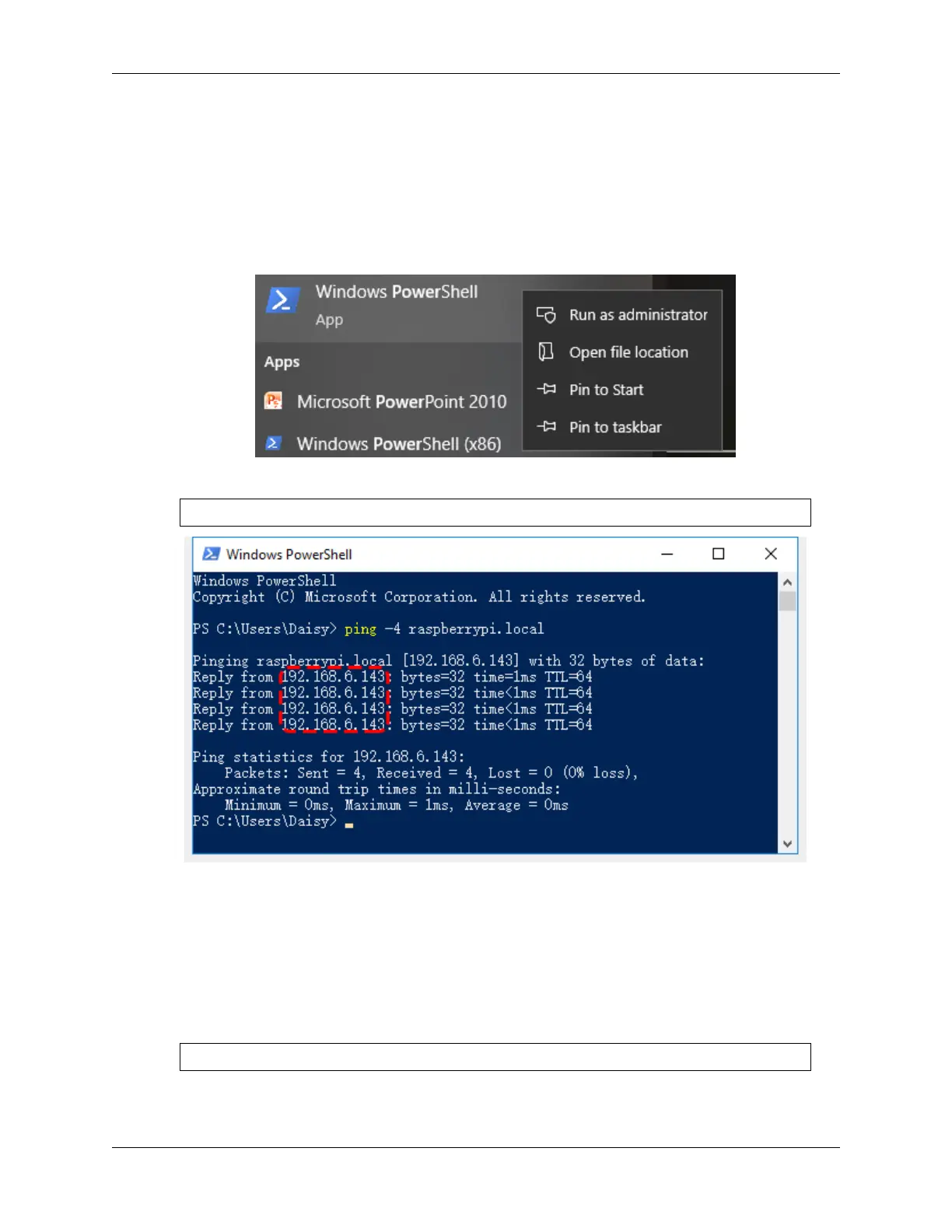
1. Type powershell in the search box of your Windows desktop, right click on the Windows PowerShell,
and select Run as administrator from the menu that appears.
2. Then, check the IP address of your Raspberry Pi by typing in ping -4 <hostname>.local.
ping -4 raspberrypi.local
As shown above, you can see the Raspberry Pi’s IP address after it has been connected to the network.
• If terminal prompts Ping request could not find host pi.local. Please
check the name and try again.. Please follow the prompts to make sure the host-
name you fill in is correct.
• Still can’t get the IP? Check your network or WiFi configuration on the Raspberry Pi.
3. At this point you will be able to log in to your Raspberry Pi using the ssh <username>@<hostname>.
local (or ssh <username>@<IP address>).
ssh pi@raspberrypi.local
4.1. Quick Guide on Python 35



 To Next Page