SunFounder picar-x
Step 5
Here, we get the Raspberry Pi connected and it is time to conduct the next steps.
6.2 Install OpenSSH via Powershell
When you use ssh <username>@<hostname>.local (or ssh <username>@<IP address>) to connect
to your Raspberry Pi, but the following error message appears.
ssh: The term 'ssh' is not recognized as the name of a cmdlet, function,
˓→script file, or operable program. Check the
spelling of the name, or if a path was included, verify that the path is
˓→correct and try again.
It means your computer system is too old and does not have OpenSSH pre-installed, you need to follow the tutorial
below to install it manually.
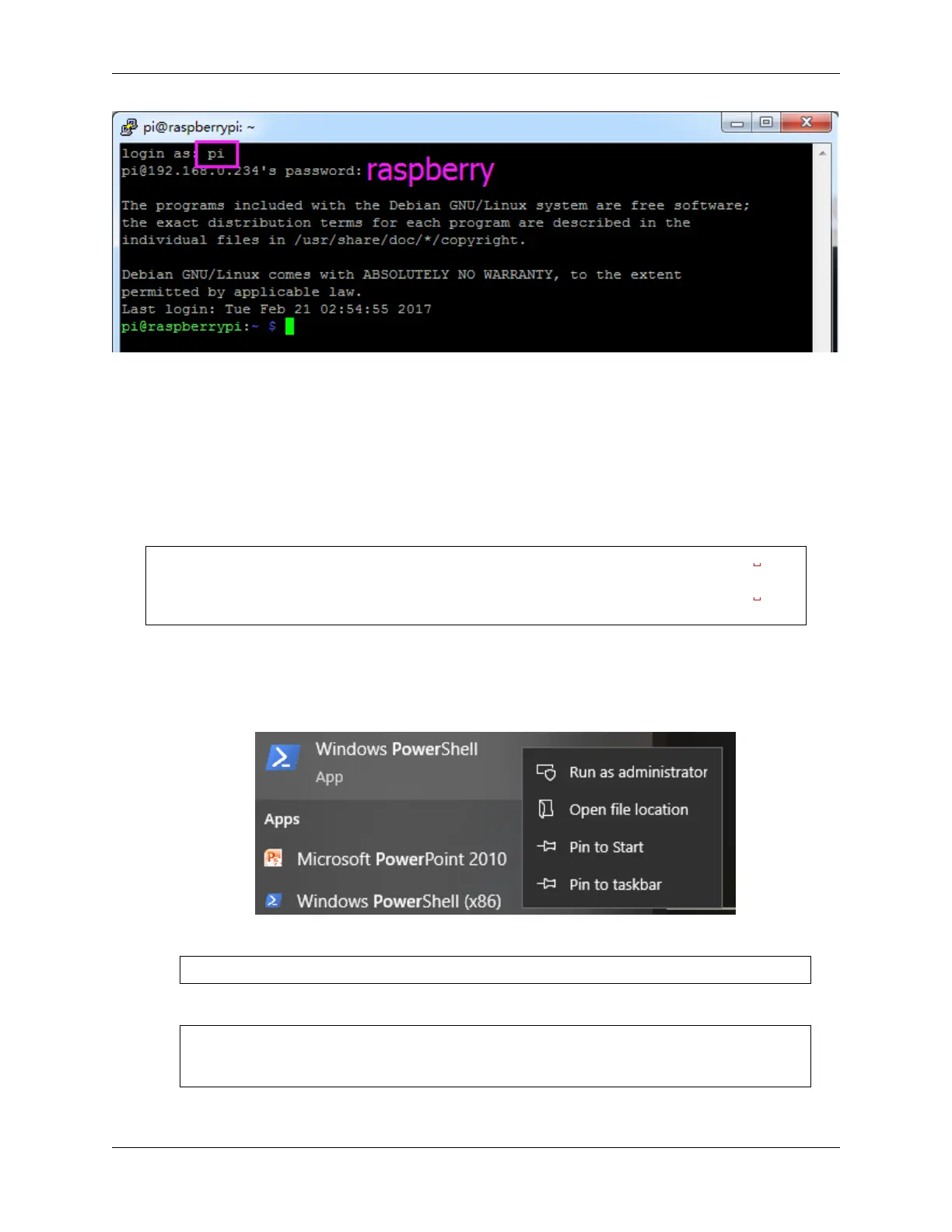
1. Type powershell in the search box of your Windows desktop, right click on the Windows PowerShell,
and select Run as administrator from the menu that appears.
2. Use the following command to install OpenSSH.Client.
Add-WindowsCapability -Online -Name OpenSSH.Client~~~~0.0.1.0
3. After installation, the following output will be returned.
Path :
Online : True
RestartNeeded : False
4. Verify the installation by using the following command.
6.2. Install OpenSSH via Powershell 139



 To Next Page