15
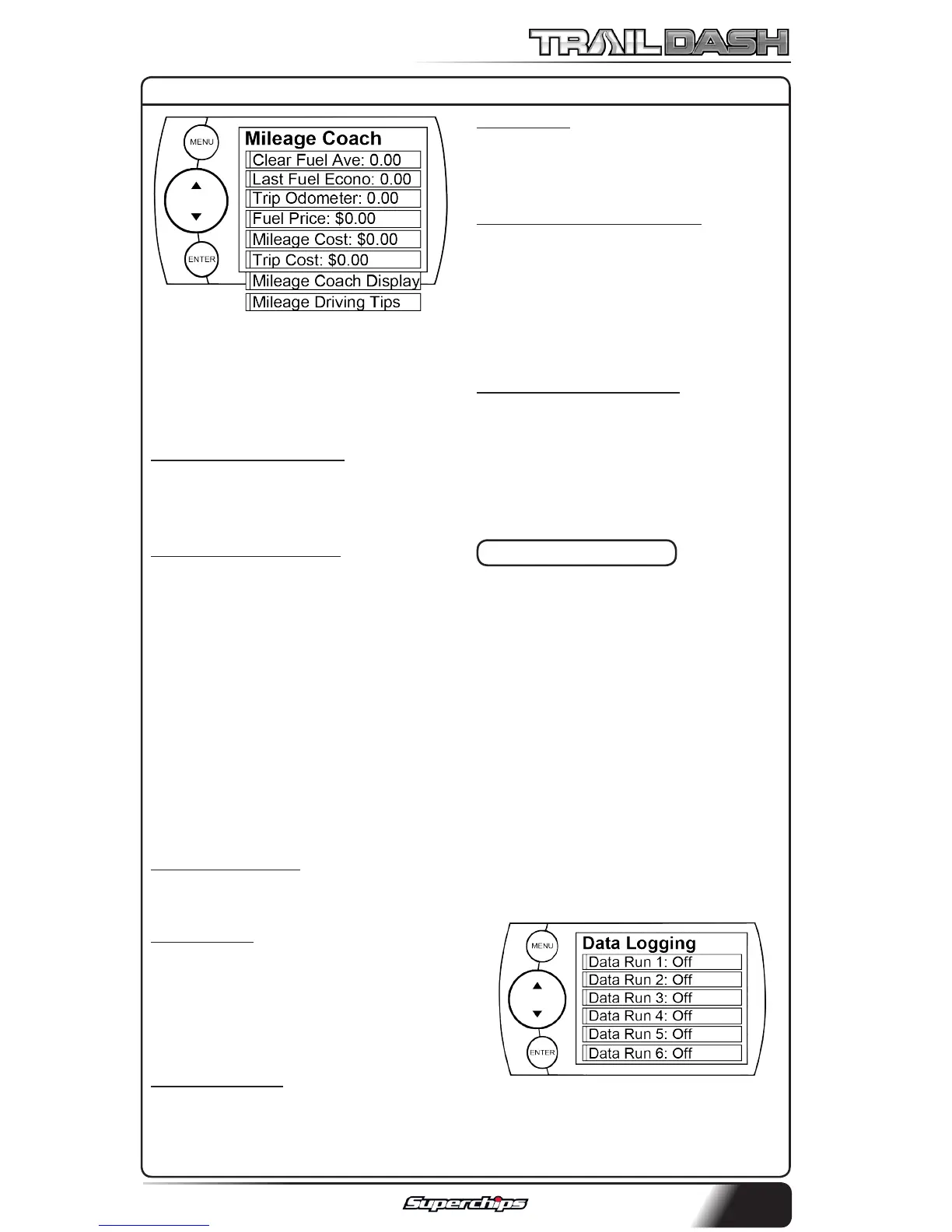
2. Become familiar with each option
within the Mileage Coach feature
set and adjust values accordingly.
Refer to the follow explanations.
CLEAR FUEL AVERAGE:
Use this option to clear the calculat-
ed average displayed in the Mileage
Average PID.
LAST FUEL ECONOMY:
This option allows you to enter your
actual Fuel Economy Value. This
value is important and should be
calculated and entered regularly.
This can be manually calculated
by dividing the distance travelled
by how much fuel you have used
(Distance/Fuel = Fuel Economy).
Some vehicles have their own Fuel
Economy average that is displayed
in cab and may be used instead of a
manual calculation.
TRIP ODOMETER:
This value is used to calculate the
Trip Cost and Fuel Average.
FUEL PRICE:
In order to calculate your Mileage
and Trip Costs, the price of fuel pur-
chased must rst be entered. For
example: Fuel purchased at $3.58/
Gal should be entered as 3.58.
MILEAGE COST:
This value is a calculated average
based on how many miles you have
traveled and the Fuel Price.
TRIP COST:
This value is calculated from the
Fuel Price and the Trip Odometer
values.
MILEAGE COACH DISPLAY:
There are two ways to display the
Mileage Coach PID.
1. Show Dierence: Between Instan-
taneous and Average.
2. Show Values: Displays as
Instantaneous | Average.
MILEAGE DRIVING TIPS:
These tips are intended to give you
general information regarding driv-
ing habits or anything that will help
maximize your fuel economy and
overall driving experience.
DATA LOGGING
This feature allows you to record all
of the available PID data on your
device.
(NOTE: The device also runs
background tasks which are also
recorded. This information can be
ignored.)
To start the recording:
1. Open the Data Logging menu lo-
cated under the Diagnostics menu.
The following screen will appear:
2. Choose one of the 10 Data Run
options. This will turn the run “On”.
DIAGNOSTICS CONT’D


 To Next Page