16
The Maintenance Manager
calculates the odometer value of
your vehicle using the vehicle speed
and time.
NOTE: The Maintenance Manager
odometer reading may become
out of sync with the actual dash
odometer reading. You may need
to periodically update the Mainte-
nance Manager’s odometer value.
It is important to note that the
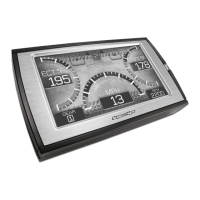
TrailDash only tracks miles trav-
eled when the main gauge screen
is being displayed. If you are in the
menus while driving, your miles are
not calculated.
ODOMETER SETUP:
1. Locate the “Maintenance Manag-
er” by entering the “Main Menu”.
2. Turn “ON” the Maintenance Man-
ager. (If it is turned o, you will not
be notied when service is due.)
3. Choose “Odometer” to set your
current Odometer reading. The fol-
lowing screen will appear:
4. Use the Arrow buttons to adjust
the values up or down.
5. Press Enter to move to the next
digit. Press Menu to move to the
previous digit.
6. Once all digits have been entered,
the Maintenance Manager screen
will reappear showing your en-
tered value. A value of 49,170 was
entered).
7. Once the Odometer is entered
and displayed, choose the “Mainte-
nance Items” option.
NOTE: Only one run can be turned
on at a time.
3. Return to the Main Gauge screen.
The device is now in recording
mode.
4. Once you have recorded for a
desired period of time, return to the
Data Logging menu, and choose the
same run as before. (This will turn
the run “O” and stop the device
from recording. The recorded
information will be stored for the My
Style software to retrieve later on).
NOTE: If you turn the same Data
Run back “On” the previous data
will be erased, and a new recording
session will begin. If the indica-
tor light is red, there is currently a
recorded le associated with that
run.
MAINTENANCE MANAGER
DIAGNOSTICS CONT’D


 To Next Page