26
NOTE: REQUIRES INTERNET
CONNECTION
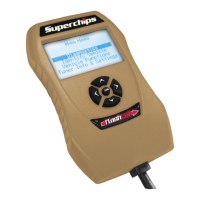
Fusion Software allows the user to
update their device to the latest
version of rmware and calibration
les. This software will be down-
loaded for free from the Superchips
web site at www.superchips.com.
NOTE: Be sure to install both the
SOFTWARE and the DRIVERS that
come included in the download
before you connect your device to
your PC. During the installation
you will be prompted to install the
drivers, choose yes.
USING THE SOFTWARE
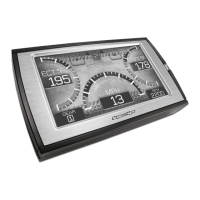
NOTE: The TrailDash device should
not be plugged into the vehicle’s
OBDII port and your computer’s
USB port at the same time. Only
the USB is needed during update.
1. Click the Fusion icon on your PC
desktop once you’ve installed Fu-
sion.
2. If you have not yet created an ac-
count, click on “Create a New User”.
You will then be directed to a web
page to create your login informa-
tion.
NOTE: After entering your informa-
tion, a password will be sent to the
e-mail address you provide. Be
sure your e-mail account doesn’t
block e-mails from www.super-
chips.com.
3. Upon receiving the password,
enter your e-mail address and
password on the login screen of the
Fusion Software.
4. You’ll be prompted to connect the
device to launch. After connecting
the device, you’ll see a screen
pop-up.
5. Click yes to continue with the
update.
NOTE: Be sure to return your ve-
hicle to stock before connecting the
device to Fusion.
After you’ve selected yes on the
previous screen, the Fusion software
will go through the steps in order to
update the device. Once it’s
completed you’ll see the following
screen.
UPDATE SOFTWARE
FUSION


 To Next Page