6
(RUBICON ONLY)
NOTE: Use the UP and DOWN arrows on each screen to toggle between your
3 screen layouts shown above.
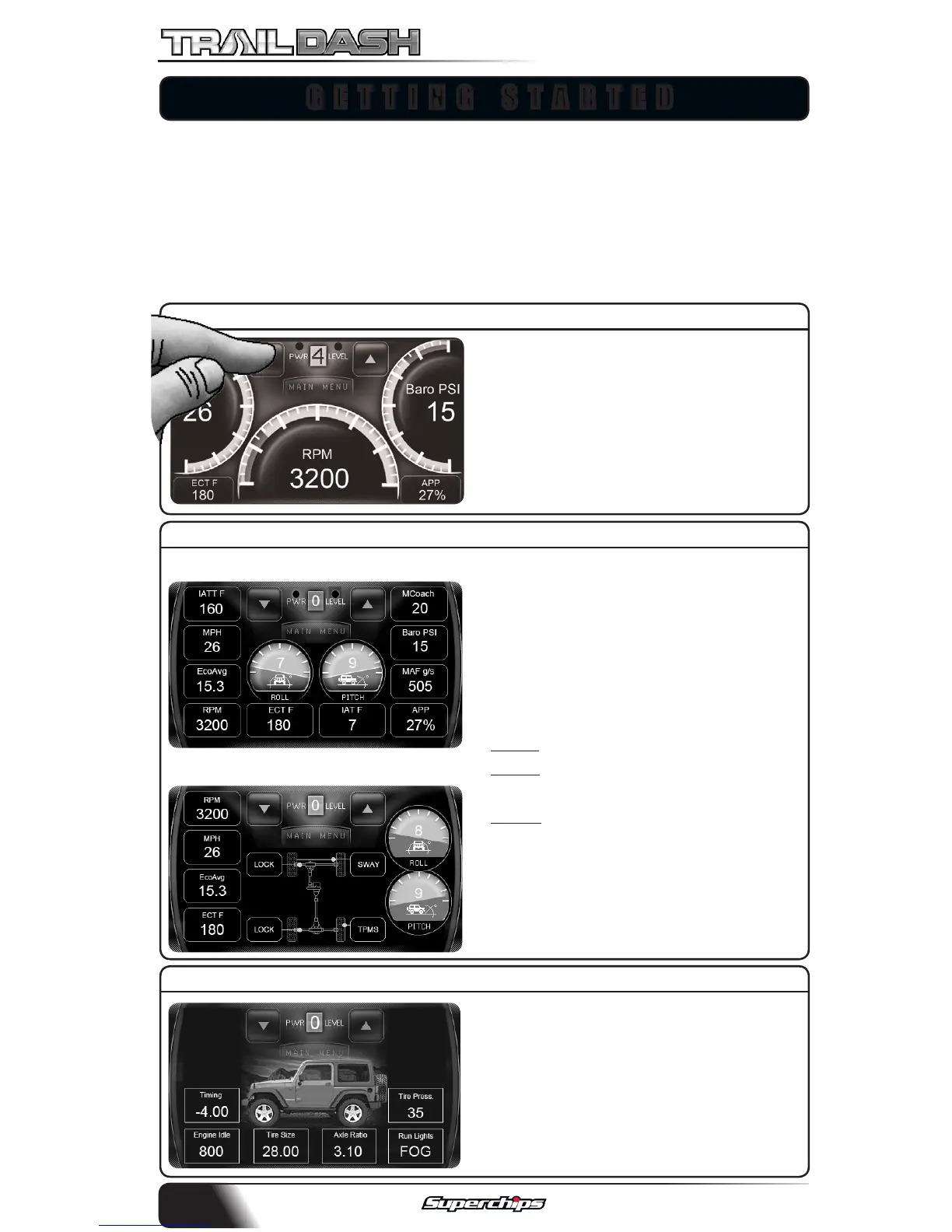
MAIN GAUGE SCREEN
OFF-ROAD FEATURE SCREENS
(NON-RUBICON)
STAND-ALONE FEATURE SCREENS
NOTE: The rst time you connect your TrailDash to your vehicle, it will take
up to two minutes for the device to boot-up. This time will be dramatically
reduced once your vehicle’s settings have been saved to the device for
future use.
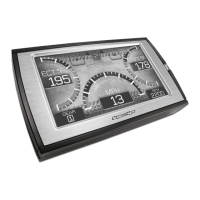
After you have followed the Quick
Install Guide, and have plugged in your
device, this default screen will appear.
It provides you with both analog and
digital gauges allowing you to view
multiple vehicle parameters. This
screen may be customized.
Depending on your vehicle model, one
of two O-Road feature screens will
be available. Each screen is equipped
with digital style gauges as well as ana-
log Pitch and Roll gauges. For Rubicon
models only, (3) additional features
have been added:
1. TPMS - Disables communication.
2. SWAY - This will disable the light
from displaying on your dash.
3. LOCK - Locks and unlocks Front or
Rear Dierentials.
NOTE: The LOCK feature will be auto-
matically disabled after you exceed
30 MPH for safety.
The Stand-Alone Features are vehicle
specic. Your screen may or may not
have all of the features as shown.
NOTE: Screen images may vary based
on your vehicle.
GETTING STARTED


 To Next Page