18
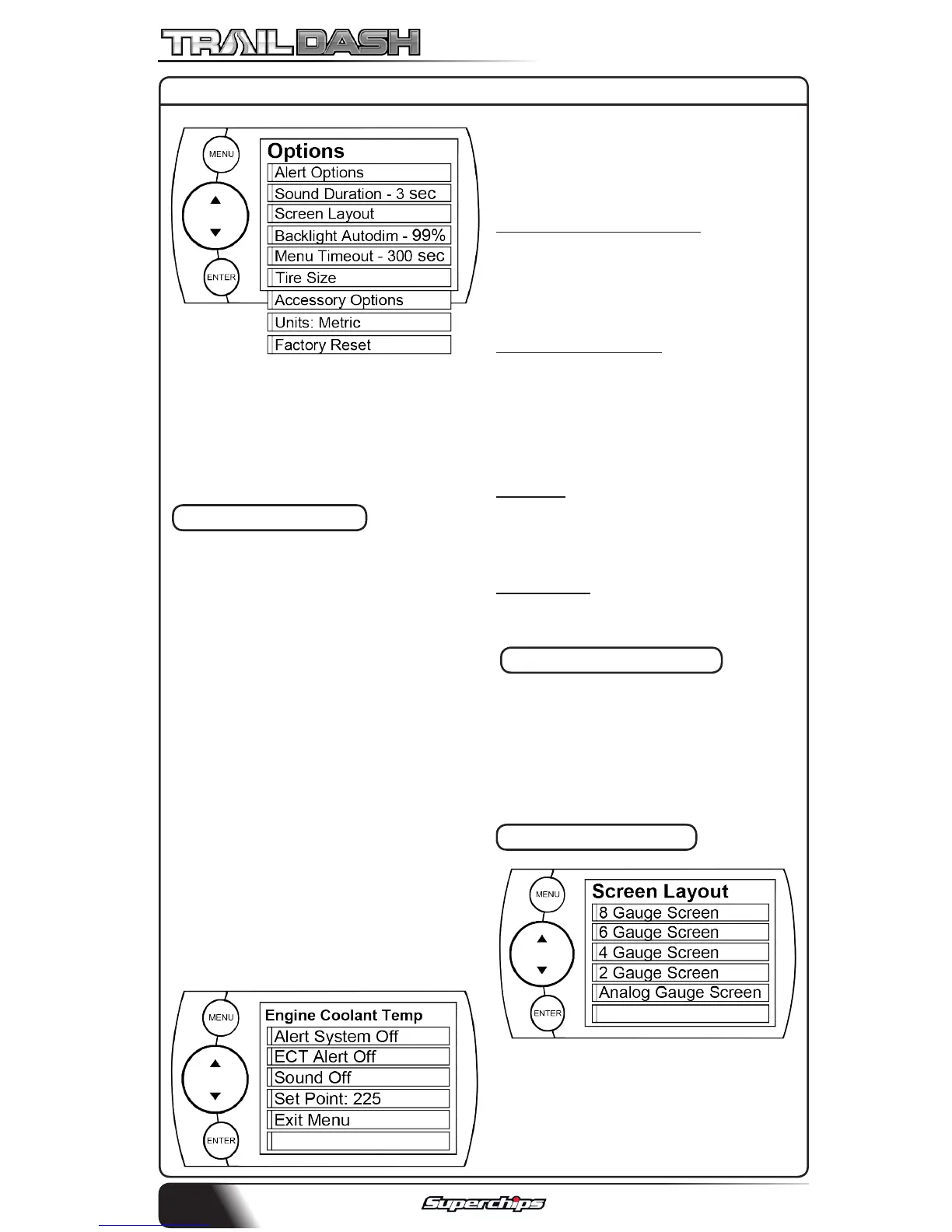
The Options menu contains menu
items that will let you customize the
device settings to your liking, as well
as change the alert settings to best
t your needs.
ALERT OPTIONS
The Alert Options screen allows you
to turn the alerts on/o both col-
lectively and individually. It also lets
you set the alert values for each of
the available parameters.
To turn alerts on:
1. Select Alert Options from the
Options menu.
2. Select Alerts are O/On and
press enter. This will aect the en-
tire alert system as a whole.
To individually disable/enable an
alert, or to change the alert:
1. Select a PID in the Alert Options
menu. The following will appear:
NOTE: In the previous screen
image, the Engine Coolant
Temperature PID is being modied.
ALERT SYSTEM OFF/ON:
Turns the entire alert system o/
on. This enables/disables both the
alerts and sound.
PID ALERT OFF/ON:
This turns o/on the specic PID
alert. That means that any other PID
that is turned on, will remain turned
on.
SOUND:
Deals with individual PID alert
sounds only.
SET POINT:
User dened PID Value.
SOUND DURATION
You can adjust the duration of the
alert sound by using this menu
option. Simply press the up/down
arrow until you have the desired
sound length in seconds.
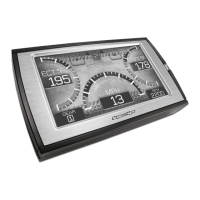
SCREEN LAYOUT
The screen Layout menu allows you
to choose from ve dierent screen
layout options for the Main Screen
Layout. The Analog Gauge Screen
OPTIONS


 To Next Page