Making a Live Recording
We realize that one of the primary reasons you pur-
chased a PSD340 is to record live to CD. That’s why
we’ve made the recording process as direct as possible.
It shouldn’t take long from the time you open the box
to the time you record your first CD. Just follow these
simple steps:
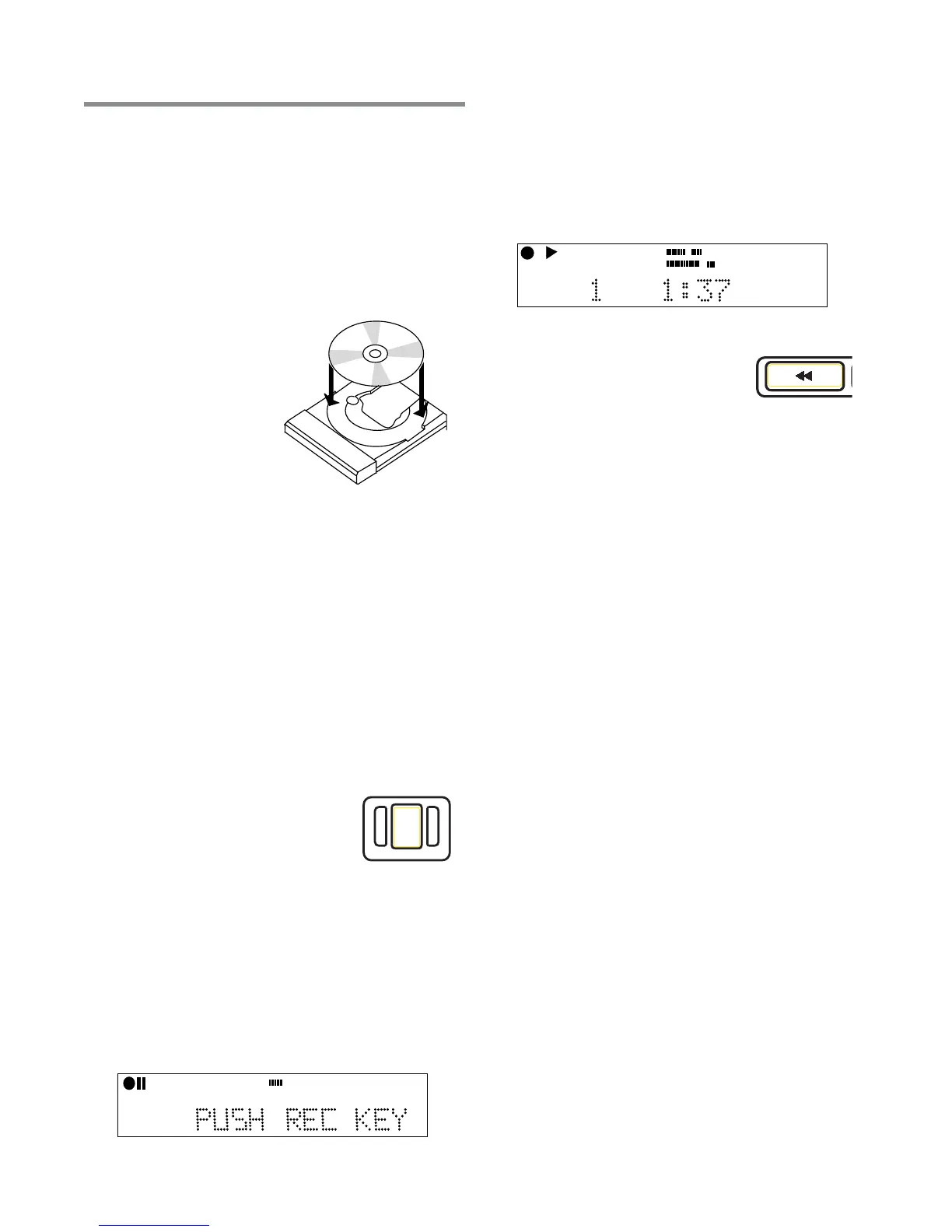
1. Insert a disc. The
PSD340 can record
onto any 1X or 2X
compatible CD-R (write
once), or CD-RW
(rewritable) disc. Just
make sure you place
the disc in the CD
recording drive and not the
CD player drive on top!
2. Connect your equipment. If you’ve already set up
the PSD340 for practice, you may be ready to move
on. If not, see pages 11-12 for setting up micro-
phones, instruments and line level sources.
3. Set the INPUT switch to “ANALOG.” This switch is
located above the CD recording drive. The INPUT
switch tells the PSD340 what type of signal it will be
recording. Microphones, instruments, and most
mixers are analog sources. Don’t let this switch
confuse you. Even though you are making a digital
CD recording, input sources are typically analog. The
only time you would set this switch to DIGITAL, is if
you were recording from the rear panel digital input.
(see sidebar pg. 18)
4. Press the RECORD button. The
first time you press RECORD, the
PSD340 enters ‘Record Pause
Mode.’ In this mode, you will now
be able to adjust the Record
Levels.
5. Set your record levels. After a moment, the display
will now prompt you to ‘Push Rec Key.’ But, you may
want to first adjust your record levels. The overall
record level is set by turning the SELECT jog wheel
control. This level is adjustable from -78dB to +6dB.
While monitoring record levels, we recommend using
headphones. This helps to eliminate feedback. (See
pg.12 for advice on how to set up the PSD340 to
record optimal levels.)
Recording
6. Press RECORD again. You are now recording. The
level meters should respond to your Input signals
(mics, instruments, etc.) and the counter should
display the total elapsed time for the track you are
recording. The red dot and triangular “PLAY” icon in
the display indicate that a recording is in progress.
Press STOP to end the recording or
press the REC REVIEW button on
the unit or remote to listen back
to the most recent track recorded.
(See PLAY Controls pg. 7, [5].)
This CD will playback in the CD recording drive or the
CD player drive. To playback this CD in other standard
CD players, proceed to HOW TO FINALIZE (pg.21).
TIP: For standard stereo recording, make sure the
MIC/LINE SPLIT switch is set for STEREO. This
ensures that the left input is recorded to the left
channel and the right input is recorded to the
right channel. For MIC/LINE SPLIT/STEREO/MIX
switch operation. (See pg. 8).
Independent Drive Operation
When you turn on the PSD340, by default the CD
recording drive will operate independently from the CD
playback drive. This allows you to start and stop either
the CD player or CD recorder at any time during the
recording process. When the INPUT ANALOG/DIGITAL
switch is in the ANALOG position, the CD player audio
will be channeled to the CD-R drive.
Track Increments
Creating New Tracks Manually
Every time you press STOP or PAUSE during the record-
ing process, you will create a new track. To create new
tracks during recording, press the TR INC button on the
top panel or the IR remote. You can create up to 99
tracks on a CD-R or CD-RW disc.
Auto Track Mode
When copying prerecorded material from external
sources, tracks can be set automatically by using AUTO
TRACK Mode. Press the MENU/STORE button and select
“AUTO TRACK.” Change the AUTO TRACK status to
REC
CD-RW
dB-50 -30 -22 -16 -12 -8 -4 0OVER
R
L
TRACK
CD
R
L
dB-50 -30 -22 -16 -12 -8 -4 0
CD-RW
REC REVIEW
- 17 -


 To Next Page