•
For more information about the views in dierent dive modes, see the respective sections
under 4.16. Dive modes.
Adding and editing gases
•
Configure what you see under the Gases menu in your Suunto EON Steel Black device.
•
Turn Multiple gases on or o.
•
When Multiple gases is on, add new gases.
NOTE: For detailed support material regarding dive mode customization in Suunto app,
visit www.suunto.com/Support/dive-computers-and-instruments-support/suunto-eon-steel-
black/.
5.8. How to enable gas consumption metering
When you customize your Suunto EON Steel Black in Suunto app to include the gas
consumption info field in the switch window, this information will always be available and
visible during a dive where you use the gas to which the Tank POD is attached.
TIP: Make sure the tank size is correct.
To enable gas consumption metering:
1. Add the gas consumption
field to your custom dive mode in Suunto app.
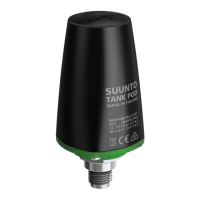
2. Install and pair a Suunto Tank POD.
3. When you have selected the correct gas and returned to the main time view, keep the
middle button pressed to enter the menu.
4. Scroll to Gases with the lower button and select with the middle button.
5. Scroll to the gas you just selected from your Tank POD and select with the middle button.
6. Scroll to Tank size and select with the middle button.
7. Check the tank size and change the size with the upper or lower button as needed.
Confirm the change with the middle button.
8. Keep the middle button pressed to exit the menu.
NOTE: For accurate gas consumption, you must define the tank size. Not defining the
tank size leads to incorrect gas consumption readings.
5.9. How to add bookmarks
While diving, keep the lower button pressed to add a bookmark (timestamp) to the active log
for later reference.
Bookmarks save the following information: time stamp, depth, temperature, and pressure if
tank pod is used. Data can be seen in Suunto app after the dive.
NOTE: In compass view, long pressing the lower button locks the bearing.
Suunto EON Steel Black
55


 To Next Page