32
2-2. Connectivity settings
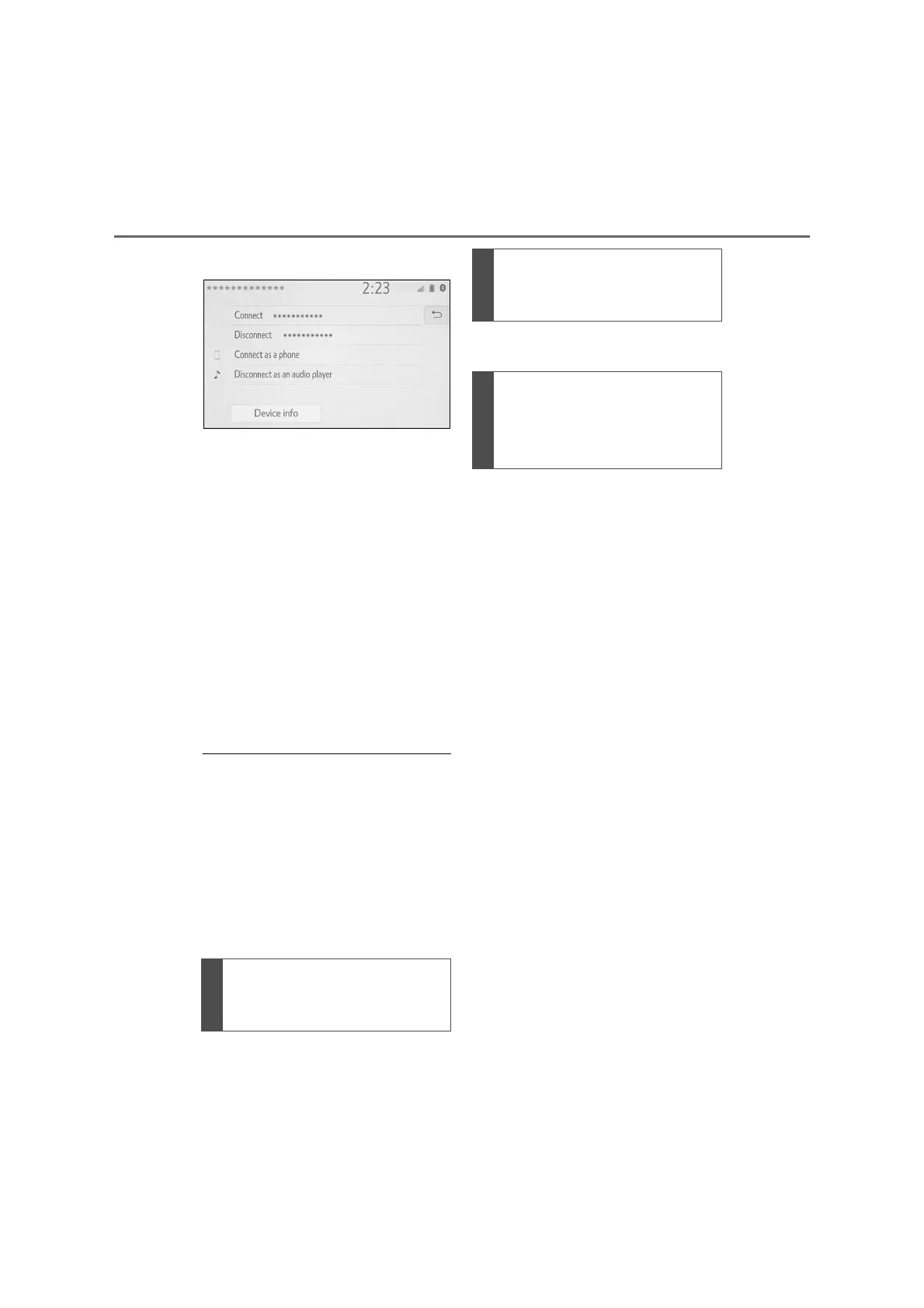
4 Select the desired connection.
“Device info”: Select to confirm and
change the Bluetooth
®
device infor-
mation. (P.33)
When another Bluetooth
®
device
is connected
To disconnect the Bluetooth
®
device, select “Yes”.
5 Check that a confirmation
screen is displayed when the
connection is complete.
If an error message is displayed,
follow the guidance on the
screen to try again.
● It may take time if the device connec-
tion is carried out during Bluetooth
®
audio playback.
● Depending on the type of Bluetooth
®
device being connected, it may be
necessary to perform additional steps
on the device.
● When disconnecting a Bluetooth
®
device, it is recommended to discon-
nect using this system.
P.110
P.123
P.70
■ Auto connection mode
To turn auto connection mode on,
set “Bluetooth power” to on.
(P.35) Leave the Bluetooth
®
device in a location where the con-
nection can be established.
When the power switch is turned
to ACC or ON, the system
searches for a nearby registered
device.
The system will connect with the
registered device that was last
connected, if it is nearby. When
automatic connection priority is
set to on and there is more than
one registered Bluetooth
®
phone
available, the system will auto-
matically connect to the
Bluetooth
®
phone with the high-
est priority. (P.35)
■ Connecting manually
When the auto connection has
failed or “Bluetooth power” is turned
off, it is necessary to connect the
Bluetooth
®
device manually.
Connecting a Bluetooth
®
device in a different way
(from phone top screen)
Connecting a Bluetooth
®
device in a different way
(from phone setup screen)
Connecting a Bluetooth
®
device in a different way
(from Bluetooth
®
audio
screen)


 To Next Page