56
3-1. Basic operation
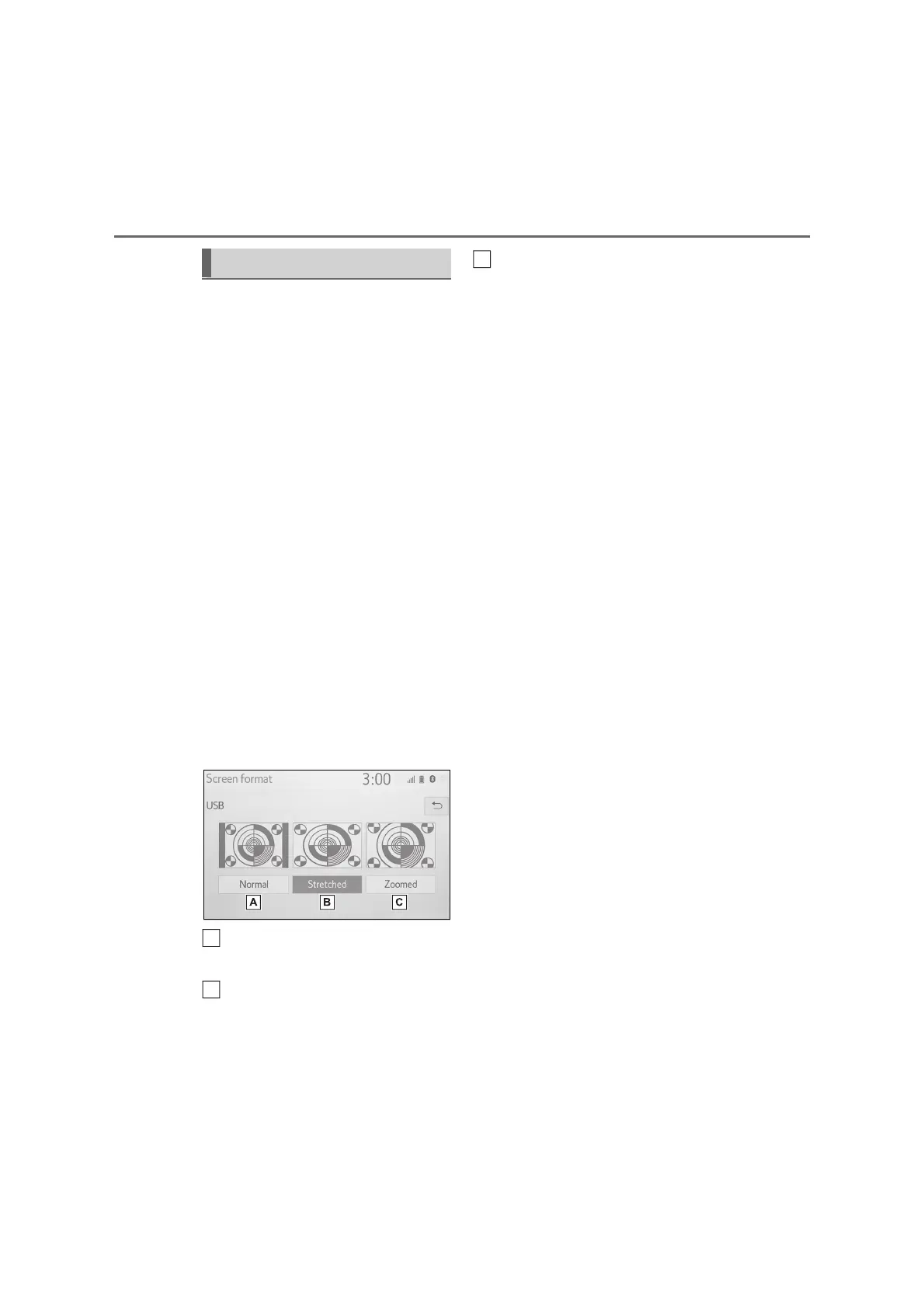
■ Screen format settings
The screen adjustment can be
selected for USB video and
Miracast
®
.
From the audio settings screen
1 Press the “SETUP” button.
2 Select “Audio”.
3 Select “Common”.
4 Select “Screen format”.
5 Select the desired item to be
adjusted.
From the Miracast
®
control
screen
1 Display the Miracast
®
control
screen. (P.71)
2 Select “Wide”.
3 Follow the steps in “From the
audio settings screen” from step
5. (P.56)
Select to display a 4 : 3 screen,
with either side in black.
Select to enlarge the image hor-
izontally and vertically to full
screen.
Select to enlarge the image by
the same ratio horizontally and
vertically.
*
*
: USB video only
■ Color, tone, contrast and
brightness adjustment
The color, tone, contrast and bright-
ness of the screen can be adjusted.
From the audio settings screen
1 Press the “SETUP” button.
2 Select “Audio”.
3 Select “Common”.
4 Select “Display”.
5 Select the desired item to be
adjusted.
From the Miracast
®
control
screen
1 Display the Miracast
®
control
screen. (P.71)
2 Select “Display”.
3 Follow the steps in “From the
audio settings screen” from step
5. (P.56)
“Colour”
“R”: Select to strengthen the red colour
of the screen.
“G”: Select to strengthen the green
colour of the screen.
“Tone”
“+”: Select to strengthen the tone of the
screen.
“-”: Select to weaken the tone of the
screen.
“Contrast”
Audio screen adjustment
A
B


 To Next Page