72
3-3. Media operation
ods:
P.53
Connecting a Miracast
®
device
(P.72)
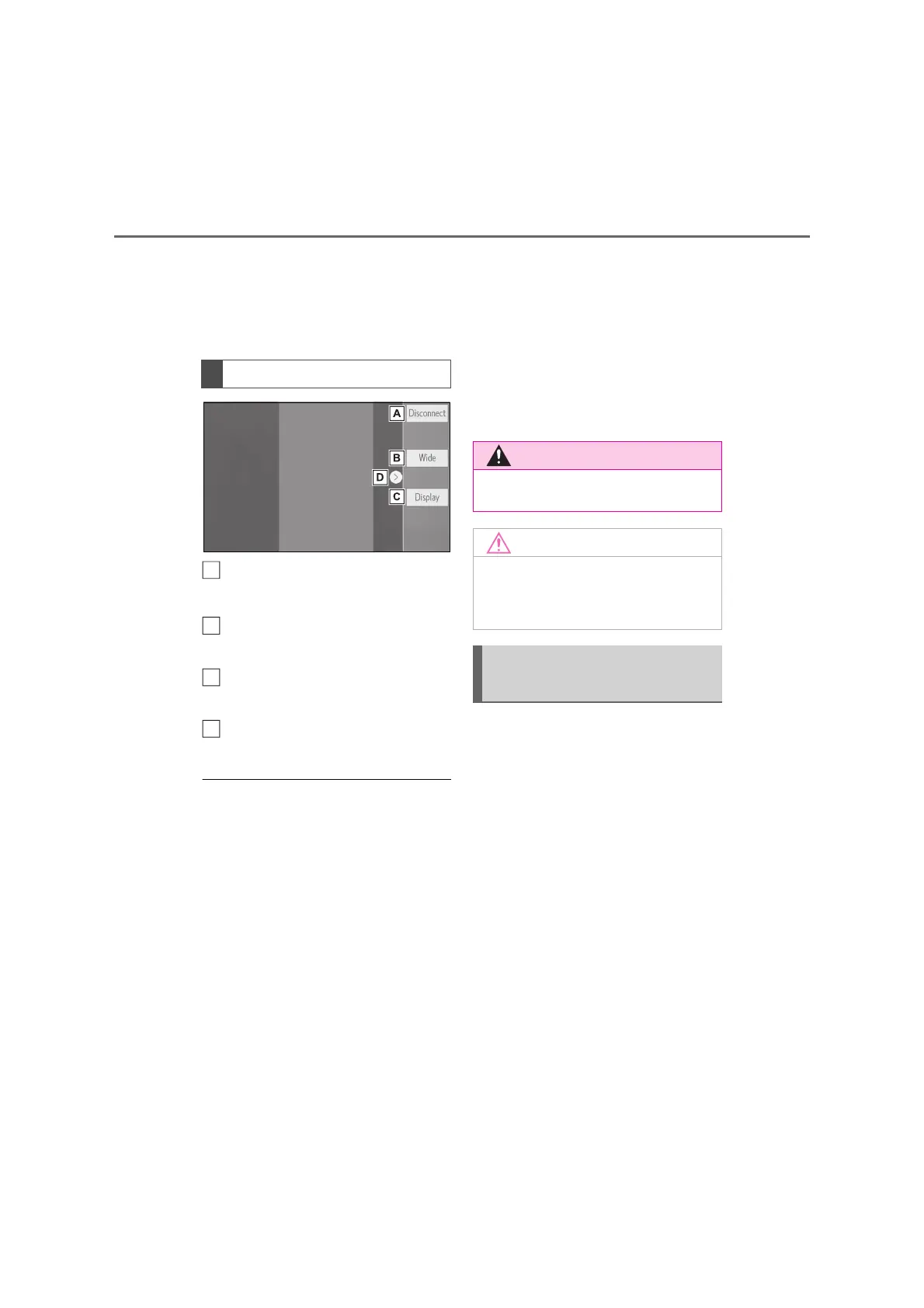
Select to disconnect the
Miracast
®
device.
Select to change the screen
size. (P.56)
Select to display the image qual-
ity adjustment screen. (P.56)
Select to display/hide the control
button.
● When “Access to network” (P.37) is
set to “On”, Wi-Fi
®
network connec-
tion communication and Miracast
®
communication may affect each other,
causing image distortion and audio
stuttering. If this occurs, setting
“Access to network” to “Off” may
reduce the effects.
● The Miracast
®
sound volume takes
into account the sound volume of both
the system and the connected device.
Before using Miracast
®
, adjust the
sound volume of the connected
device to an appropriate level.
● When a device that uses Bluetooth
®
audio is used with Miracast
®
, no
sound may be output from Miracast
®
.
If this occurs, disabling the Bluetooth
®
audio may allow sound to be output
from Miracast
®
.
● The Miracast
®
screen displays the
same image that is sent from the
external device. If the external device
screen is vertically-oriented, the
screen may also display a vertical
image.
Miracast
®
is available when the
Wi-Fi
®
function is enabled. (P.38)
1 Turn the Miracast
®
function of
your smartphone on.
2 Select “Miracast™” on the audio
source selection screen.
(P.53)
The system will automatically
start searching for a Miracast
®
compatible device.
Control screen
B
C
D
● Do not connect smartphone or
operate the controls while driving.
● Do not leave your smartphone in
the vehicle. In particular, high tem-
peratures inside the vehicle may
damage the smartphone.
Connecting a Miracast
®
device


 To Next Page