acceptable temperatures. The TC70 or accessory indicates when charging is disabled due to abnormal temperatures
via its LED.
Procedure:
1 To charge the main battery, connect the charging accessory to the appropriate power source.
2 Insert the TC70 into a cradle or attach to a cable. The TC70 turns on and begins charging. The Charging/
Notification LED blinks amber while charging, then turns solid green when fully charged.
Charging Indicators
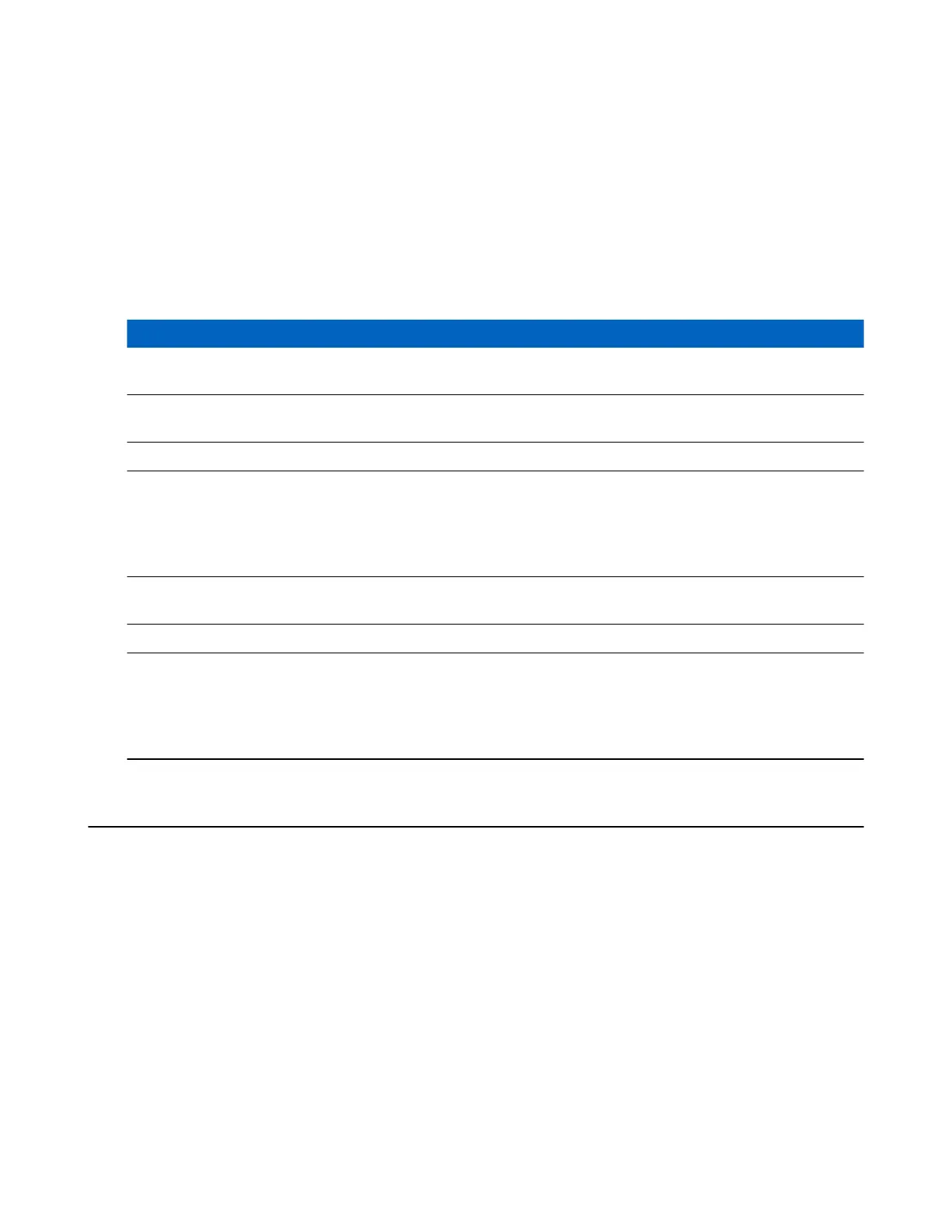
Table 3: Charging/Notification LED Charging Indicators
State Indication
Off TC70 is not charging. TC70 is not inserted correctly in the cradle or con-
nected to a power source. Charger/cradle is not powered.
Slow Blinking Amber (1 blink every 2
seconds)
TC70 is charging.
Solid Green Charging complete.
Fast Blinking Amber (2 blinks/second)
Charging error, e.g.:
• Temperature is too low or too high.
• Charging has gone on too long without completion (typically eight
hours).
Slow Blinking Red (1 blink every 2 sec-
onds)
TC70 is charging and battery is at end of useful life.
Solid Red Charging complete and battery is at end of useful life.
Fast Blinking Red (2 blinks/second)
Charging error and battery is at end of useful life., e.g.:
• Temperature is too low or too high.
• Charging has gone on too long without completion (typically eight
hours).
Replacing the Battery
Procedure:
1 Press and hold the Power button until the menu appears.
2 Touch Power off.
3 If hand strap is attached, slide the hand strap clip up toward the top of the TC70 and then lift.
22 | Getting Started
October 2014 | MN001120A01-A


 To Next Page