TAC 2112, Manual Day-to-day Usage
4:4(6), 0-004-7459-3 (GB) 1999-08-01, TAC AB
1
2
3
4
5
6
7 8 9 10 11 12 13 14 15 16 17
18
0
23
22
21
20
19
24
K1
P 65
01.01
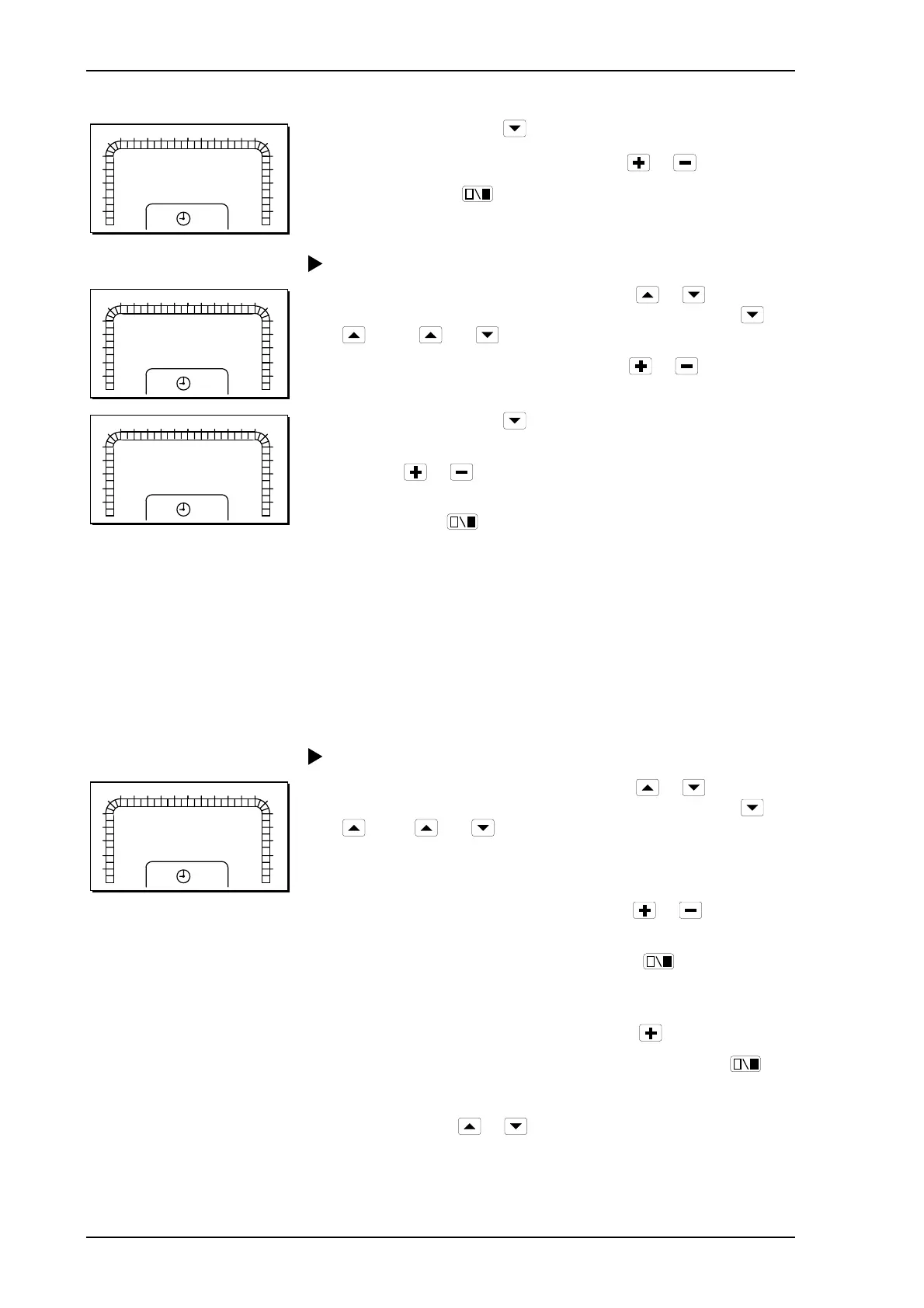
5 Go to P 65 by pressing .
6 Set the end date (month.day) by pressing
or .
7
Exit by pressing
.
Procedure for deleting a holiday period:
1
2
3
4
5
6
7 8 9 10 11 12 13 14 15 16 17
18
0
23
22
21
20
19
24
K1
P 63
1
1 Select parameter number P 63 by pressing
or . The
parameter number is increased and decreased by pressing
or
. Press and at the same time to get to P 15 – P 99.
2 Select a holiday period (1–6) by pressing
or .
1
2
3
4
5
6
7 8 9 10 11 12 13 14 15 16 17
18
0
23
22
21
20
19
24
K1
P 64
01.00
3 Go to P 64 by pressing .
4 Change the start date to day 0 in the month (month.00) by
pressing
or . Hold the button down for fast
increase/decrease.
5 Exit by pressing .
It is also possible to change the end date to day 0 to delete a holiday
period.
4.5.3 Weekly program for external units
This weekly program can be used to control an external unit (such as
lighting). The controller is set for night operation on all days of the
week when it is delivered. See chapter 7 for a more detailed
description of time schedules.
Procedure for changing the weekly program:
1
2
3
4
5
6
7 8 9 10 11 12 13 14 15 16 17
18
0
23
22
21
20
19
24
K1
MO
P 61
1 Select parameter number P 61 by pressing
or . The
parameter number is increased and decreased by pressing
or
. Press and at the same time to get to P 15 – P 99.
2 When the parameter number has been selected, the 24-hour
clock will be displayed showing “MO” for Monday.
3 Scroll in the 24-hour time bar by pressing
or
until you
get to the segment to be changed. The segment will flash.
4 Change the half-hour segments by pressing
. A filled-in
segment will result in daytime operation. When a segment has
been changed, the next segment will start to flash.
5 Scroll on to “TU” for Tuesday by pressing
.
6 Change the half-hour segments for Tuesday by pressing
.
7 Repeat steps 5 and 6 for each day of the week.
8 Exit by pressing
or .


 To Next Page