EasyManua.ls Logo

TAD DA1000 - User Manual

Default Icon
128 pages
Print Icon
To Next Page IconTo Next Page
Loading...
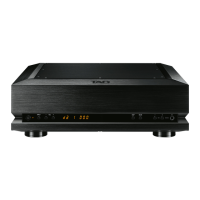
TAD-DA1000
D/A CONVERTER
CONVER TISSEUR N/ A
D/A-WANDLER
CONVERTITORE D/A
CONVERTIDOR D / A
ÞĄþăȅȄàȀȃȀĀȄùȄȁĉÿÞāȅȂȄøȅȀýȄȁȀȇȂĀĊ
數位類比轉換器
OWNER ’S MANUAL
MODE D’EMPLOI
BEDIENUNGSA NLEI T UNG
MANUALE D’ISTRUZIONI
MANUAL DE INSTRUCCIONES
ȅĂȖȄȁȄúȆȇȁȄÞāȄĀĊýȄȁȀȇȂĀč
用戶手冊

Table of Contents

Questions and Answers

  • M
    Mark CareyAug 17, 2025
    What to do if no sound is produced from my TAD Media Converter?
    • J
      jonathonrobinsonAug 17, 2025
      If your TAD Media Converter isn't producing sound, even with the correct input settings, there could be several reasons: * The input connector may not be correctly connected, so check the connection. * The mute mode might be activated. If the “0” indicator is flashing, press the MUTE button on the unit or remote to cancel mute mode. * The sound may be too low, so adjust the volume.
  • W
    whiteleeAug 19, 2025
    Why is my TAD Media Converter remote control not working?
    • M
      martinbrooksAug 19, 2025
      If the remote control for your TAD Media Converter isn't working, consider these possibilities: * The batteries may be dead. Replace them with new ones. * You might be too far from the unit. Try using the remote within 7 meters (23 ft.) and within a 30° arc to the right or left of the front panel. * There may be an obstacle in the way. Remove any obstacles between the unit and the remote, or try a different location. * Strong light may be interfering with the signal receiver. Readjust the position of lamps or other light sources to prevent strong light from striking the signal receiver.
  • M
    Mr. Barry RichardsonAug 22, 2025
    What to do if I hear noise from my TAD DA1000 when no input is selected?
    • C
      Cheryl McphersonAug 22, 2025
      If you're hearing noise from your TAD Media Converter even when no input is selected, the noise might be coming from the power source itself. Check your computer’s power wiring; are too many plugs connected to the same power outlet?
  • L
    Lisa BaileyAug 25, 2025
    How to fix a TAD DA1000 Media Converter when no sound is produced for digital input?
    • E
      eugene80Aug 26, 2025
      If your TAD Media Converter isn't producing sound for digital input, consider the following: * The digital connection might not be correct, so check the digital connection. * If you're using a CD player with digital output level adjustment, the output level may be set too low. Adjust the player’s digital output level to an appropriate level. * The file format may not be supported by your computer’s digital playback software. If the output device is set to a non-PCM audio signal format (Dolby Digital, DTS, etc.), set it to PCM.
  • R
    Robert LeeAug 28, 2025
    Why does my TAD Media Converter power off by itself?
    • J
      Joel MolinaAug 28, 2025
      If your TAD Media Converter is turning off by itself, the ECO (power-saving) mode may be turned ON. The unit will automatically enter standby mode if no operation is performed on it for 30 minutes. Set the ECO (power-saving) mode to OFF.
  • Z
    Zachary EstradaAug 30, 2025
    Why is there no sound from my TAD Media Converter for USB input?
    • J
      Jack FoxAug 31, 2025
      If you're not getting any sound from your TAD Media Converter via USB input, here are a few things to check: * The computer may be set to a different input component, or the computer’s mute function might be ON. Check the computer’s sound settings. * The connections could be incorrect, or the unit may not be detected by the computer. After connecting the unit to the computer, if the unit’s input is switched to USB, the computer’s sound setting may switch to a different input component. In this case, reselect TAD-USB1 or TAD-USB2D as the input. Also, check the connections again. * The file format, OS, or playback software might not be supported. Confirm that the OS, software, and file sampling rate are supported.
  • M
    Michael JenkinsSep 2, 2025
    How to fix the display if it is not visible on my TAD Media Converter?
    • M
      Madison HarrisonSep 2, 2025
      If the display on your TAD Media Converter isn't visible: * Make sure you're viewing the display from immediately in front of the unit, within a 45° angle to the right or left. * The unit may be set to display off. Press the DISP button to disable the display off mode.
  • H
    hessmichaelSep 5, 2025
    How to resolve the issue of the power not turning off on my TAD DA1000 Media Converter?
    • D
      Derek BarajasSep 5, 2025
      If the power on your TAD Media Converter won’t turn off, the 12 V trigger input connector’s signal may be at “H” value. Turn off the power to the device generating the 12 V trigger output.
  • A
    Amanda HillSep 8, 2025
    Why does the USB input’s sampling rate always stay the same on my TAD DA1000?
    • J
      Jose JamesSep 8, 2025
      If the USB input’s sampling rate on your TAD Media Converter is always the same, it may be due to the computer’s settings. Depending on the computer’s setting, the sampling rate may remain the same even when playback files have different sampling rates. Check the computer settings.
  • G
    garywallaceSep 10, 2025
    Why are computer sounds audible from the USB input on my TAD DA1000?
    • D
      David BurnsSep 12, 2025
      If you're hearing computer sounds (like boot-up beeps or error sounds) from the USB input on your TAD Media Converter, it's likely due to computer settings. Depending on computer settings, the computer’s boot-up beeps or error sounds may be audible from the unit. Check the computer settings.

Summary

Safety Precautions

Electrical Safety & Fire Prevention

Guidelines to prevent electric shock, fire hazards, and ensure proper ventilation.

Important Safety Instructions

General Operational Safety

Essential safety guidelines for operation, installation, and maintenance of the equipment.

Product Operation Precautions

Introduction to TAD-DA1000

Key Product Features Overview

Detailed description of the TAD-DA1000's advanced features, including clock, D/A converters, and construction.

Main Unit Controls

Front Panel Overview

Identification and description of controls and indicators on the front panel of the TAD-DA1000.

Rear Panel Connections

Main Unit Rear Panel Layout

Diagram and explanation of connectors and ports on the rear of the TAD-DA1000 unit.

Remote Control Operation

Remote Control Button Functions

Description of each button on the remote control unit and its corresponding function.

Installation Guide

Optimal Installation Environment

Guidelines for selecting a suitable installation location with adequate ventilation and clearance.

Connecting Your System

Step-by-Step Connection Procedure

Instructions for connecting the TAD-DA1000 to other audio components and power sources.

Special Settings and Adjustments

USB Connectivity Setup

Advanced Unit Features

Troubleshooting Common Issues

Resolving Operational Problems

Guidance on identifying and resolving common operational issues with the TAD-DA1000.

Product Specifications

Detailed Technical Specifications

Technical specifications including inputs, outputs, power, dimensions, and weight.

TAD DA1000 Specifications

General IconGeneral
CategoryMedia Converter
ManufacturerTAD
ModelDA1000
Power Supply5V DC
Input InterfaceCoaxial, Optical
Supported ResolutionsUp to 192kHz/24bit

Related product manuals