EasyManua.ls Logo

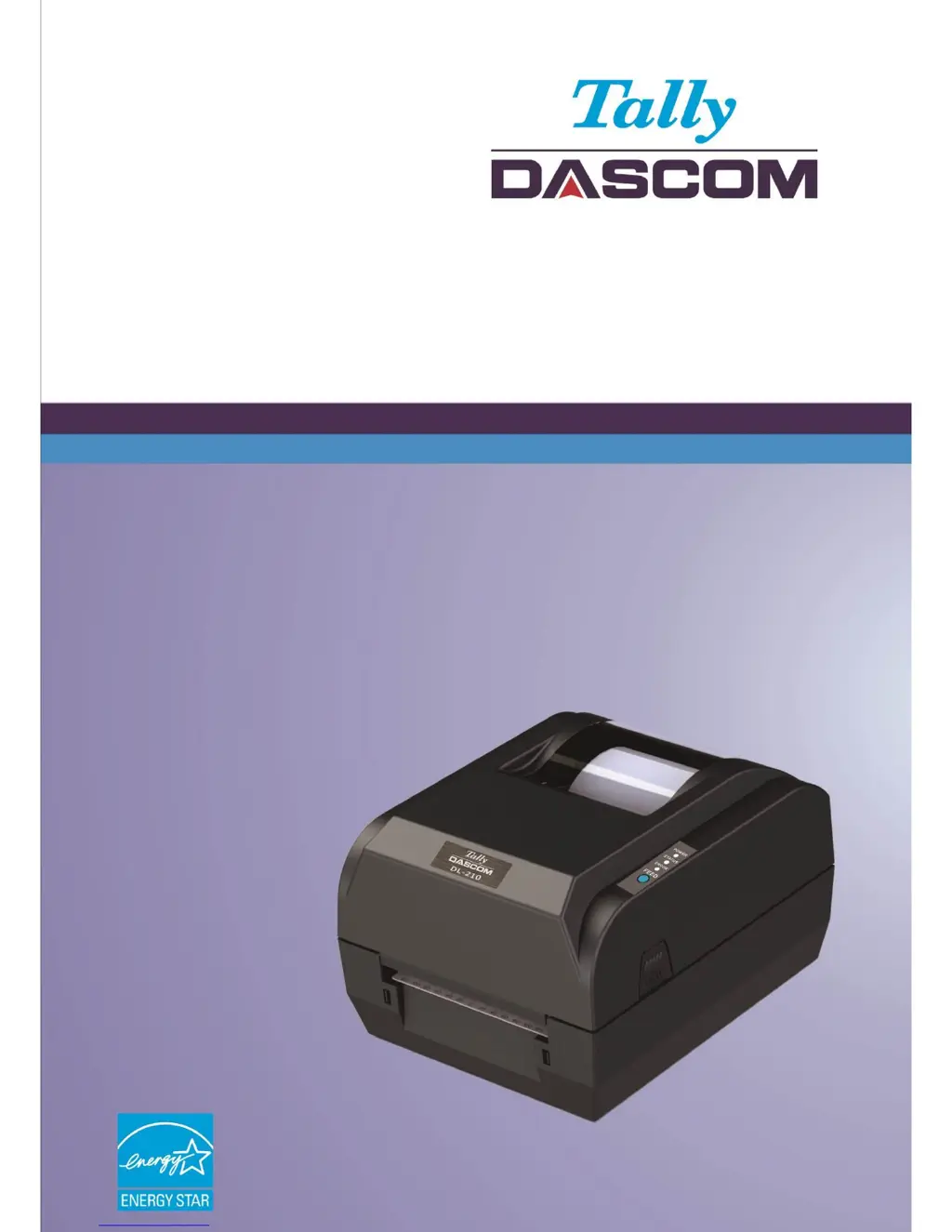
Tally Dascom DL-210 - User Manual

Tally Dascom DL-210
94 pages
Print Icon
To Next Page IconTo Next Page
Loading...
User Manual DL-210 Label & Barcode Printer

Table of Contents

Other manuals for Tally Dascom DL-210

Questions and Answers

  • W
    William AllenAug 21, 2025
    Why is my Tally Dascom DL-210 printing blurred labels?
    • A
      Annette BowenAug 21, 2025
      Blurred or spot printing on your Tally Dascom Label Maker can occur due to several reasons: * The media roll might be installed incorrectly: check the media roll and reload it properly. * The media is out of specification: use recommended media. * The thermal print head or platen is dirty: clean the print head or platen. * The ribbon is out of specification: use recommended ribbon. * The print density is low: increase the print density (heat). * Printing with ribbon on direct thermal paper: remove the ribbon.
  • A
    Alexandria MuellerSep 3, 2025
    Why is the printout crooked or off-center on my Tally Dascom Label Maker?
    • M
      Michael ArmstrongSep 3, 2025
      If the paper size setting is correct, but the printout is crooked, skewed, or off-center on your Tally Dascom Label Maker, it is likely that the label did not calibrate correctly. Execute label calibration.
  • J
    Jane OrtizSep 1, 2025
    What does it mean when the Power LED and Error LED fast blink three times, and the buzzer alarms three times on my Tally Dascom DL-210 Label Maker?
    • G
      gardnermanuelSep 1, 2025
      When the Power LED and Error LED on your Tally Dascom Label Maker blink fast three times, accompanied by three buzzer alarms, it indicates a gap sensor error alarm. This means the black mark sensor does not align with the receiving sensor. To fix this, move the black mark sensor so that its triangle aligns with the one on the center housing.
  • D
    donnapalmerAug 30, 2025
    What does it mean when the Error LED fast blinks on my Tally Dascom DL-210 Label Maker?
    • S
      Selena AvilaAug 31, 2025
      If the Error LED on your Tally Dascom Label Maker is fast blinking, it could indicate a gap detection error. * If you are using continuous paper but have set the label in the tool, change to 'label paper' in the tool. * Due to a sensor error or other problem, the sensor could not detect the gap. Clean or adjust the media sensor.
  • N
    Nicolas MayAug 29, 2025
    What does it mean when the Status LED blinks on my Tally Dascom Label Maker?
    • S
      Stacy HenryAug 29, 2025
      If the Status LED is blinking on your Tally Dascom Label Maker, it could indicate: * A label remains in the peeler: remove the label. * The ribbon has ended: replace the ribbon.
  • S
    samuelcunninghamAug 27, 2025
    Why does my Tally Dascom Label Maker feed blank labels?
    • M
      Megan GonzalezAug 28, 2025
      If your Tally Dascom Label Maker is feeding blank labels, it might be because you are printing without a ribbon on transfer thermal paper. Install a ribbon to resolve this.
  • S
    Suzanne EdwardsAug 27, 2025
    Why does the Tally Dascom DL-210 Label Maker skip labels?
    • K
      kimberlywalkerAug 27, 2025
      The Tally Dascom Label Maker might skip labels because of a label positioning problem, or the label size setting exceeds the physical size. Execute label calibration. If that doesn't work, verify that the label size setting is correct.
  • J
    Joseph RasmussenAug 25, 2025
    What to do if no LEDs are on on my Tally Dascom DL-210 Label Maker?
    • L
      Leonard MooreAug 25, 2025
      If no LEDs are illuminated on your Tally Dascom Label Maker, consider these potential causes and solutions: * The power cord may be unplugged: check the power cord and plug it in properly. * The printer might be turned off: turn the printer on. * The power source is unavailable: check the cable and adapter, or try another cable and/or adapter. * The device is shut down: check the cable and adapter, or try another cable and/or adapter. * If the PCB is damaged: contact service representatives.
  • H
    Heather McconnellAug 23, 2025
    What to do if the Error LED blinks and the buzzer alarms on my Tally Dascom Label Maker?
    • C
      cynthia48Aug 23, 2025
      If the Error LED blinks and the buzzer alarms on your Tally Dascom Label Maker, it could be due to the following reasons: * The thermal print head has overheated: turn the printer off and wait a few minutes before resuming. * Over-voltage or Low-voltage: print using the specified voltage.

Summary

Important Safety Instructions (English)

TRADEMARK ACKNOWLEDGEMENTS

About This Manual

Symbols Description

Explains symbols used in the manual to indicate importance and instructions.

Related Software and Documents

Lists associated software and documents for the printer, including manuals.

1 INTRODUCTION

1.1 Features

Highlights key features of the DL-210 printer, including connectivity and options.

1.2 Printer Specification

Fonts

Lists available fonts and code pages supported by the printer for character display.

Barcodes

Outlines the supported 1D and 2D barcode types for printing.

Media Handling

Describes media specifications, types, and how the printer handles them.

Control Panel

Details the printer's control panel components like keys and LEDs.

Detect Function

Lists sensors used by the printer for detection, such as black mark and media sensors.

Emulation

Specifies printer emulation modes supported, like Zebra and Epson.

Power Supply

Memory

Specifies the printer's internal memory capacities for SDRAM and FLASH.

Interface

Lists the available standard and optional interface types for connecting the printer.

Software

Mentions software required for the printer, such as drivers and Bartender.

Physical Spec.

Provides physical specifications like dimensions, weight, and operating conditions.

Safety Standard

Indicates safety and EMC certifications obtained by the printer.

Certificate

Lists product certifications such as CCC, CE, FCC, UL, and Energy Star.

Reliability

Specifies the reliability metric, such as TPH lifetime.

1.3 Print Media Types

Non-Continuous Roll Media

Describes roll media with gaps, holes, notches, or black marks for label separation.

Non-Continuous Fanfold Media

Explains fan-fold media folded in a zigzag pattern for label separation.

Continuous Roll Media

Details continuous roll media without separations, used for receipt or ticket printing.

1.4 External Dimension and Mass

1.5 Unpacking

Package Contents

1.6 Product Configuration

Interface Types

Describes the different interface types supported by the printer, such as USB, Serial, and Ethernet.

1.7 Printer Components

Control Panel

Details the components of the printer's control panel and their functions.

USB interface

Describes the USB interface for connecting the printer to a host.

Optional interface

Covers optional interface types like Serial, Parallel, Ethernet, and Wi-Fi.

1.8 Control Panel

1.8.1 LEDs Behavior

Explains the status and behavior of the printer's LED indicators.

1.8.2 Feed Key Operation

Describes how to use the Feed Key for advancing media.

2 SETUP

1.1 Flow of Setup

Outlines the sequence of steps for setting up the printer and its components.

2.1 Placing the Printer

Guides on selecting an appropriate location for installing the printer.

2.2 Attaching Power

2.3 Calibrate Sensor

2.3.1 Calibrate Gap Sensor

Provides step-by-step instructions for calibrating the gap sensor.

2.3.2 Calibrate Reflective Sensor

Offers instructions for calibrating the reflective sensor.

2.4 Loading Roll Media

Label Calibration

2.5 Loading Transfer Ribbon

2.6 Connecting to Computer

2.7.1 Connecting USB interface

Details the process of connecting the printer using a USB interface.

2.7.2 Connecting serial interface

Explains how to connect the printer using a serial (RS-232) interface.

2.7.3 Connecting parallel interface

2.7.4 Connecting Ethernet interface

Provides instructions for connecting the printer using an Ethernet interface.

2.7.5 Connecting Wlan Interface

3 NETWORK SETUP AND CONFIGURATION

3.1 Installing Driver

Guides on installing the necessary printer driver for operation.

Installation Directory

User Account Control

Seagull Driver Wizard

Specify Port

Specify Printer Name

3.2 Installing Setup Tool

Select Start Menu Folder

Ready to Install

Completing the SetupTool Setup Wizard

3.3 Setup Tool Application

3.3.1 Model and Interface Setting

Guides on selecting the printer model and interface within the setup tool.

3.3.2 Configuring Printer

Setup Items Explanation

Explains various configuration items available in the printer setup tool.

Explanation for Buttons

3.4 LAN Interface Setup

Network Setting

Window for configuring network settings, including IP address and MAC address.

Configure Network (USB)

3.5 WLAN Interface Setup

Wi-Fi Setup

Window for configuring Wi-Fi settings like mode, SSID, and encryption.

Wi-Fi Mode

3.6 Update Firmware

Preparation

Lists prerequisites for firmware update, including cables and software.

Connection

Details how to connect the printer to the computer for firmware update.

Update Firmware

4 SETTING;CHECKING MODES

4.1 Print a Parameter Setting Page (Self-test Page)

Explains how to print a self-test page to check printer status.

Parameter settings

4.2 Hexadecimal Dumping Mode

4.3 Auto Calibrate Label

5 TROUBLESHOOTING AND MAINTENANCE

5.1 Common Issues

Lists common printer issues, their possible causes, and solutions based on LED indications.

Printing Error

5.2 Resetting the Factory Default Values

Explains how to reset the printer settings to factory defaults.

5.3 Removing Jammed Label

Provides instructions for safely removing jammed labels from the printer.

5.4 Cleaning Thermal Print Head

5.5 Maintenance

Outlines recommended periodic maintenance for the printer to ensure optimal performance.

6 COMMUNICATION INTERFACES SPECIFICATIONS

6.1 USB interface

Provides pin assignments and connector diagrams for the USB interface.

6.2 Wi-Fi interface

Specifies the standards supported by the Wi-Fi interface.

6.4 Ethernet interface

Details the pin assignments for the Ethernet interface.

6.5 Serial interface

Ethernet interface connector diagram

Shows the connector diagram for the Ethernet interface.

6.6 Parallel interface

6.7 Power Supply

7 CHARACTER CODE PAGES

7.1 Common to all pages (International Character Set: USA)

Shows the common character configuration table for the USA international character set.

7.2 International Character Sets

7.3 [User-defined page]

7.4 [PC437: USA, Standard Europe]

7.5 [PC850: Multilingual]

7.6 [PC852: Latin2]

7.7 [PC858: Euro]

7.8 [PC860: Portuguese]

7.9 [PC863: Canadian-French]

7.10 [PC865: Nordic]

7.11 [PC866: Cyrillic #2]

7.12 [PC720: Arabic]

8 COMMAND SETS

8.1 ESC;POS Command Sets

Details ESC/POS command sets for print control, position, and miscellaneous functions.

Barcode commands

Bit image commands

Commands for handling bit images and downloading graphics.

8.2 ZPL Command Sets

Commands

Graphic Circle

Start ZBI (Zebra BASIC Interpreter)

Media Tracking

Set Print head Resistance

8.3 EPL Command Sets

Appendix I: Installing the Cutter

Removing the Tear Bar

Guides on how to remove the tear bar from the printer.

Installing the Auto Cutter

Move the auto cutter gently

Enable the cutter in the setup tool

Appendix: FCC STATEMENT

Appendix III: DASCOM REPRESENTATIVES

Tally Dascom DL-210 Specifications

General IconGeneral
TypeLabel Maker
Print MethodThermal Transfer / Direct Thermal
Print Resolution203 dpi
ConnectivityUSB
Supported Label MaterialsFan-fold

Related product manuals