EasyManua.ls Logo

Techerific DeciVibe - Understanding the Recording Screen

Techerific DeciVibe
62 pages
Print Icon
To Next Page IconTo Next Page
To Previous Page IconTo Previous Page
Loading...
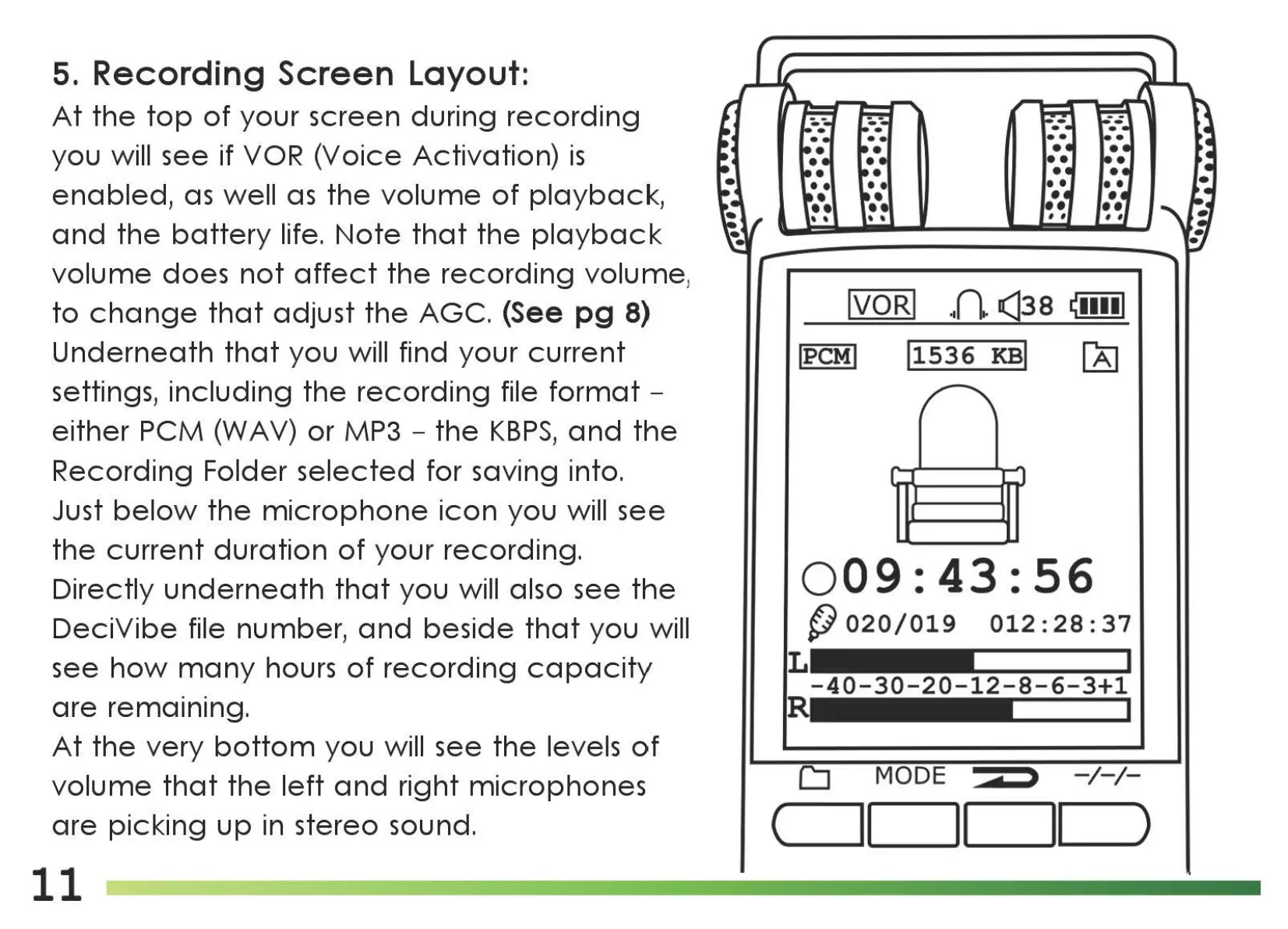
5. Recording Screen Layout:
At
the
top
of
your screen during
recording
you will see if
VOR
(Voice Activation)
is
enabled,
as
well
as
the
volume
of
playback,
and
the
battery
life.
Note
that
the
playback
volume
does
not
affect
the
recording
volume
,
to
change
that
adjust
the
AGC. (See
pg
8)
Underneath
that
you will find your
current
settings,
including
the
recording
file
format
-
either
PCM (WAV) or MP3 -
the
KBPS,
and
the
Recording Folder
selected
for saving into.
Just
below
the
microphone
icon
you will see
the
current
duration
of
your recording.
Directly
underneath
that
you will also see
the
DeciVibe
file number,
and
beside
that
you will
see
how
many
hours
of
recording
capacity
are
rema1n1ng.
At
the
very
bottom
you will see
the
levels
of
volume
that
the
left
and
right
microphones
are
picking
up
in stereo sound.
11
••
••
, ,
IVORI
..
(\
(]38
~··••I
!PCM!
11536
KBI
[61
009:43:56
{)
020/019
012:
28:
37
L
-40-30-20-12-8-6-3+1
R
CJ
MODE
d
-/-/-
c
__
1CJ1_1_1
_)

Related product manuals