After you complete the schedule you activate it by clicking the
You can also click on the Default button to use the system defaults.
Explanation: Under the <record>
, “yellow” stands for Motion record and
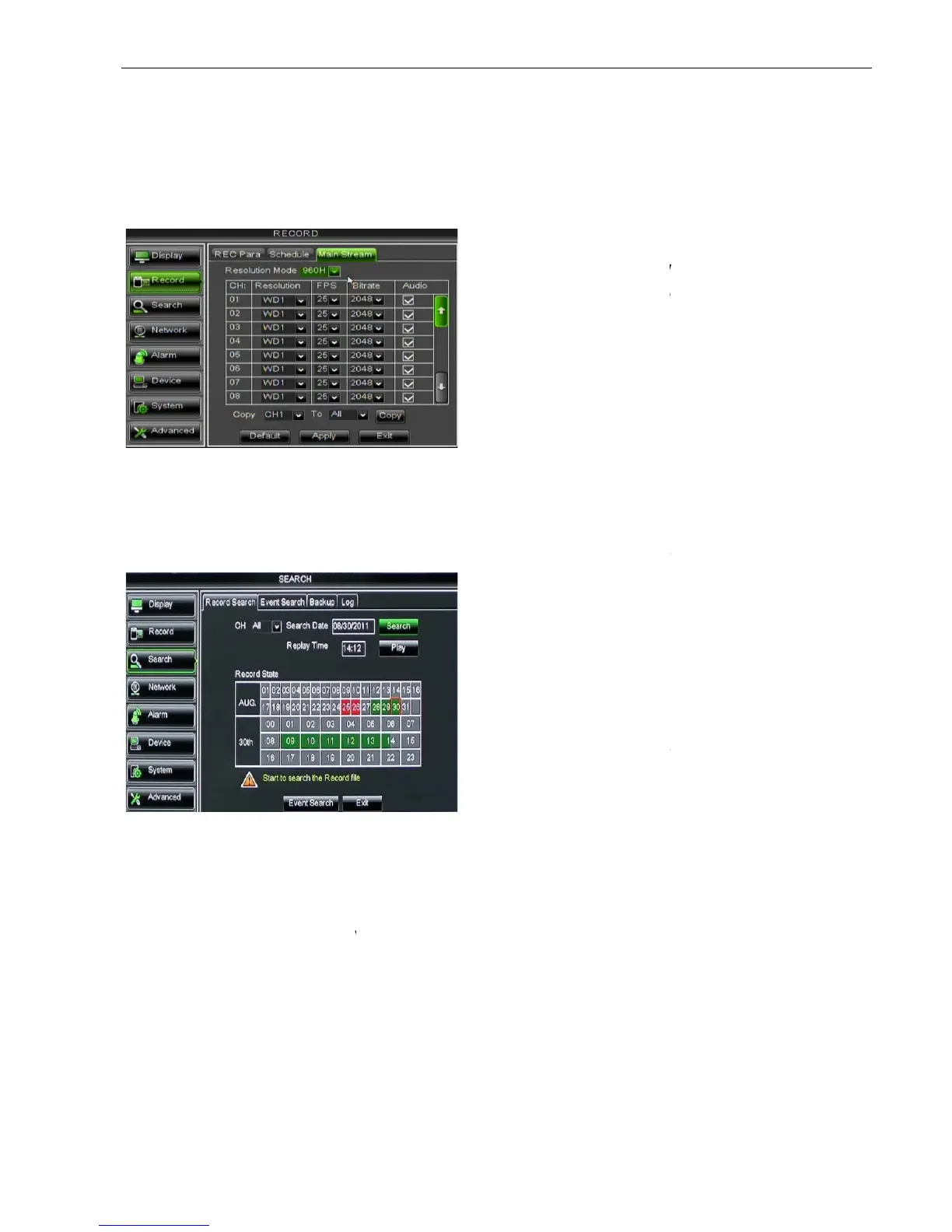
5.2.2.3 Main Stream
Go to [Main menuRecord
Main Stream] to enter into the interface shown as Picture 5
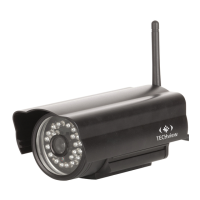
5.2.3 Search
5.2.3.1 Record Search
Click [Main MenuSearch
Record Search] to enter into the interface shown as Picture 5
In the <Search screen>, user can search for a specific date and time for a recording and
view it in Playback mode. This is useful for hunting a specific recording of an incident if you know the date
and time it occurred.
File List: click [Fil
e List] button to enter into the [Event Search] screen shown as Picture 5
records for the time quantum will appear in the screen.
You can use the Playback Control bar to operate the Fast Forward (X2, X4 and X8),
1/4 and 1/8 speed), Play, Pause/Frame, Rewind(X2, X4 and X8). When ending playback,
DVR will return back to previous menu shown as Picture 5
the play control bar will display current playing processing shown as Picture 5
r click any time at the control bar and this point have not any record file, system will auto return
Picture 5-16
Picture 5-17
11
After you complete the schedule you activate it by clicking the
You can also click on the Default button to use the system defaults.
menu, original color stands for no record, “Red” stands
, “yellow” stands for Motion record and
“Green” stands for normal record
Main Stream] to enter into the interface shown as Picture 5
Record Search] to enter into the interface shown as Picture 5
In the <Search screen>, user can search for a specific date and time for a recording and
view it in Playback mode. This is useful for hunting a specific recording of an incident if you know the date
e List] button to enter into the [Event Search] screen shown as Picture 5
records for the time quantum will appear in the screen.
You can use the Playback Control bar to operate the Fast Forward (X2, X4 and X8),
1/4 and 1/8 speed), Play, Pause/Frame, Rewind(X2, X4 and X8). When ending playback,
DVR will return back to previous menu shown as Picture 5
the play control bar will display current playing processing shown as Picture 5
r click any time at the control bar and this point have not any record file, system will auto return
960H: includes WD1, WHD1 and WCIF;
D1: include D1, HD1 and CIF
user could select the relative value by
pull-down menu.
Audio: When tick-
selecting the option, system
will record video stream with audio
simultaneously.
Channel:
allows you select the channel(s)
you desire to search.
Date Search:
In the Video Search screen,
user can search for all the records in a
ecific date. To execute a video search,
highlight and select the date numeric field
and then click a detailed time quantum of
the specific date, system will start the
playback from the first record of the time
menu, original color stands for no record, “Red” stands
“Green” stands for normal record
Main Stream] to enter into the interface shown as Picture 5
Record Search] to enter into the interface shown as Picture 5
In the <Search screen>, user can search for a specific date and time for a recording and
view it in Playback mode. This is useful for hunting a specific recording of an incident if you know the date
e List] button to enter into the [Event Search] screen shown as Picture 5
You can use the Playback Control bar to operate the Fast Forward (X2, X4 and X8),
1/4 and 1/8 speed), Play, Pause/Frame, Rewind(X2, X4 and X8). When ending playback,
the play control bar will display current playing processing shown as Picture 5
r click any time at the control bar and this point have not any record file, system will auto return
960H: includes WD1, WHD1 and WCIF;
D1: include D1, HD1 and CIF
user could select the relative value by
selecting the option, system
will record video stream with audio
allows you select the channel(s)
In the Video Search screen,
user can search for all the records in a
ecific date. To execute a video search,
highlight and select the date numeric field
and then click a detailed time quantum of
the specific date, system will start the
playback from the first record of the time


 To Next Page