In menu lock mode, Enter into pop-up menu and clicking any sub menu to
pop up Log-in window; on menu unlock mode, enter into pop-up menu, and
then clicking left key to enter into any sub menu directly.
After entering into main menu, clicking left key could enter into any sub menu; On
[Detailed file] menu mode, clicking left key could playback one recording file.
Change the status of check box and motion detection area.
Clicking combo box to access pull-down menu; Click left key to stop dwell time
display when dwell time display is activated.
By clicking left key you can adjust Color control bar and volume control bar.
Clicking combo box to access pull-down menu
By clicking left key you can select values in edit boxes or pull-down menu and
supports Chinese word input, special symbol, numeric and character input, use
instead of [Enter- ] or [Backspace ]
Click right key of
Mouse
In live display mode, clicking right key will display pop-up menu (shown as
Picture 5-1).
In Main menu or sub menu mode, clicking right key will exit current menu.
Double-click Left key
of Mouse
In live display or playback mode, double-clicking left key will maximize the
screen.
Moving Mouse Select menu item
Sliding Mouse On motion mode, sliding mouse will select motion area; On [Color set] menu
mode, sliding mouse will adjust color control bar and volume control bar.
Item
Key function
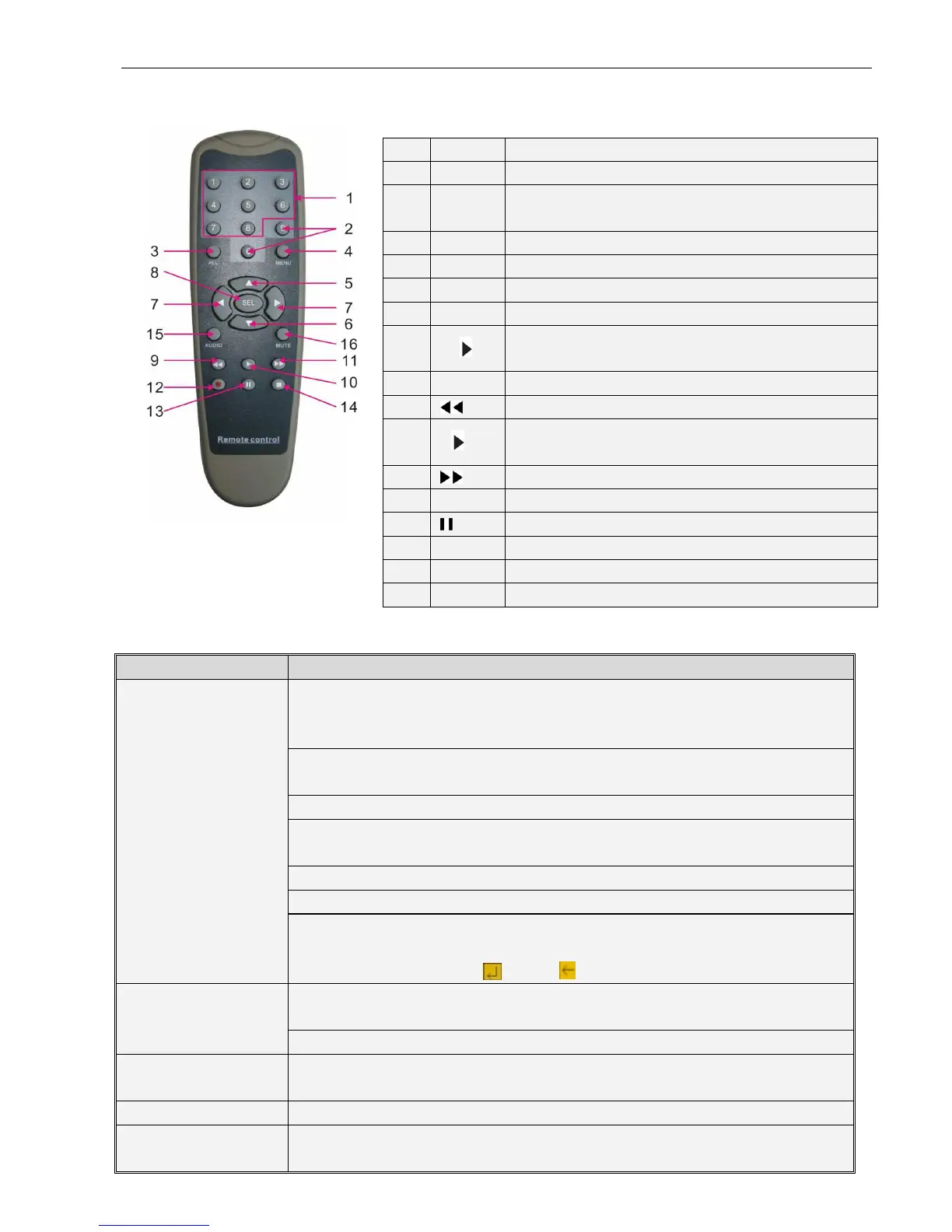
1 1-8 Channel select 1-8; Numeric key
2
9、0
Numeric key; Clicking numeric “0” allow you switch
to output device
3 ALL Multiple display mode
4 Menu Enter into Main menu/Exit
5 ▲ Up arrow key, Volume adjust
6 ▼ Down arrow key, Volume adjust
7
◄/
Left/Down key,
Decrease/increase parameter value of control bar
8 SEL Select key/Edit key; Confirm the selected operation.
9
Rewind key
10 Enter into record search menu;
Play key
11
Forward key
12 ● Record key
13
Pause/Sequence key
14 ■ Stop manual record; stop playing
15 Audio Testing
16 Mute Mute on/off


 To Next Page