User Manual
17
Friendly Reminder:
1. All the parameters you set are available only when you click [Apply] and after system are
restarted.
User need to change MAC address when there are multiple DVRs at the same local area network.
Details please refer to section 5.6.2.5 -System Information.
5. The Subnet Mask, gateway and DNS server should be consistent with your router’s configurations.
6. Input DNS address. Please check router firstly. The setting should be consistent with routers
7. Click [Apply] button
Now you could remotely visit the DVR via IP
http: // public net IP: web port (such as: 8080)
http: //intranet IP: web port (such as: 8080 - only use for Intranet)
Under the above three net mode, You can visit your remote DVR via DDNS and apply for free DDNS account
from the websites: www.3322.org or www.dyndns.org.
5.2.4.2 Router’s Port Forwarding
Port forwarding is required when you want to access the DVR connected to the router from outside of the
router’s network. If PPPoE is selected, port forwarding is not required.
1. Input router’s IP address from IE-based browser to open the Router configuration interface shown as
Picture 5-36;
2. Click [Transmittal rule] option to take you to the port forwarding instructions for your router;
3. The DVR IP address for the intranet should be <192.168.1.101>, you should forward server port
(9000) and web port (8080) to this IP address respectively.
4. Now user can visit the DVR remotely.
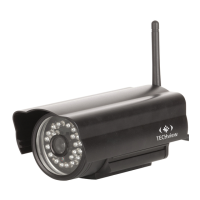
When selecting PPPoE form the Type, user
can input user name and password provided by
ISP and set Media and Web port. And now you
can visit your remote DVR by using the IP
address captured after registering a domain
name and web port and connect to your DVR via
public network.
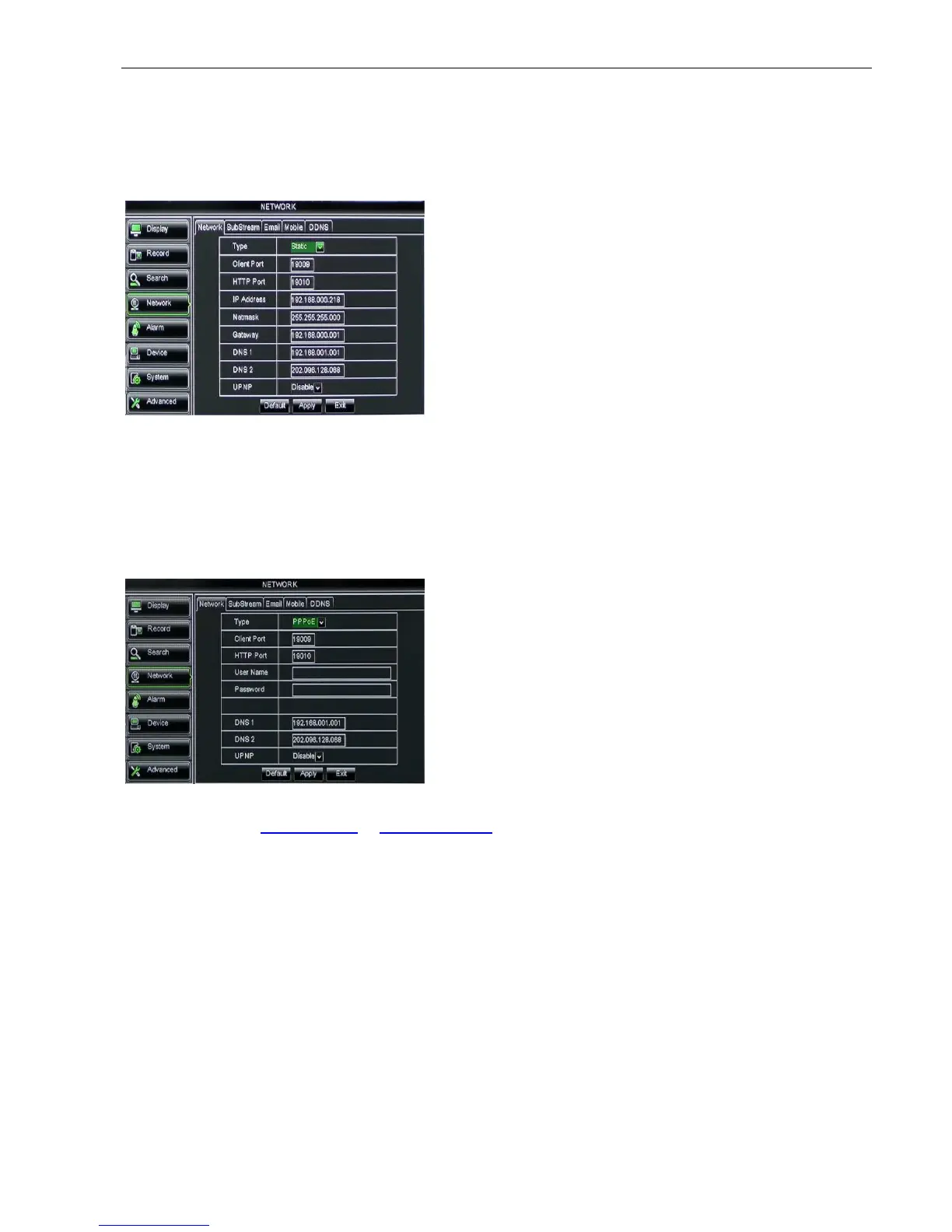
When selecting Static from the Type, user can directly input
IP address, Subnet Mask, Gateway and DNS shown as below
picture 5-33.
1. Set your net type to Static;
2. Set media port number (such as 9000), and the port
need to be forwarded to a router.
3. Input web port number (such as 8080), and the port
need to be forwarded to a router;
4. Input a specified IP address to [IP address] column;


 To Next Page