User Manual
14
5.3.3.5.2 back-up file based on time
Also allow you back-up record files based on time. Please follow below steps to back up these files (Details
operations please refer to section 5.3.4.4.1.):
1. input start time and end time on the time edit box;
2. Click [Search] button;
3. Tick-select all the files you desire to backup;
4. Click the [Backup] on the bottom.
5.3.3.5.3 Play backup file
1. Copy one backup file to your PC.
2. Open Playback player and click “+” icon or button to find/select the backup file, and then click
[open] button.
3. Highlight the file you have selected and click [Play] button.
After backup finished, please click [OK] button
shown as Picture 5-24.
Note:
File will be saved as *.264 format.
You could playback the record files via Dvr
Client player. When installing Dvrclient,
system will auto install the player.
DVD file will be saved as *.nvr format.
Note: Please make sure the back-up device (U
Flash disk, USB port or DVD Recorder) connect well
In the [File List] mode, if you
wish to backup records, please
tick-select the BAK check-boxes
which correspond to the records
and click [Backup] button to enter
into the below windows
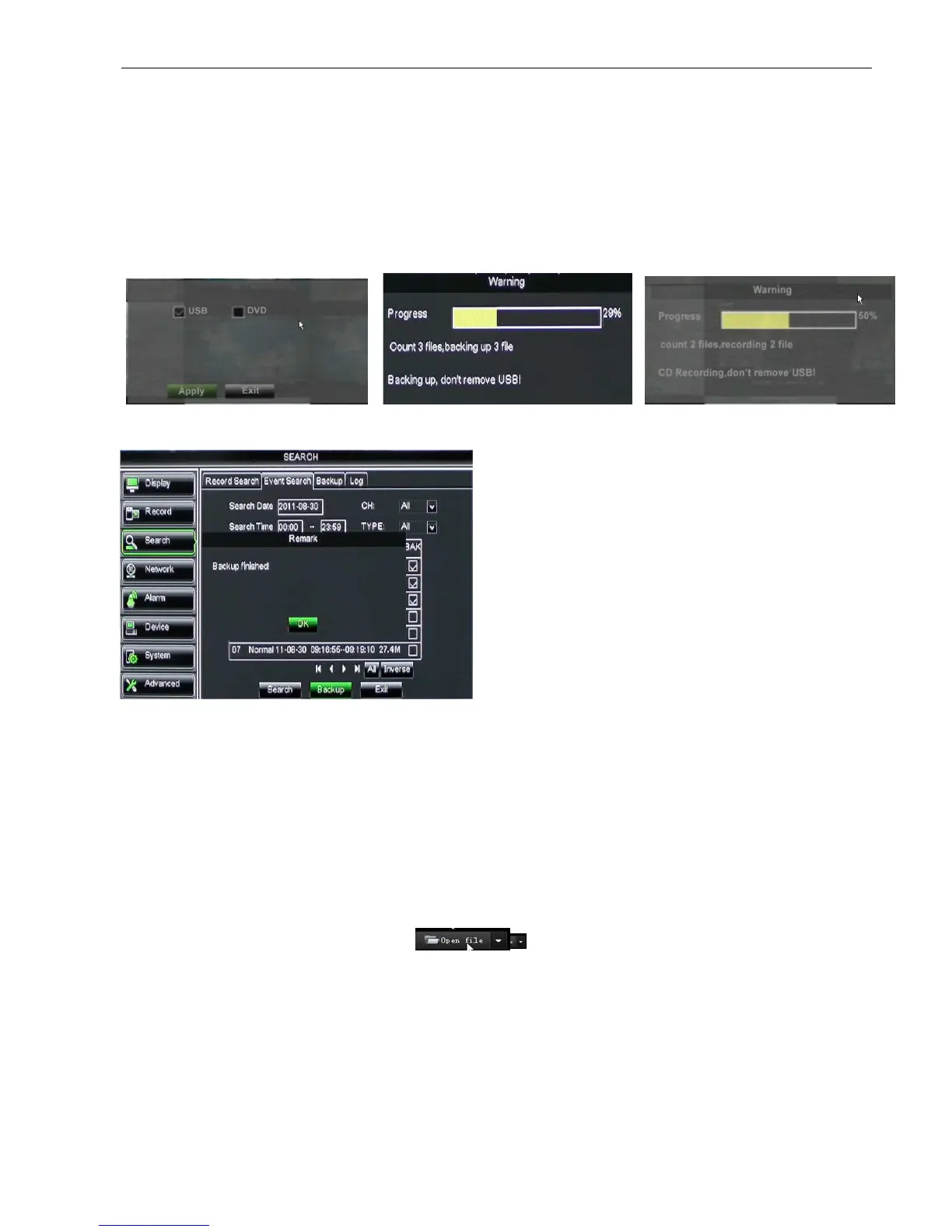
illustrated in Picture 5-21
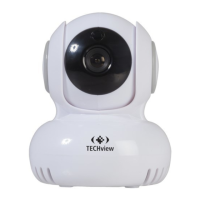
Select USB as backup device
and click [Apply] button, and
then enter into the window
shown as Picture 5-22.
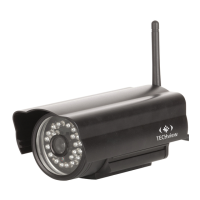
Select DVD as backup
device and click [Apply] button,
and then enter into the window
shown as Picture 5-23.


 To Next Page