User Manual
27
Chapter 6: Web Application Manager
6.1 ActiveX control download and installation
Open your web browser and input the IP address and web port of DVR, such as :
http://172.18.6.202:8080/ . If your computer is connected to internet, it will download and install “ActiveX”
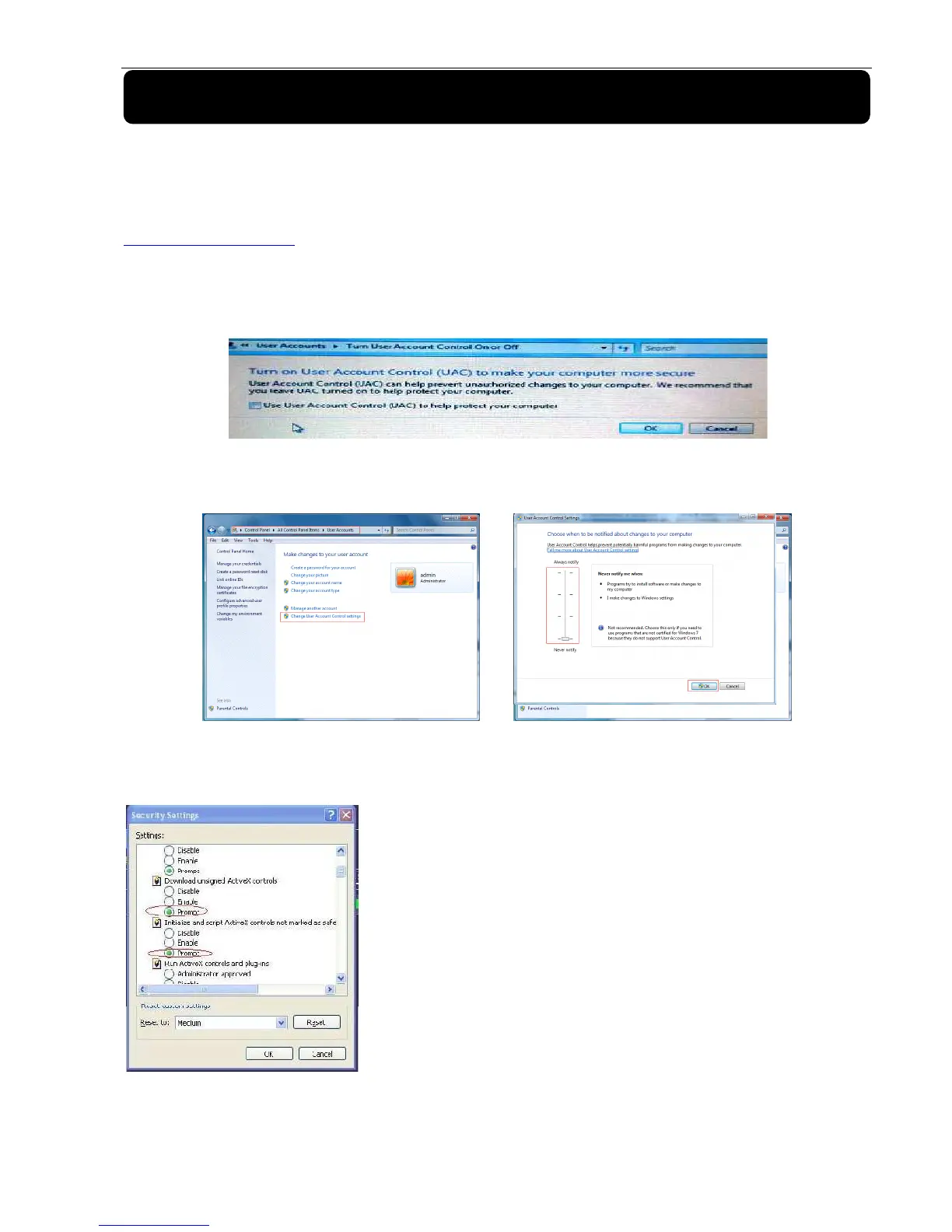
Plug-in automatically. If your computer system is Vista, you may need to setup the user authority. Details
please refer to the below picture: Start →setup→ control panel (Tick “√” use UAC to help protect your
computer and confirm OK).
Vista System
Vista
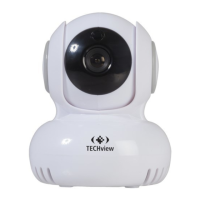
Win-7 system:
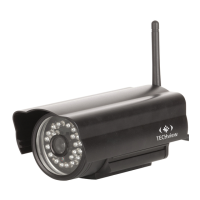
Reminder: If the ActiveX control is not downloaded successfully, please check if your browser’s safety level or
firewall setting is too advanced. Please run IE →Tools→Internet options→Internet Custom level→Enable the
options (details please refer to the below Picture 6-1).
If running the web application for the first time, you
need about one minute to finish download and install the
ActiveX controls, please wait patiently.
Note: If you want to use the undated webcam at
one computer which you already login before, please
delete the old IE webcam and click [StartRun] and
then input the command characters: “regsvr32/u
HiDvrOcx.ocx”, then login again.


 To Next Page