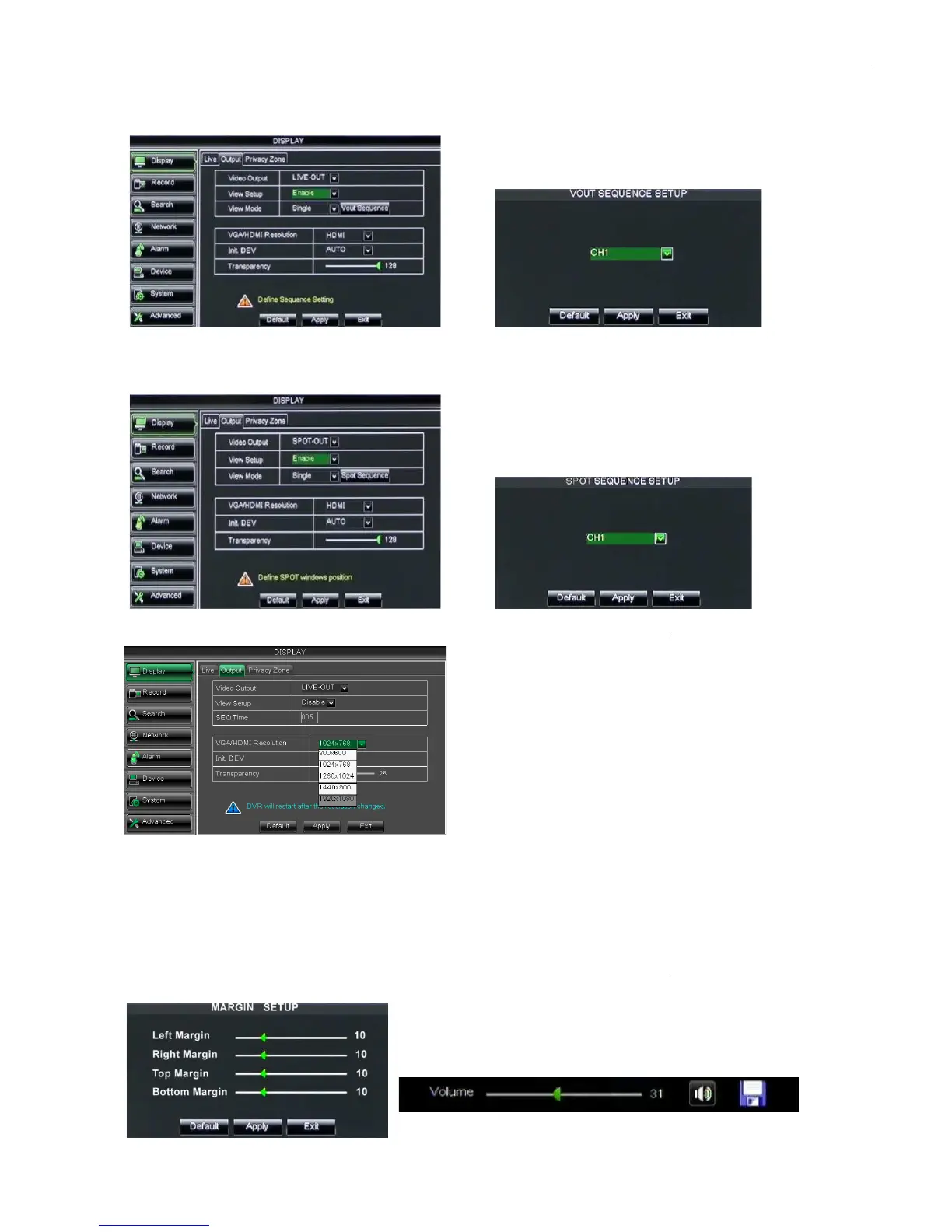
Live output: display window will include Single, Quad, 9
Spot output: display window will include Single, Quad and 9
allow you adjust menu’s transparency, and its
allow you adjust the whole screen’s margin. Details operations please refer to the Picture 5
allow you adjust the DVR volume shown as Picture 5
Picture 5-5
Go to [Main menuDisplay
enter into the output set interface
Click [Spot output] option and set relative
parameters shown as Picture 5-
Picture 5-7
Picture 5-9
Picture 5-10
10
Live output: display window will include Single, Quad, 9
Spot output: display window will include Single, Quad and 9
allow you adjust menu’s transparency, and its
allow you adjust the whole screen’s margin. Details operations please refer to the Picture 5
allow you adjust the DVR volume shown as Picture 5
enter into the output set interface
Click [Live] to pop up the interface
perform channel sequence setting.
Click [Spot output] option and set relative
Click [Spot sequence] to enter into the
Support CVBS output Live and Spot
mode simultaneously, and Live is main output, and
Spot is auxiliary output.
CH Sequence:
the option is defaulted to “Off” and
second. User can activate the
option as per request.
Rotate time:
allow you set sequence time, and
minimum time can be set to 3 seconds.
HDMI output, including 800x600, 1024x768,
allow you adjust the whole screen’s margin. Details operations please refer to the Picture 5
Click [Live] to pop up the interface
perform channel sequence setting.
Click [Spot sequence] to enter into the
Support CVBS output Live and Spot
mode simultaneously, and Live is main output, and
the option is defaulted to “Off” and
second. User can activate the
allow you set sequence time, and
minimum time can be set to 3 seconds.
HDMI output, including 800x600, 1024x768,


 To Next Page