Web Application Manager Log
ActiveX controls installation
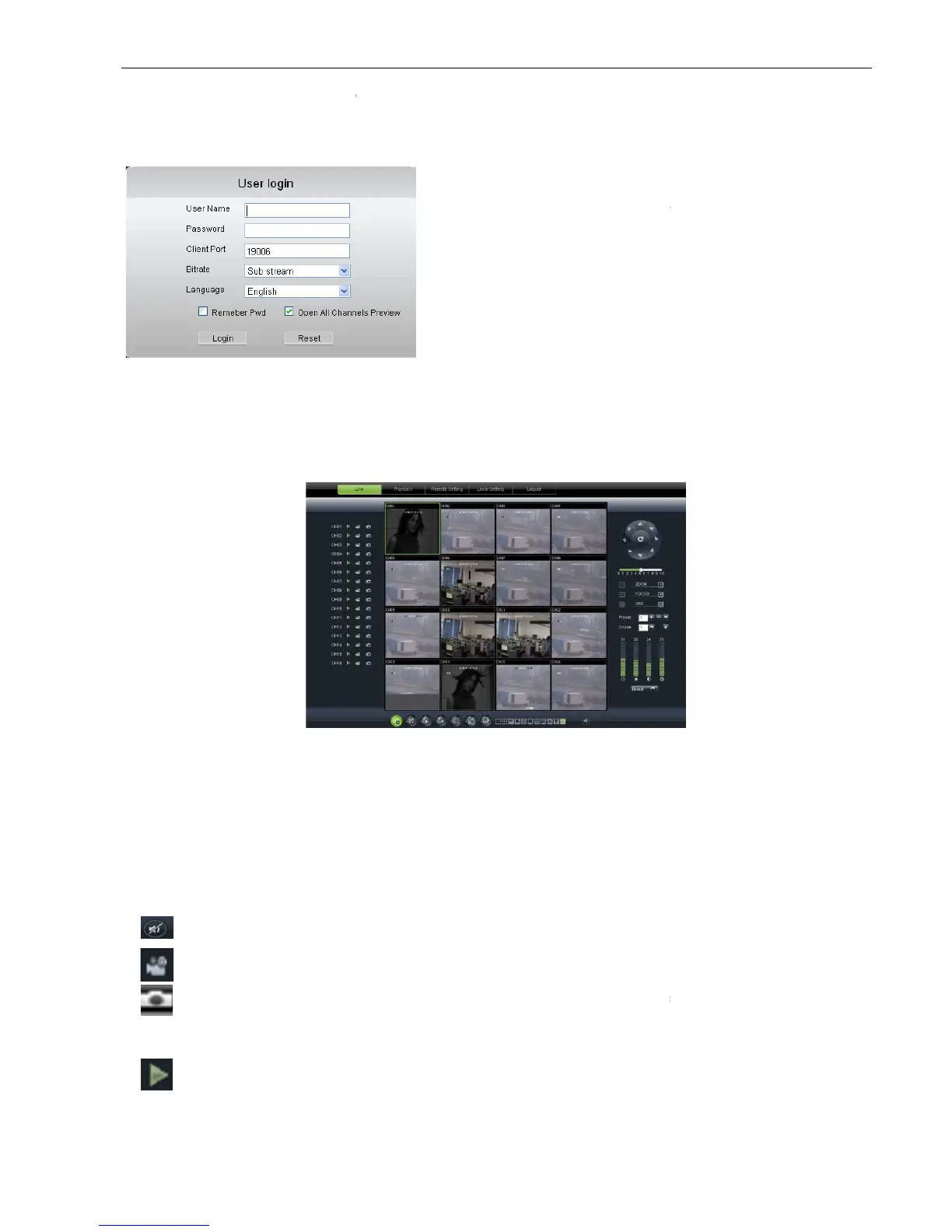
stream> or <sub stream>, and then allow you tick
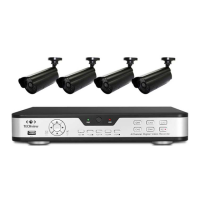
6.3 Live interface
After successful logging-
in web manager, you will enter into the Live interface shown as Picture 6
include [Live], [Replay], [Configuration], [Path Configuration] and [Logout] options
After running the Web Application Manager on your local PC, system will be defaulted to enter into <Live>
interface shown as Picture 6-
3. You can click [Play] button to Open/close live images and enter into on
record and Capture, quad, 9-
Record icon: record will be saved to a specified
Snapshot function: allow you capture the live images and save it to a specified position. The image
should be saved as *.bmp format.
Clicking the icon will close/open the current channel’s live mode
Web Application Manager Log
ActiveX controls installation
, please input user name, password
stream> or <sub stream>, and then allow you tick
select <Open All Channels Preview>;
in web manager, you will enter into the Live interface shown as Picture 6
include [Live], [Replay], [Configuration], [Path Configuration] and [Logout] options
After running the Web Application Manager on your local PC, system will be defaulted to enter into <Live>
3. You can click [Play] button to Open/close live images and enter into on
split mode by operating the control bar on the bottom of screen.
Record icon: record will be saved to a specified
position after starting record.
Snapshot function: allow you capture the live images and save it to a specified position. The image
Clicking the icon will close/open the current channel’s live mode
allowed to access a remote DVR and monitor live
video images using Web browser anytime from
Noted that defaulted password is empty.
System allows Administrator to set new password as
per instructions in section 6.3.3 -
Configuration] menu.
User Manual
select <Open All Channels Preview>;
in web manager, you will enter into the Live interface shown as Picture 6
include [Live], [Replay], [Configuration], [Path Configuration] and [Logout] options
After running the Web Application Manager on your local PC, system will be defaulted to enter into <Live>
3. You can click [Play] button to Open/close live images and enter into on
split mode by operating the control bar on the bottom of screen.
position after starting record.
Snapshot function: allow you capture the live images and save it to a specified position. The image
allowed to access a remote DVR and monitor live
video images using Web browser anytime from
Noted that defaulted password is empty.
System allows Administrator to set new password as


 To Next Page