After you complete the schedule you activate it by clicking the [Apply] button.
You can also click on the Default button
Explanation: Under the <record>
, “yellow” stands for Motion record and
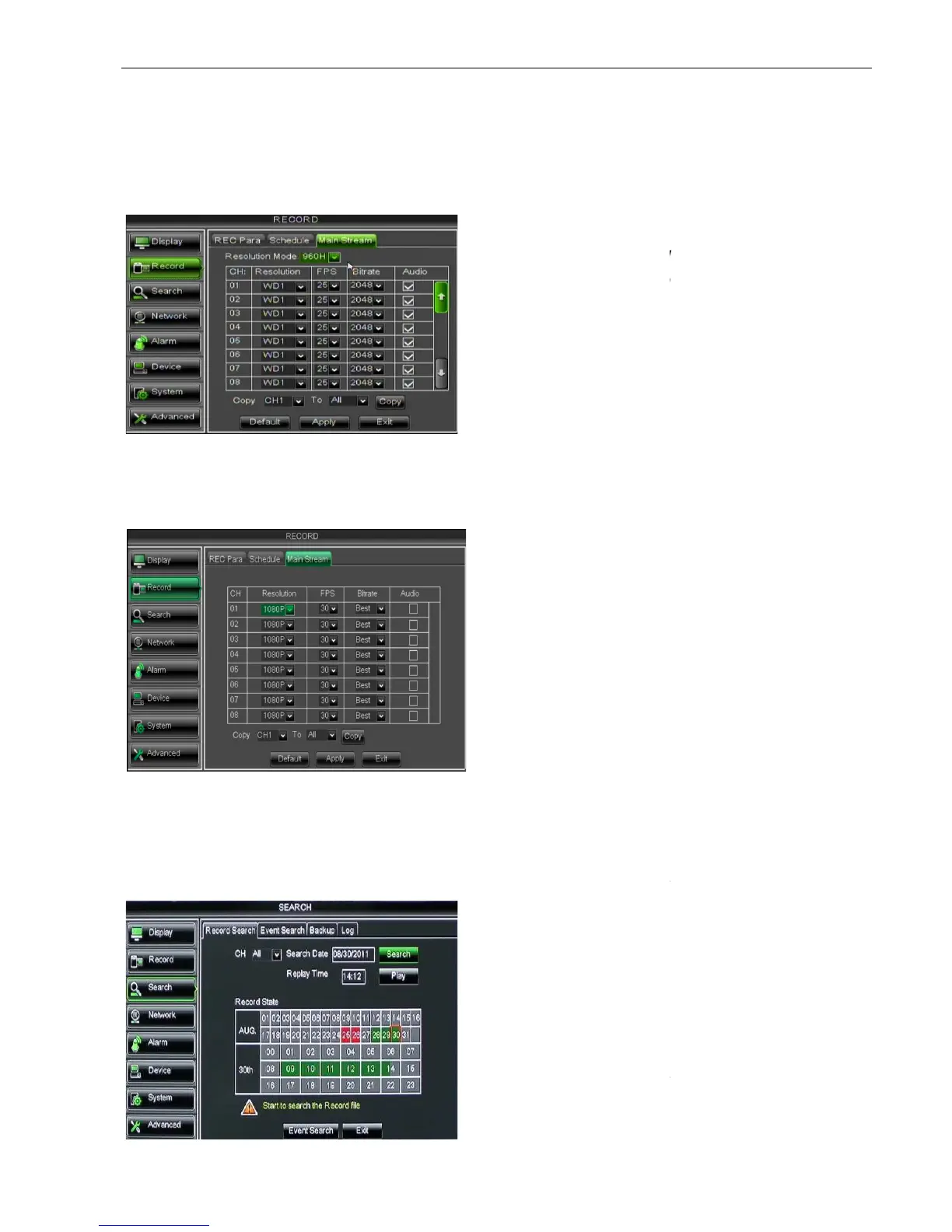
5.2.2.3 Main Stream
Go to [Main menuRecord
Main Stream] to enter into the interface shown as Picture 5
As for the DVR of SDI series, the set is below:
5.2.3 Search
5.2.3.1 Record Search
Click [Main MenuSearch
Record Search] to enter into the interface shown as Picture 5
Picture 5-16
Picture 5-17
Picture 5-16-2
After you complete the schedule you activate it by clicking the [Apply] button.
You can also click on the Default button
to use the system defaults.
menu, original color stands for no record, “Red” stands
, “yellow” stands for Motion record and
“Green” stands for normal record
Main Stream] to enter into the interface shown as Picture 5
As for the DVR of SDI series, the set is below:
enter into the interface shown as Picture 5
Record Search] to enter into the interface shown as Picture 5
960H: includes WD1, WHD1 and WCIF;
D1: include D1, HD1 and CIF
pull-down menu.
Audio: When tick-
selecting the option, system
will record video stream with audio
simultaneously.
Channel:
allows you select the channel(s)
you desire to search.
Date Search:
In the Video Search screen,
user can search for all the records in a
specific date. To execute a video search,
highlight and select the date numeric field
and then click a detailed time quantum of
the specific date, system will start the
it is used for saving in DVR, user can
select best/better/good three type.
selecting the option, audio
would be recorded simultaneously by system
and come out with video in playback. On the
contrary, audio would be non
missing in playback when the option is blank
menu, original color stands for no record, “Red” stands
“Green” stands for normal record
Main Stream] to enter into the interface shown as Picture 5
enter into the interface shown as Picture 5
Record Search] to enter into the interface shown as Picture 5
960H: includes WD1, WHD1 and WCIF;
D1: include D1, HD1 and CIF
selecting the option, system
will record video stream with audio
allows you select the channel(s)
In the Video Search screen,
user can search for all the records in a
specific date. To execute a video search,
highlight and select the date numeric field
and then click a detailed time quantum of
the specific date, system will start the
it is used for saving in DVR, user can
select best/better/good three type.
selecting the option, audio
would be recorded simultaneously by system
and come out with video in playback. On the
contrary, audio would be non
missing in playback when the option is blank


 To Next Page