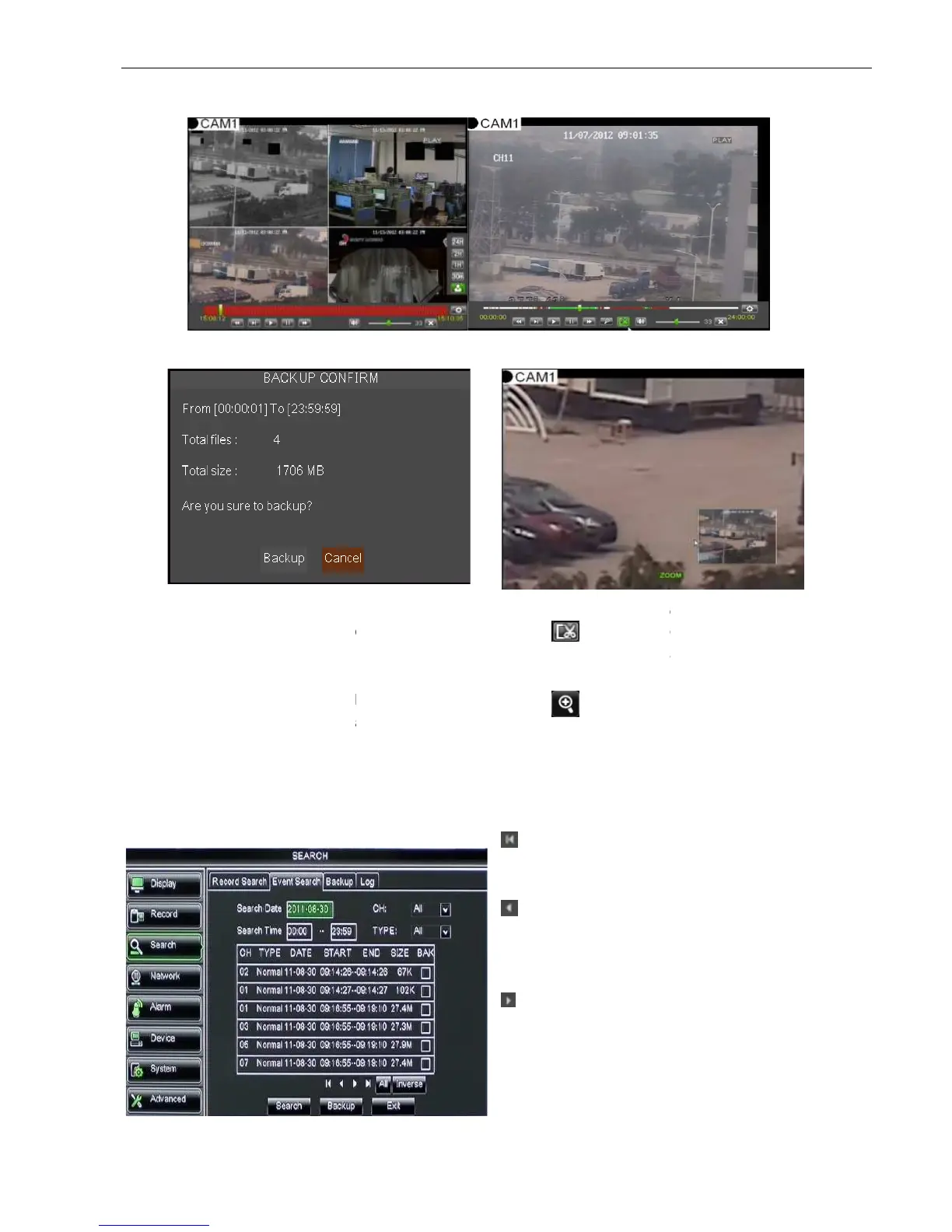
Now, the whole time axis equals the time quantum you j
Record Clip and backup function and Zoom in/out function
Clip and backup: When one channel is playing
. Click the icon to start video clip function, click it again to end the function and
dialog shown as Picture 5
Zoom Function: When one channel is playing
Click the icon to zoom in one area of the pl
5.2.3.4 Event Search
Click [Main MenuSearch
Event Search] to enter into the interface shown as Picture 5
You could highlight and double
w based on date, time, and channel
and record mode search.
Picture 5-20
, click any points of the proc
essing bar as start time and/or end time
Now, the whole time axis equals the time quantum you j
ust selected (shown as Picture
Record Clip and backup function and Zoom in/out function
Clip and backup: When one channel is playing
will appear in the [Play con
. Click the icon to start video clip function, click it again to end the function and
dialog shown as Picture 5
ow, allow you select if you will save the clipped video file.
Zoom Function: When one channel is playing
back, the [ ] icon will appear in the [Play control] bar.
Click the icon to zoom in one area of the pl
ayback screen shown as Picture
Event Search] to enter into the interface shown as Picture 5
You could highlight and double
click the desired record for playback. And you also can filter the records
w based on date, time, and channel
go to the first page on the list.
When you view other pages, clicking [First] button
brings you back to Page one.
go to the previous ones of
current page. Clicking [Pre] button will take you
back the previous ones of current page
first page).
(Next page):
go to the next ones of current
page. Clicking the [Next] button will take you to the
next ones of current page
essing bar as start time and/or end time
ust selected (shown as Picture
will appear in the [Play con
. Click the icon to start video clip function, click it again to end the function and
ow, allow you select if you will save the clipped video file.
back, the [ ] icon will appear in the [Play control] bar.
Event Search] to enter into the interface shown as Picture 5
click the desired record for playback. And you also can filter the records
go to the first page on the list.
When you view other pages, clicking [First] button
brings you back to Page one.
go to the previous ones of
current page. Clicking [Pre] button will take you
back the previous ones of current page
go to the next ones of current
page. Clicking the [Next] button will take you to the
next ones of current page


 To Next Page