User Manual CXE85X
59300464 Rev.005
9.12.2013 15(44)
Web browser Interface (WebUI)
CXE85x has also a web browser user interface (WebUI) which can be used to
read and adjust RF controls and to monitor the status of the unit. It is also
possible to update the unit software via WebUI.
To connect to the device with a web browser, simply enter the device IP
address into the web browser’s address bar and the unit’s “Home” page will
appear.
Command Line Interface (CLI)
The command line interface (CLI) is an alternative to the WebUI. The CLI lets
you view and modify status and configuration information through a network
connection. If you already deployed the network and know the IP address of the
unit, you can use a remote Telnet connection to view the CXE85x over the
network. CXE85x supports up to four simultaneous Telnet connections.
Enabling Telnet in Windows 7
First of all, make sure you have Telnet enabled in Windows. You can do this by
opening Windows Command window by typing ‘cmd’ into the Start menu
search. In Commander windows, type ‘Telnet’. If you get a Telnet prompt, you
have Telnet enabled. If you get an error message, Telnet is not enabled in your
PC. If you have admin rights to your PC, you can enable Telnet yourself.
Otherwise you must contact your computer administrator to do it.
To enable Telnet, go to Control Panel - ‘Programs and Features’ and ‘Turn
Windows features on or off’. From the list, select ‘Telnet client’. Then close
Control Panel.
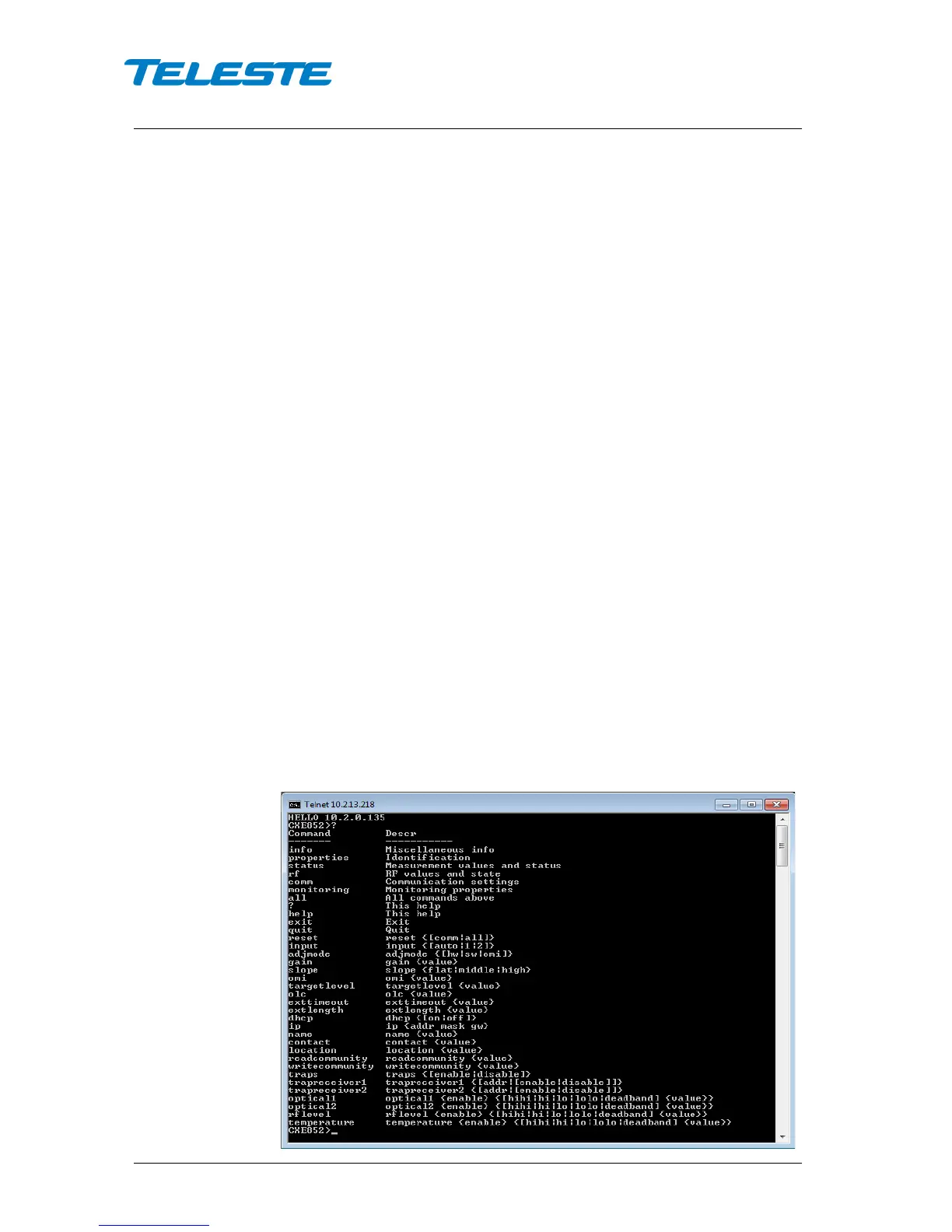
Once you have Telnet enabled, type to command window ‘telnet <ip_address>’,
where <ip_address> is the address of the unit. After a successful login, ,
"HELLO [ipaddr]" appears with "CXE852>" prompt, where [ipaddr] is the
connecting machine's IP.
You are now ready to enter CLI commands at the command line prompt. The
CLI is a straightforward command interface. You type commands on a single
line, and the commands are executed when you press Enter. You can get a list
of available commands by typing in ‘help’ or ‘?’. A brief explanation follows each
command. For more detail see "CLI commands" chapter.


 To Next Page