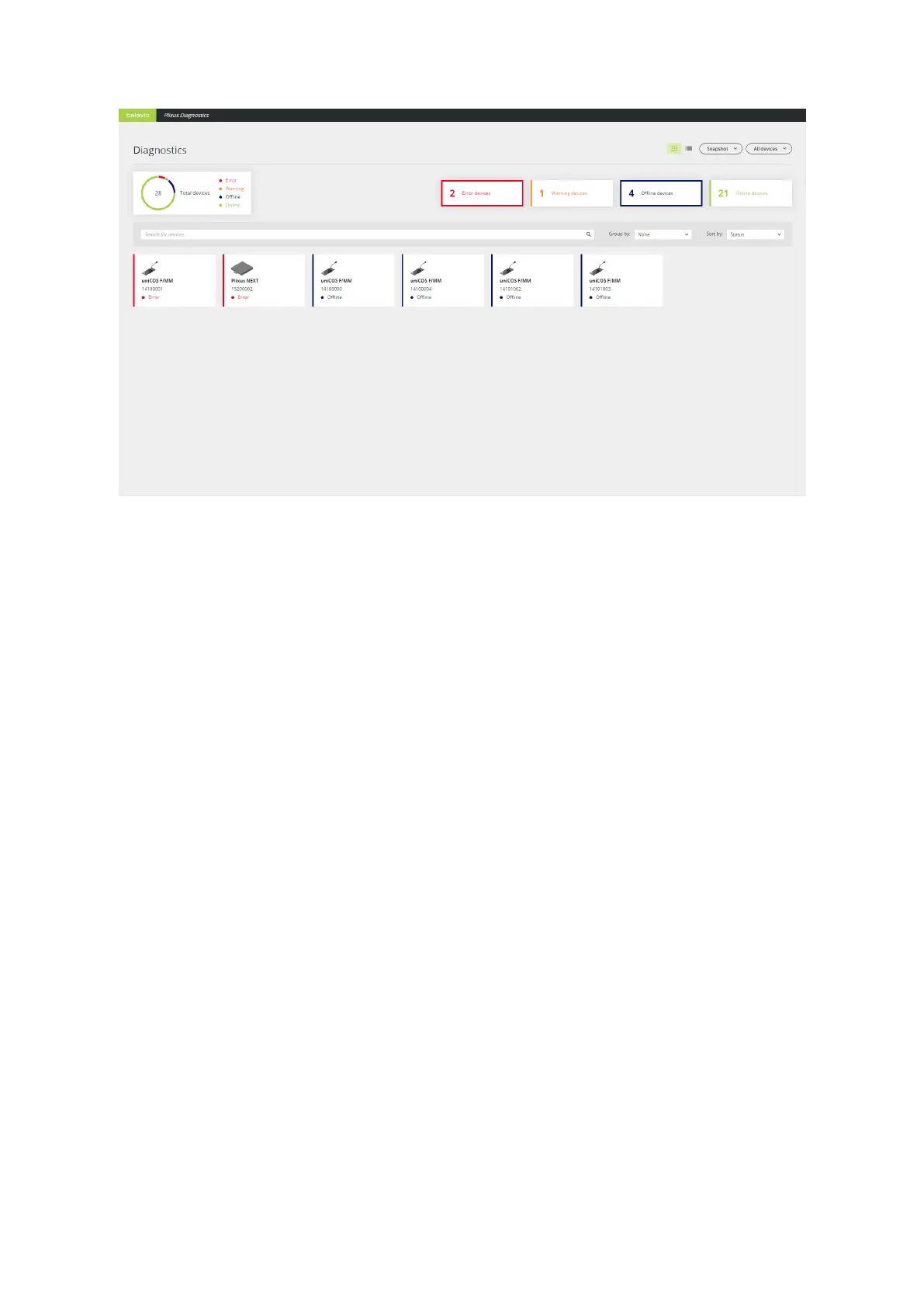
Figure 1-77 How to use the filters in the Diagnostics application. Two filters are active: devices with error and
offline devices.
USING THE SEARCH FUNCTION
You can use the search bar to find specific devices. You can use the device type or serial number to find
specific devices. The search function works dynamically and the search result updates in real-time while you
type.
Visualize Loops And Branches
In the Diagnostics application, you can group devices based on the loop/branch they belong to. With this
option, you can see when a loop is broken because then the loop becomes a branch. To see the
loops/branches select Loop/Branch under Group by next to the search bar.
For every loop/branch, you can see the serial number of the device the loop/branch starts/ends in the
header of the group. The order of the devices in the overview is the same as in the actual loop/branch
present in the room. For a loop, this means that the first device in the list, is directly connected to the first
device in the group header and the last device in the list is connected to the second device in the group
header, as shown by the orange line in the image below.
DIAGNO STICS 149


 To Next Page