➢ Connecting to the device over the Internet
For connecting to the device remotely over the Internet, choose the “Cloud” option in the
“Connection type” menu.
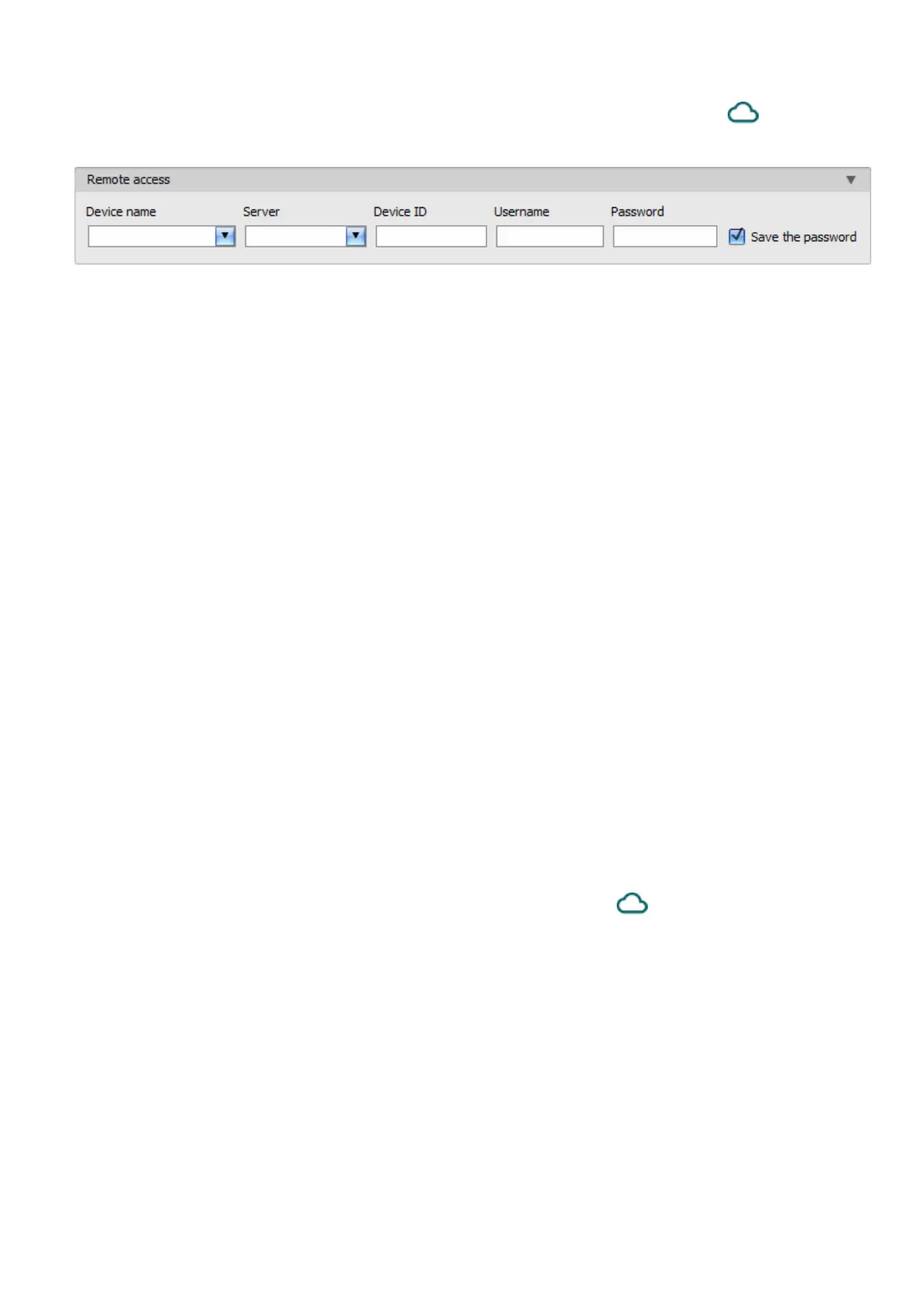
Device name: if you have already added the device contact details in the program’s device
register, you can select the device you want to connect to from the drop-down menu.
Server: the name of the server where the device is online. The server named “Cloud (Gate
Control)” is the default. In case of using a proxy, for connecting remotely to the device, it is
possible to configure a server IP address and port number different from the default server,
by adding a new server in the “Server register” menu. If there are further servers recorded,
you can choose the appropriate server for the given device in this drop-down menu, from the
recorded servers. The “Server register” menu is hidden by default, since it in most cases using
it is not necessary. You can find the option used to enable showing this menu in the “Software
settings / Settings” menu.
Device ID: the identifier of the Gate Control BASE device you want to connect to. You can first
read and copy the identifier of the given device in the “Device ID” field found in the “Status
monitoring” menu, when connected via USB.
*Devices with firmware version earlier than V8.00 have used the identifier of the SIM card
(ICCID) installed, to identify the device in the system. Therefore, if your device has been
updated from a version earlier than V8.00, and a remote access password was configured in
the device before the update, then the device will continue to use the SIM identifier for
identification purposes.
Username: your superadmin or admin username registered in the “Users” menu, which you
want to use to connect to the device.
Password: the password registered for the given username in the “Remote access” menu.
Save the password: in case that you have provided the data necessary for connecting to the
device here in the “Connection parameters” section, and you enable this option, the program
will also save the entered password in the device register, when you initiate a connection to the
device.
• Click on the “Connection type” menu and select the “Cloud” option.
• If you have already registered the device in the “Device register” menu, select the device
you want to connect to from the “Device name” drop-down menu. Otherwise, you can either
enter the data needed for connecting in the corresponding fields, which will be recorded
automatically in the device register using the entered device ID as the device name, when
you start connecting to the device. For this, select the server from the “Server” drop-down
menu, enter the identifier of the device in the “Device ID” field, the super admin (or admin)
username in the “Username” field, and the remote access password configured for that, in
the “Password” field.


 To Next Page