17
Using the keyboard
Upper and lowercase typing
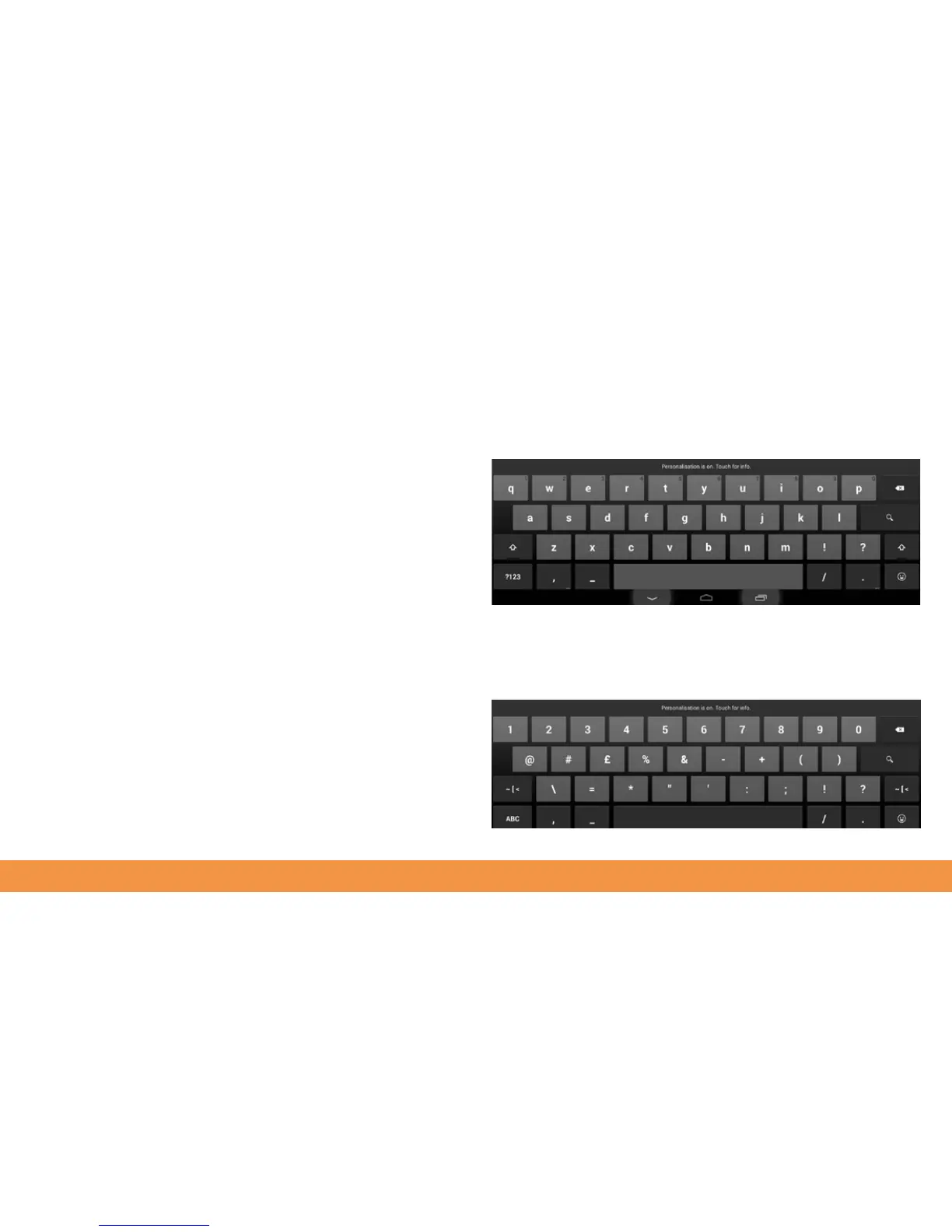
When you need to enter text or numbers a keyboard will appear onscreen. You’ll
quickly get used to using the onscreen keyboard, which is much like a computer
keyboard. Spelling suggestions appear above the keyboard as you type. Tap to select
one and speed up your typing.
To type an uppercase letter, tap the Shift key on the keyboard. To turn on Caps Lock
tap and hold the Shift key. To go back to lowercase typing, just tap the Shift key again.
Switching between keyboards
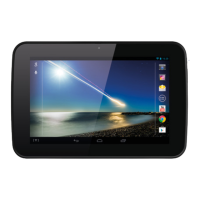
The hudl2 two has three keypads: QWERTY, numeric/punctuation and additional
punctuation. Tap the ?123 key to use the numeric keyboard. Tap the ABC key to return
to the QWERTY keyboard. If you can’t see the punctuation you want on the numeric/
punctuation keyboard tap the ~/{ key. You’ll now see a keyboard full of additional
punctuation. You can also add international keyboards in the Settings > Keyboards
menu. To switch between them tap the globe icon.


 To Next Page